> ## Documentation Index
> Fetch the complete documentation index at: https://docs.cube.dev/llms.txt
> Use this file to discover all available pages before exploring further.
# Microsoft Fabric
> Microsoft Fabric is an all-in-one analytics solution for enterprises. It offers a comprehensive suite of services, including a data warehouse.
[Microsoft Fabric][link-fabric] is an all-in-one analytics solution for
enterprises. It offers a comprehensive suite of services, including a
data warehouse.
Available on the [Enterprise plan](https://cube.dev/pricing).
[Contact us](https://cube.dev/contact) for details.
## Setup
When creating a new deployment in Cube Cloud, at the **Set up a database
connection** step, choose **Microsoft Fabric**.
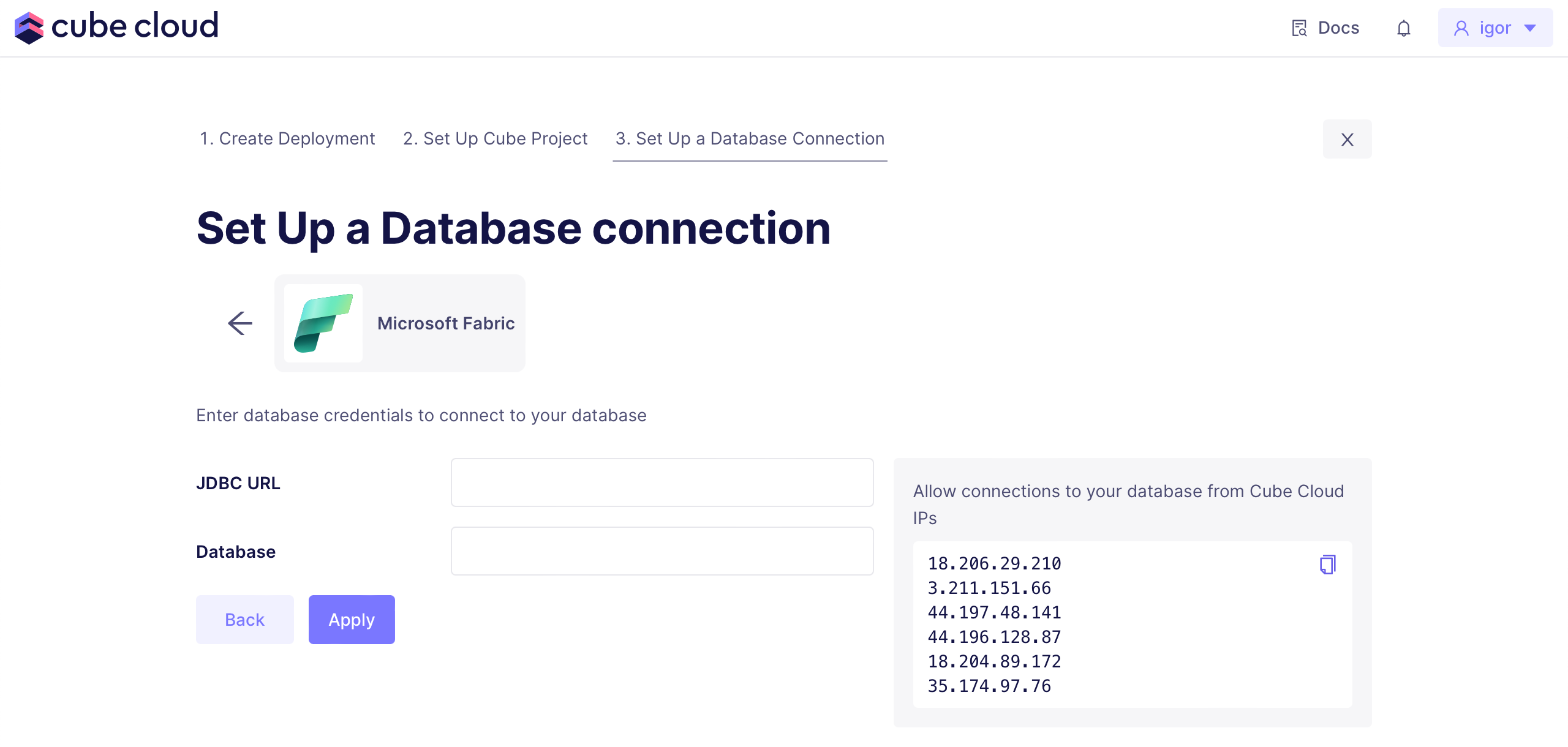 Then, provide the **JDBC URL** connection string in the following
format. See below for tips on filling in ``, ``,
``, ``, and ``.
```text theme={"dark"}
jdbc:sqlserver://;serverName=.datawarehouse.pbidedicated.windows.net;database=;encrypt=true;Authentication=;UserName=;Password=
```
Optionally, fill in **Database** if you'd like to override the database
name from the JDBC URL.
### Server and database name
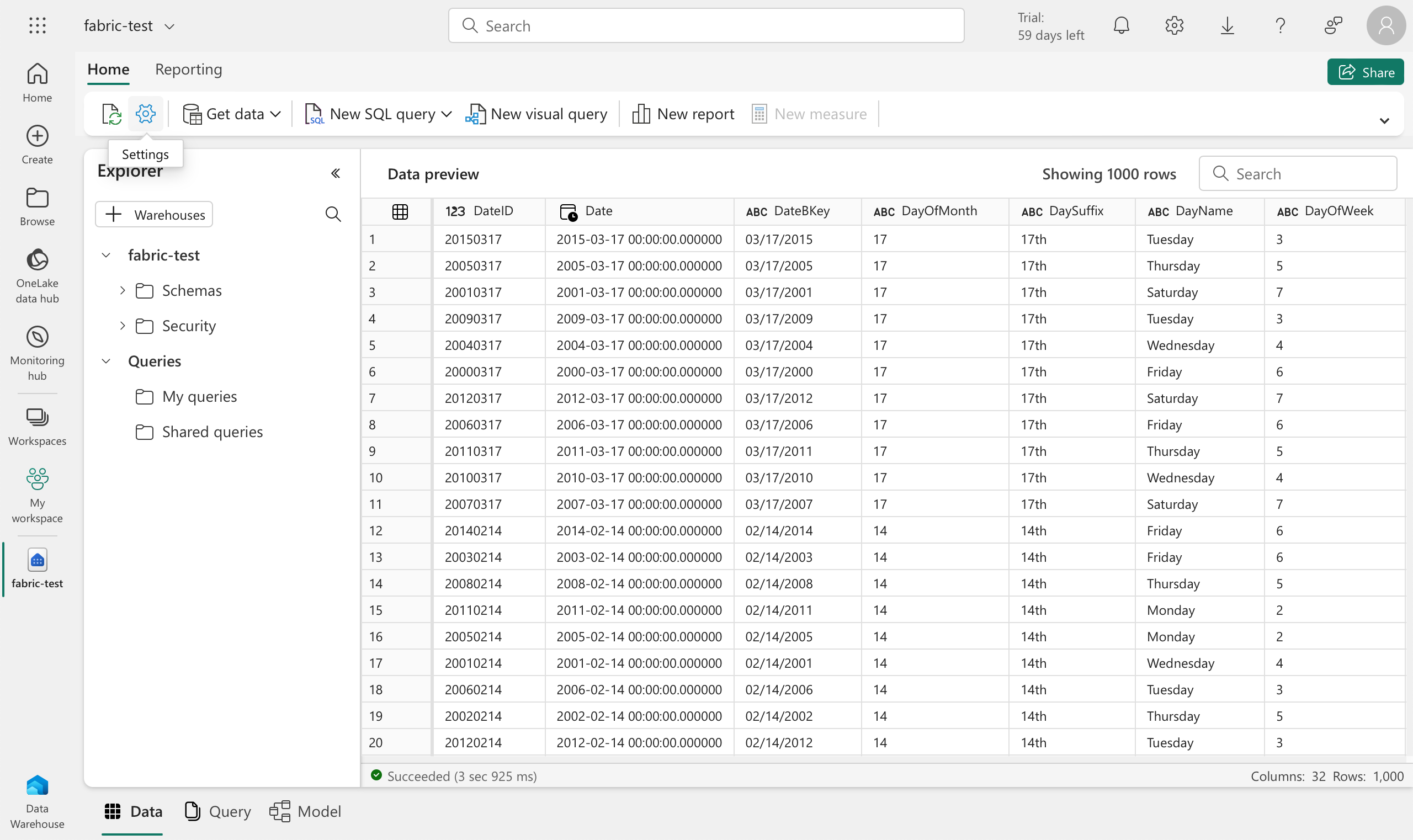
To obtain your data warehouse server name and database name, navigate to your
data warehouse in Microsoft Fabric and click on the cog icon to open
**Settings**:
Then, provide the **JDBC URL** connection string in the following
format. See below for tips on filling in ``, ``,
``, ``, and ``.
```text theme={"dark"}
jdbc:sqlserver://;serverName=.datawarehouse.pbidedicated.windows.net;database=;encrypt=true;Authentication=;UserName=;Password=
```
Optionally, fill in **Database** if you'd like to override the database
name from the JDBC URL.
### Server and database name
To obtain your data warehouse server name and database name, navigate to your
data warehouse in Microsoft Fabric and click on the cog icon to open
**Settings**:
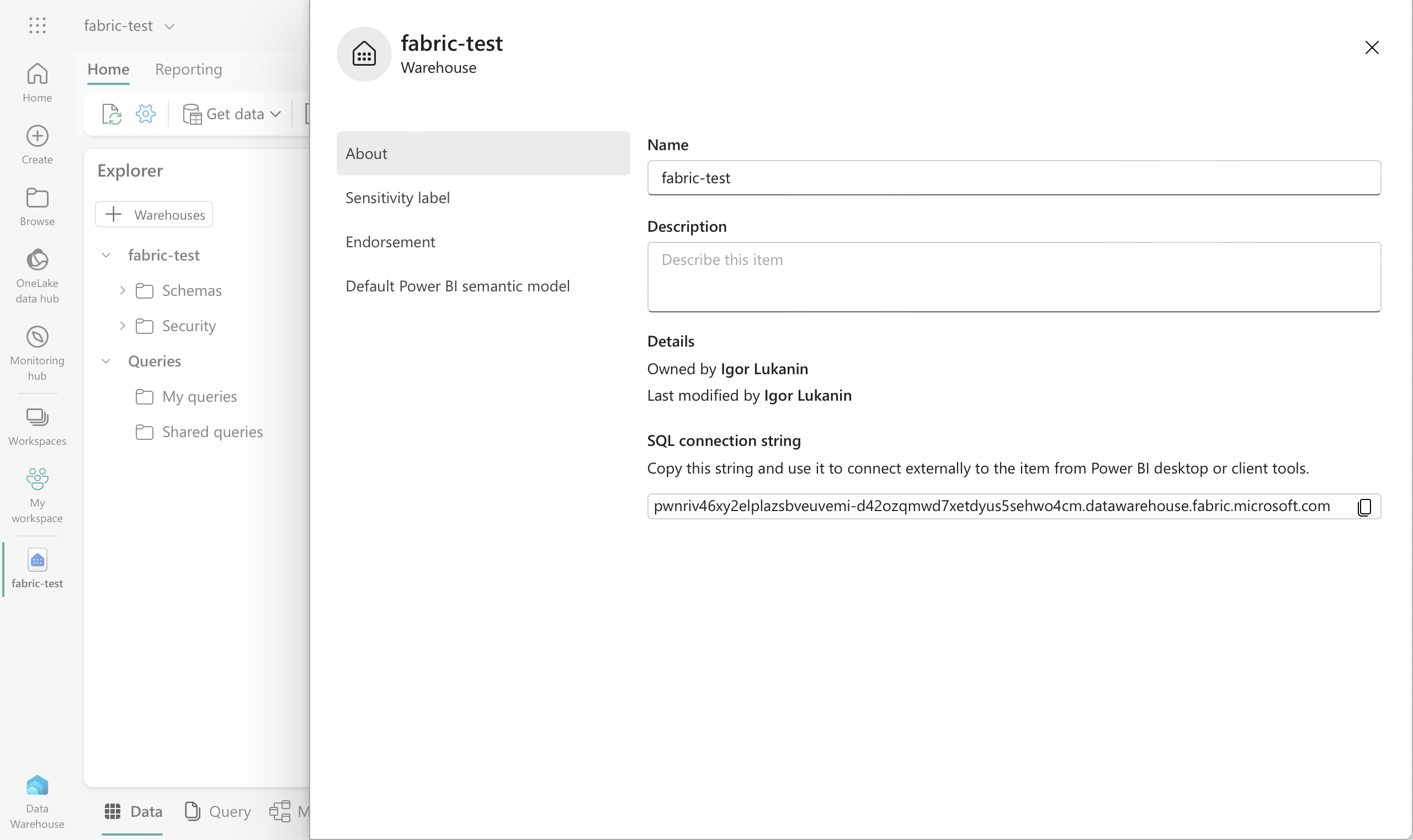
 On the **About** page, you can find the database name (``)
under **Name** and the server name (``) under
**SQL connection string**:
On the **About** page, you can find the database name (``)
under **Name** and the server name (``) under
**SQL connection string**:
 ### Authentication
Microsoft Fabric supports two [authentication types][link-fabric-auth]:
* Use `ActiveDirectoryPassword` as `` to connect using a
Microsoft Entra principal name and password. Provide principal name as
`` and password as ``.
* Use `ActiveDirectoryServicePrincipal` as `` to connect
using the client ID and secret of a service principal identity. Provide
client ID as `` and secet as ``.
## Pre-Aggregation Feature Support
### count\_distinct\_approx
Measures of type
[`count_distinct_approx`][ref-schema-ref-types-formats-countdistinctapprox] can
not be used in pre-aggregations when using Microsoft Fabric as a source
database.
## Pre-Aggregation Build Strategies
To learn more about pre-aggregation build strategies, [head
here][ref-caching-using-preaggs-build-strats].
| Feature | Works with read-only mode? | Is default? |
| ------------- | :------------------------: | :---------: |
| Simple | ✅ | ✅ |
| Batching | - | - |
| Export Bucket | - | - |
By default, Microsoft Fabric uses a [simple][self-preaggs-simple] strategy
to build pre-aggregations.
### Simple
No extra configuration is required to configure simple pre-aggregation builds
for Microsoft Fabric.
### Batching
Microsoft Fabric does not support batching.
### Export Bucket
Microsoft Fabric does not support export buckets.
[link-fabric]: https://www.microsoft.com/en-us/microsoft-fabric/
[link-fabric-auth]: https://learn.microsoft.com/en-us/sql/connect/jdbc/setting-the-connection-properties?view=sql-server-ver16#properties
[ref-caching-using-preaggs-build-strats]: /docs/pre-aggregations/using-pre-aggregations#pre-aggregation-build-strategies
[ref-schema-ref-types-formats-countdistinctapprox]: /reference/data-modeling/measures#type
[self-preaggs-simple]: #simple
### Authentication
Microsoft Fabric supports two [authentication types][link-fabric-auth]:
* Use `ActiveDirectoryPassword` as `` to connect using a
Microsoft Entra principal name and password. Provide principal name as
`` and password as ``.
* Use `ActiveDirectoryServicePrincipal` as `` to connect
using the client ID and secret of a service principal identity. Provide
client ID as `` and secet as ``.
## Pre-Aggregation Feature Support
### count\_distinct\_approx
Measures of type
[`count_distinct_approx`][ref-schema-ref-types-formats-countdistinctapprox] can
not be used in pre-aggregations when using Microsoft Fabric as a source
database.
## Pre-Aggregation Build Strategies
To learn more about pre-aggregation build strategies, [head
here][ref-caching-using-preaggs-build-strats].
| Feature | Works with read-only mode? | Is default? |
| ------------- | :------------------------: | :---------: |
| Simple | ✅ | ✅ |
| Batching | - | - |
| Export Bucket | - | - |
By default, Microsoft Fabric uses a [simple][self-preaggs-simple] strategy
to build pre-aggregations.
### Simple
No extra configuration is required to configure simple pre-aggregation builds
for Microsoft Fabric.
### Batching
Microsoft Fabric does not support batching.
### Export Bucket
Microsoft Fabric does not support export buckets.
[link-fabric]: https://www.microsoft.com/en-us/microsoft-fabric/
[link-fabric-auth]: https://learn.microsoft.com/en-us/sql/connect/jdbc/setting-the-connection-properties?view=sql-server-ver16#properties
[ref-caching-using-preaggs-build-strats]: /docs/pre-aggregations/using-pre-aggregations#pre-aggregation-build-strategies
[ref-schema-ref-types-formats-countdistinctapprox]: /reference/data-modeling/measures#type
[self-preaggs-simple]: #simple