> ## Documentation Index
> Fetch the complete documentation index at: https://docs.cube.dev/llms.txt
> Use this file to discover all available pages before exploring further.
# Set up per-user OAuth
> Configure Cube to authenticate each user with their own OAuth token, falling back to a service account for liveness checks.
This feature is in beta. Reach out to your account manager to have it
enabled for your Cube Cloud deployment.
## Use case
You want each user's queries to run under their own database identity
using OAuth tokens managed by Cube Cloud. When a user's token is
unavailable or expired, Cube falls back to a service account so that
connectivity checks and background operations still work.
This pattern applies to any data source that supports OAuth, including
[Databricks][ref-databricks-jdbc] and [Snowflake][ref-snowflake]. The
examples below use Databricks; switch the `userCredentials` key and
driver options for any other OAuth-capable data source.
Because every user connects with different credentials, you also need
per-user query orchestrator state. Without this, one user's cached
connection could leak to another.
## Prerequisites
* A [Cube Cloud][ref-cube-cloud] deployment connected to an
OAuth-capable data source
* OAuth configured in your data source so that Cube Cloud can
obtain per-user tokens (via the **User Credentials** feature)
* A service account credential (token or password) stored as an
environment variable for fallback connectivity
The service account credential is used only as a fallback for Cube's
internal liveness checks and background operations. Grant it the minimum
permissions necessary — ideally read-only access to the required schemas —
to limit exposure if the credential is compromised.
## Set up the OAuth app
Before configuring Cube to use per-user OAuth, register your data
source as an OAuth app in Cube Cloud:
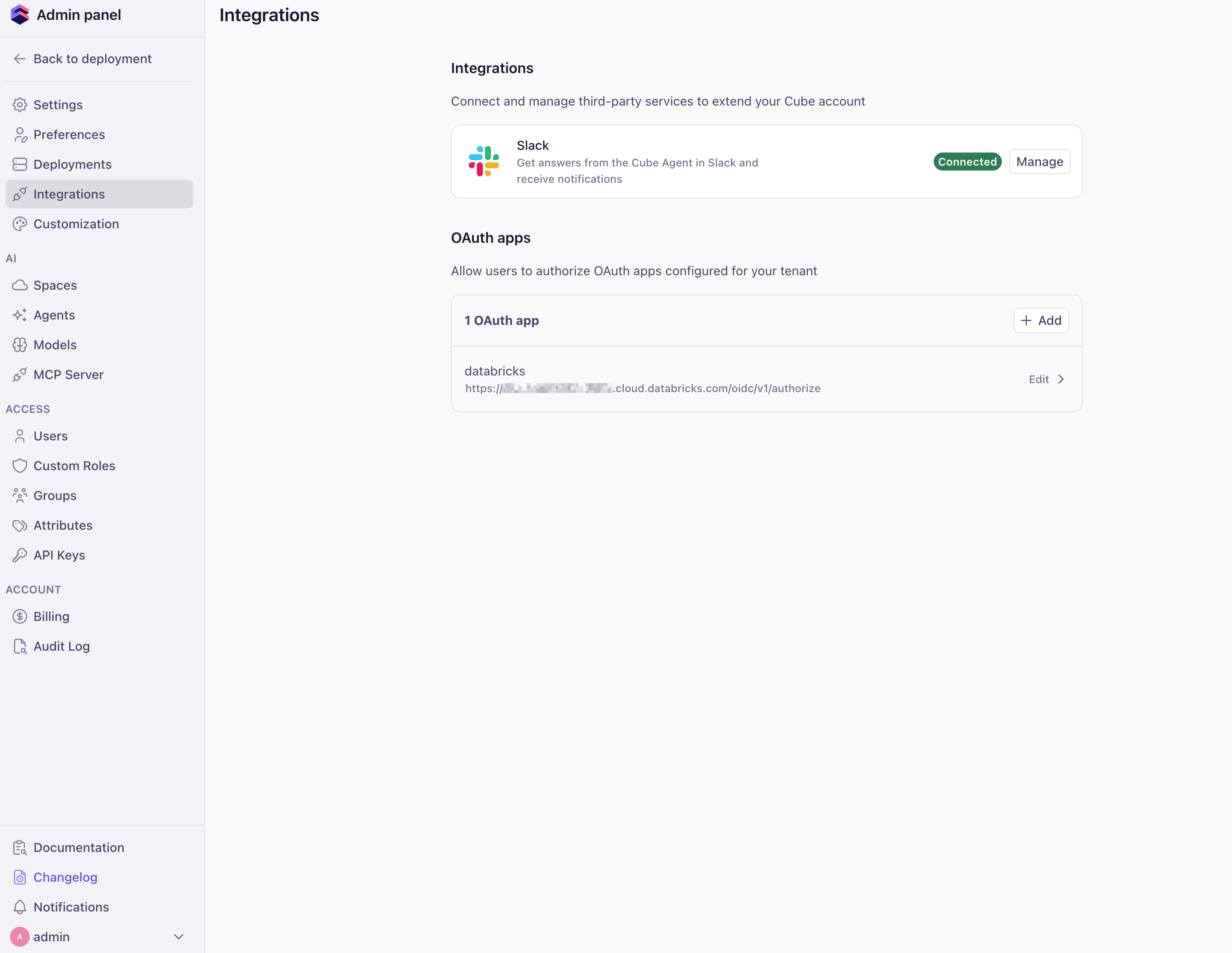
In Cube Cloud, go to **Admin → Integrations → OAuth apps** and click
**Add**.
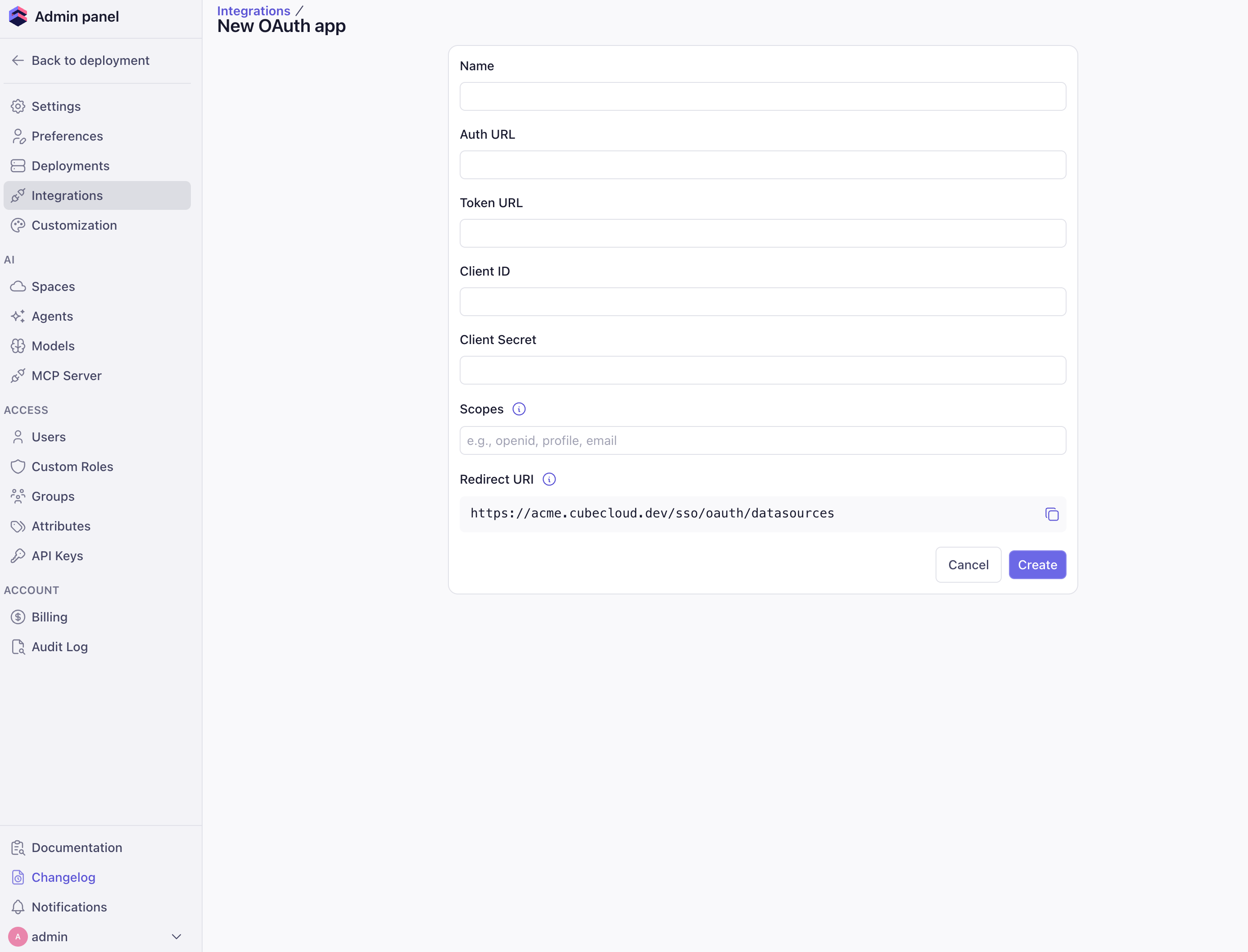
 Provide the OAuth app metadata from your data source: **Name**,
**Auth URL**, **Token URL**, **Client ID**, **Client Secret**, and any
required **Scopes**. Copy the **Redirect URI** shown in this form and
register it with your data source's OAuth provider, then click
**Create**.
Provide the OAuth app metadata from your data source: **Name**,
**Auth URL**, **Token URL**, **Client ID**, **Client Secret**, and any
required **Scopes**. Copy the **Redirect URI** shown in this form and
register it with your data source's OAuth provider, then click
**Create**.
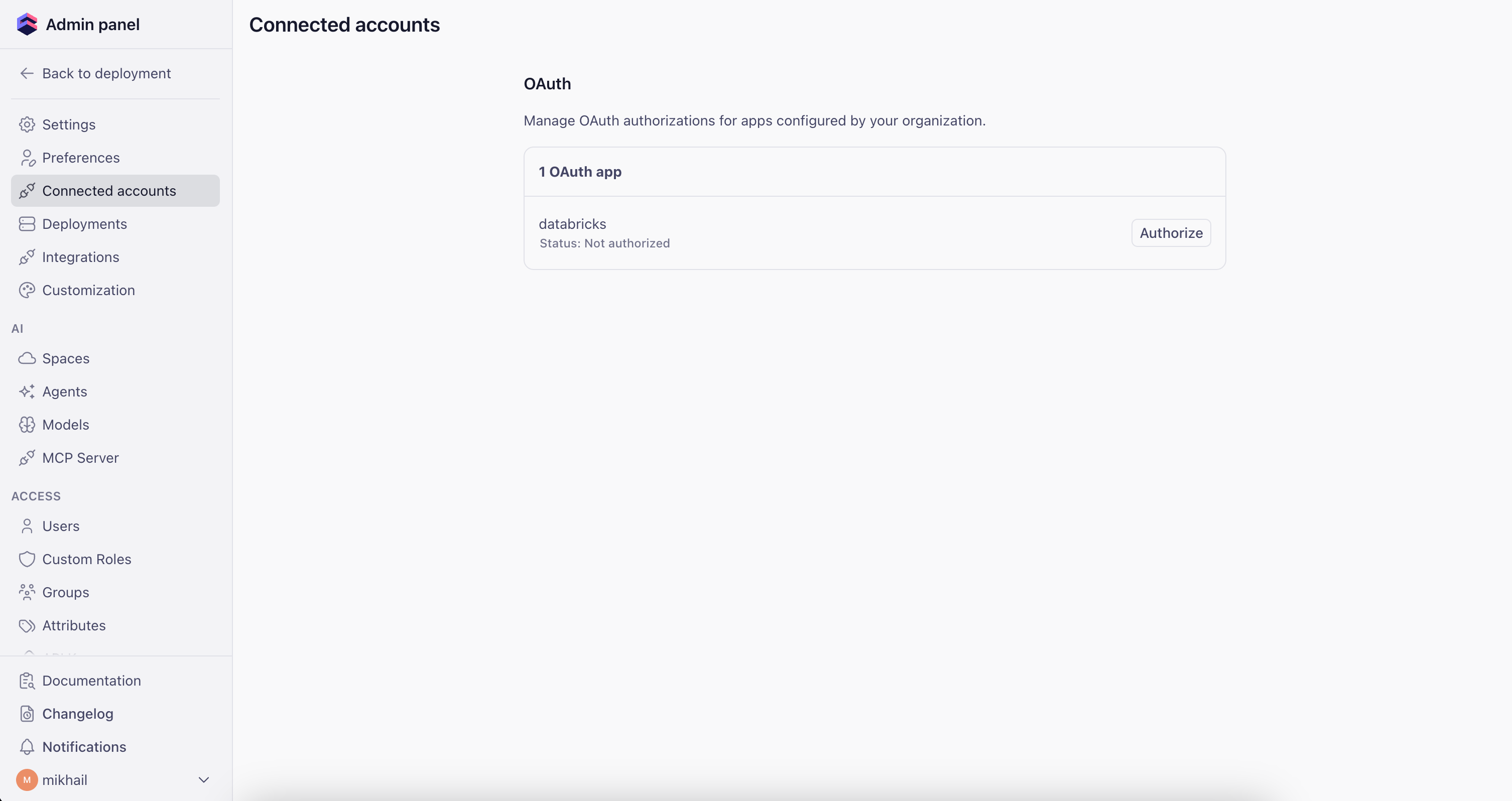
 Open the sidebar and go to **Connected apps**. Find your OAuth app
and click **Authorize** to generate an access token.
You'll need to repeat this step whenever the token expires.
Open the sidebar and go to **Connected apps**. Find your OAuth app
and click **Authorize** to generate an access token.
You'll need to repeat this step whenever the token expires.
 ## Configuration
The configuration uses two options from the
[configuration file reference][ref-config]:
* [`driver_factory`][ref-driver-factory] — dynamically selects the
authentication credential per request
* [`context_to_orchestrator_id`][ref-context-to-orchestrator-id] — gives
each user their own query orchestrator instance (database connections,
execution queues, pre-aggregation table caches)
### Environment variables
Set the environment variables for your data source. The examples below
show Databricks and Snowflake; adapt them to your specific setup.
```dotenv theme={"dark"}
CUBEJS_DB_TYPE=databricks-jdbc
CUBEJS_DB_DATABRICKS_URL=jdbc:databricks://dbc-XXXXXXX-XXXX.cloud.databricks.com:443/default;transportMode=http;ssl=1;httpPath=sql/protocolv1/o/XXXXX/XXXXX;AuthMech=3;UID=token
CUBEJS_DB_DATABRICKS_TOKEN=dapi_service_account_token
CUBEJS_DB_DATABRICKS_ACCEPT_POLICY=true
# Optional: specify a catalog
CUBEJS_DB_DATABRICKS_CATALOG=my_catalog
```
```dotenv theme={"dark"}
CUBEJS_DB_TYPE=snowflake
CUBEJS_DB_SNOWFLAKE_ACCOUNT=XXXXXXXXX.us-east-1
CUBEJS_DB_SNOWFLAKE_WAREHOUSE=MY_SNOWFLAKE_WAREHOUSE
CUBEJS_DB_NAME=my_snowflake_database
CUBEJS_DB_USER=service_account_user
CUBEJS_DB_PASS=service_account_password
CUBEJS_DB_SNOWFLAKE_ROLE=MY_ROLE
```
### Configuration file
The examples below use Databricks. To target a different data source,
swap `userCredentials.databricks` for the matching key (for example,
`userCredentials.snowflake`) and update the `driver_factory` return
value with the correct `type` and driver-specific options. See the
[data sources reference][ref-data-sources] for available drivers.
```python cube.py theme={"dark"}
from cube import config
import os
@config("driver_factory")
def driver_factory(ctx: dict) -> dict:
# Extract the Cube Cloud security context, which contains
# per-user OAuth credentials when available.
# For other data sources, swap "databricks" for "snowflake", etc.
databricks_creds = (
ctx
.get("securityContext", {})
.get("cubeCloud", {})
.get("userCredentials", {})
.get("databricks", {})
)
# Only use the OAuth token when the credential status is "active".
# An expired or revoked token falls back to the service account.
oauth_token = (
databricks_creds.get("accessToken")
if databricks_creds.get("status") == "active"
else None
)
return {
"type": "databricks-jdbc",
"url": os.environ["CUBEJS_DB_DATABRICKS_URL"],
# Prefer the user's OAuth token; fall back to the service account token
"token": oauth_token or os.environ["CUBEJS_DB_DATABRICKS_TOKEN"],
"acceptPolicy": True,
"catalog": os.environ.get("CUBEJS_DB_DATABRICKS_CATALOG"),
}
@config("context_to_orchestrator_id")
def context_to_orchestrator_id(ctx: dict) -> str:
# Give each user a separate orchestrator instance (DB connections,
# execution queues, pre-aggregation caches)
username = (
ctx
.get("securityContext", {})
.get("cubeCloud", {})
.get("username", "default")
)
return f"CUBE_APP_{username}"
```
```javascript cube.js theme={"dark"}
module.exports = {
driverFactory: ({ securityContext }) => {
// Extract the Cube Cloud security context, which contains
// per-user OAuth credentials when available.
// For other data sources, swap `databricks` for `snowflake`, etc.
const databricksCreds =
securityContext?.cubeCloud?.userCredentials?.databricks ?? {};
// Only use the OAuth token when the credential status is "active".
// An expired or revoked token falls back to the service account.
const oauthToken =
databricksCreds.status === "active"
? databricksCreds.accessToken
: null;
return {
type: "databricks-jdbc",
url: process.env.CUBEJS_DB_DATABRICKS_URL,
// Prefer the user's OAuth token; fall back to the service account token
token: oauthToken || process.env.CUBEJS_DB_DATABRICKS_TOKEN,
acceptPolicy: true,
catalog: process.env.CUBEJS_DB_DATABRICKS_CATALOG,
};
},
// Give each user a separate orchestrator instance (DB connections,
// execution queues, pre-aggregation caches)
contextToOrchestratorId: ({ securityContext }) => {
const username = securityContext?.cubeCloud?.username ?? "default";
return `CUBE_APP_${username}`;
},
};
```
## How it works
1. **User makes a request** — Cube Cloud attaches the user's OAuth
credentials to `securityContext.cubeCloud.userCredentials.`
(for example, `.databricks` or `.snowflake`).
2. **`driver_factory` resolves the credential** — If the credential status
is `active`, the user's OAuth token is used. Otherwise, Cube falls back
to the service account credential stored in environment variables.
3. **Per-user orchestrator** —
[`context_to_orchestrator_id`][ref-context-to-orchestrator-id] returns
a unique key per username, so each user gets their own database
connection pool, execution queues, and pre-aggregation table cache.
Without this, Cube would share a single cached connection across all
users, causing one user's credentials to be reused for another user's
queries.
[ref-config]: /reference/configuration/config
[ref-driver-factory]: /reference/configuration/config#driver_factory
[ref-context-to-orchestrator-id]: /reference/configuration/config#context_to_orchestrator_id
[ref-databricks-jdbc]: /admin/connect-to-data/data-sources/databricks-jdbc
[ref-snowflake]: /admin/connect-to-data/data-sources/snowflake
[ref-data-sources]: /admin/connect-to-data/data-sources
[ref-cube-cloud]: /docs/introduction
## Configuration
The configuration uses two options from the
[configuration file reference][ref-config]:
* [`driver_factory`][ref-driver-factory] — dynamically selects the
authentication credential per request
* [`context_to_orchestrator_id`][ref-context-to-orchestrator-id] — gives
each user their own query orchestrator instance (database connections,
execution queues, pre-aggregation table caches)
### Environment variables
Set the environment variables for your data source. The examples below
show Databricks and Snowflake; adapt them to your specific setup.
```dotenv theme={"dark"}
CUBEJS_DB_TYPE=databricks-jdbc
CUBEJS_DB_DATABRICKS_URL=jdbc:databricks://dbc-XXXXXXX-XXXX.cloud.databricks.com:443/default;transportMode=http;ssl=1;httpPath=sql/protocolv1/o/XXXXX/XXXXX;AuthMech=3;UID=token
CUBEJS_DB_DATABRICKS_TOKEN=dapi_service_account_token
CUBEJS_DB_DATABRICKS_ACCEPT_POLICY=true
# Optional: specify a catalog
CUBEJS_DB_DATABRICKS_CATALOG=my_catalog
```
```dotenv theme={"dark"}
CUBEJS_DB_TYPE=snowflake
CUBEJS_DB_SNOWFLAKE_ACCOUNT=XXXXXXXXX.us-east-1
CUBEJS_DB_SNOWFLAKE_WAREHOUSE=MY_SNOWFLAKE_WAREHOUSE
CUBEJS_DB_NAME=my_snowflake_database
CUBEJS_DB_USER=service_account_user
CUBEJS_DB_PASS=service_account_password
CUBEJS_DB_SNOWFLAKE_ROLE=MY_ROLE
```
### Configuration file
The examples below use Databricks. To target a different data source,
swap `userCredentials.databricks` for the matching key (for example,
`userCredentials.snowflake`) and update the `driver_factory` return
value with the correct `type` and driver-specific options. See the
[data sources reference][ref-data-sources] for available drivers.
```python cube.py theme={"dark"}
from cube import config
import os
@config("driver_factory")
def driver_factory(ctx: dict) -> dict:
# Extract the Cube Cloud security context, which contains
# per-user OAuth credentials when available.
# For other data sources, swap "databricks" for "snowflake", etc.
databricks_creds = (
ctx
.get("securityContext", {})
.get("cubeCloud", {})
.get("userCredentials", {})
.get("databricks", {})
)
# Only use the OAuth token when the credential status is "active".
# An expired or revoked token falls back to the service account.
oauth_token = (
databricks_creds.get("accessToken")
if databricks_creds.get("status") == "active"
else None
)
return {
"type": "databricks-jdbc",
"url": os.environ["CUBEJS_DB_DATABRICKS_URL"],
# Prefer the user's OAuth token; fall back to the service account token
"token": oauth_token or os.environ["CUBEJS_DB_DATABRICKS_TOKEN"],
"acceptPolicy": True,
"catalog": os.environ.get("CUBEJS_DB_DATABRICKS_CATALOG"),
}
@config("context_to_orchestrator_id")
def context_to_orchestrator_id(ctx: dict) -> str:
# Give each user a separate orchestrator instance (DB connections,
# execution queues, pre-aggregation caches)
username = (
ctx
.get("securityContext", {})
.get("cubeCloud", {})
.get("username", "default")
)
return f"CUBE_APP_{username}"
```
```javascript cube.js theme={"dark"}
module.exports = {
driverFactory: ({ securityContext }) => {
// Extract the Cube Cloud security context, which contains
// per-user OAuth credentials when available.
// For other data sources, swap `databricks` for `snowflake`, etc.
const databricksCreds =
securityContext?.cubeCloud?.userCredentials?.databricks ?? {};
// Only use the OAuth token when the credential status is "active".
// An expired or revoked token falls back to the service account.
const oauthToken =
databricksCreds.status === "active"
? databricksCreds.accessToken
: null;
return {
type: "databricks-jdbc",
url: process.env.CUBEJS_DB_DATABRICKS_URL,
// Prefer the user's OAuth token; fall back to the service account token
token: oauthToken || process.env.CUBEJS_DB_DATABRICKS_TOKEN,
acceptPolicy: true,
catalog: process.env.CUBEJS_DB_DATABRICKS_CATALOG,
};
},
// Give each user a separate orchestrator instance (DB connections,
// execution queues, pre-aggregation caches)
contextToOrchestratorId: ({ securityContext }) => {
const username = securityContext?.cubeCloud?.username ?? "default";
return `CUBE_APP_${username}`;
},
};
```
## How it works
1. **User makes a request** — Cube Cloud attaches the user's OAuth
credentials to `securityContext.cubeCloud.userCredentials.`
(for example, `.databricks` or `.snowflake`).
2. **`driver_factory` resolves the credential** — If the credential status
is `active`, the user's OAuth token is used. Otherwise, Cube falls back
to the service account credential stored in environment variables.
3. **Per-user orchestrator** —
[`context_to_orchestrator_id`][ref-context-to-orchestrator-id] returns
a unique key per username, so each user gets their own database
connection pool, execution queues, and pre-aggregation table cache.
Without this, Cube would share a single cached connection across all
users, causing one user's credentials to be reused for another user's
queries.
[ref-config]: /reference/configuration/config
[ref-driver-factory]: /reference/configuration/config#driver_factory
[ref-context-to-orchestrator-id]: /reference/configuration/config#context_to_orchestrator_id
[ref-databricks-jdbc]: /admin/connect-to-data/data-sources/databricks-jdbc
[ref-snowflake]: /admin/connect-to-data/data-sources/snowflake
[ref-data-sources]: /admin/connect-to-data/data-sources
[ref-cube-cloud]: /docs/introduction