> ## Documentation Index
> Fetch the complete documentation index at: https://docs.cube.dev/llms.txt
> Use this file to discover all available pages before exploring further.
# Budibase
> Budibase is a low-code app-building platform that helps developers create responsive web applications with access methods to databases, APIs, and much more.
Here's a short video guide on how to connect Budibase to Cube.
## Connect from Cube Cloud
Navigate to the [Integrations](/admin/connect-to-data/visualization-tools)
page, click **Connect to Cube**, and choose **Budibase** to get
detailed instructions.
## Connect from Cube Core
You can connect a Cube deployment to Budibase using the [REST (JSON) API](/reference/core-data-apis/rest-api).
For a Cube instance publicly available at a specific `HOST`, the REST (JSON) API URL
would be `HOST/cubejs-api/v1`. Please refer to the
[REST (JSON) API page](/reference/core-data-apis/rest-api) for details.
You will also need to generate a JSON Web Token that would be used to
authenticate requests to Cube.
Please check the [Security page](/embedding/authentication/jwt#generating-json-web-tokens)
to learn how to generate a token. We suggest generating a long-lived JWT that
won't expire soon.
## Connecting from Budibase
### Create a new data source
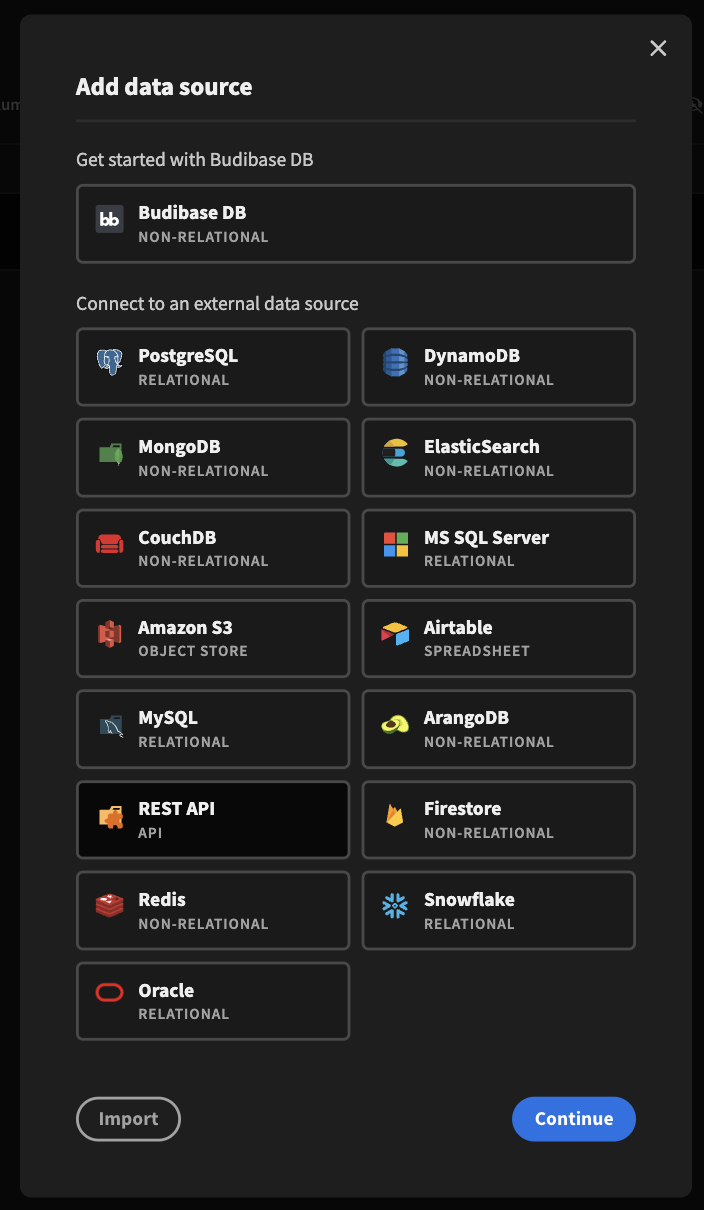
Create a new "REST API" data source in Budibase.
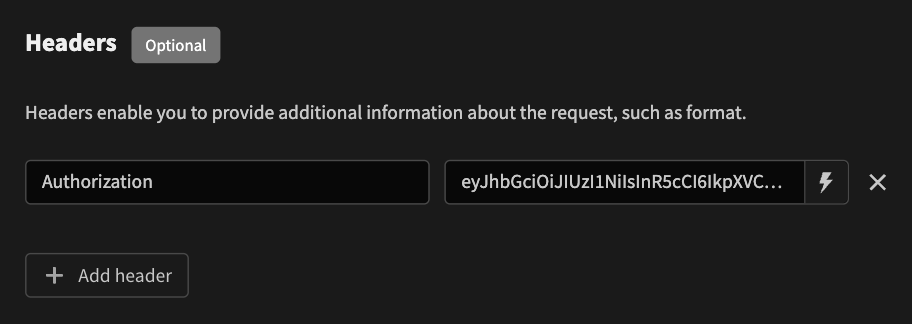
 Next, add a "Authorization" header for the REST (JSON) API. Copy and paste Cube's
Authorization token.
Next, add a "Authorization" header for the REST (JSON) API. Copy and paste Cube's
Authorization token.
 ### Add a query
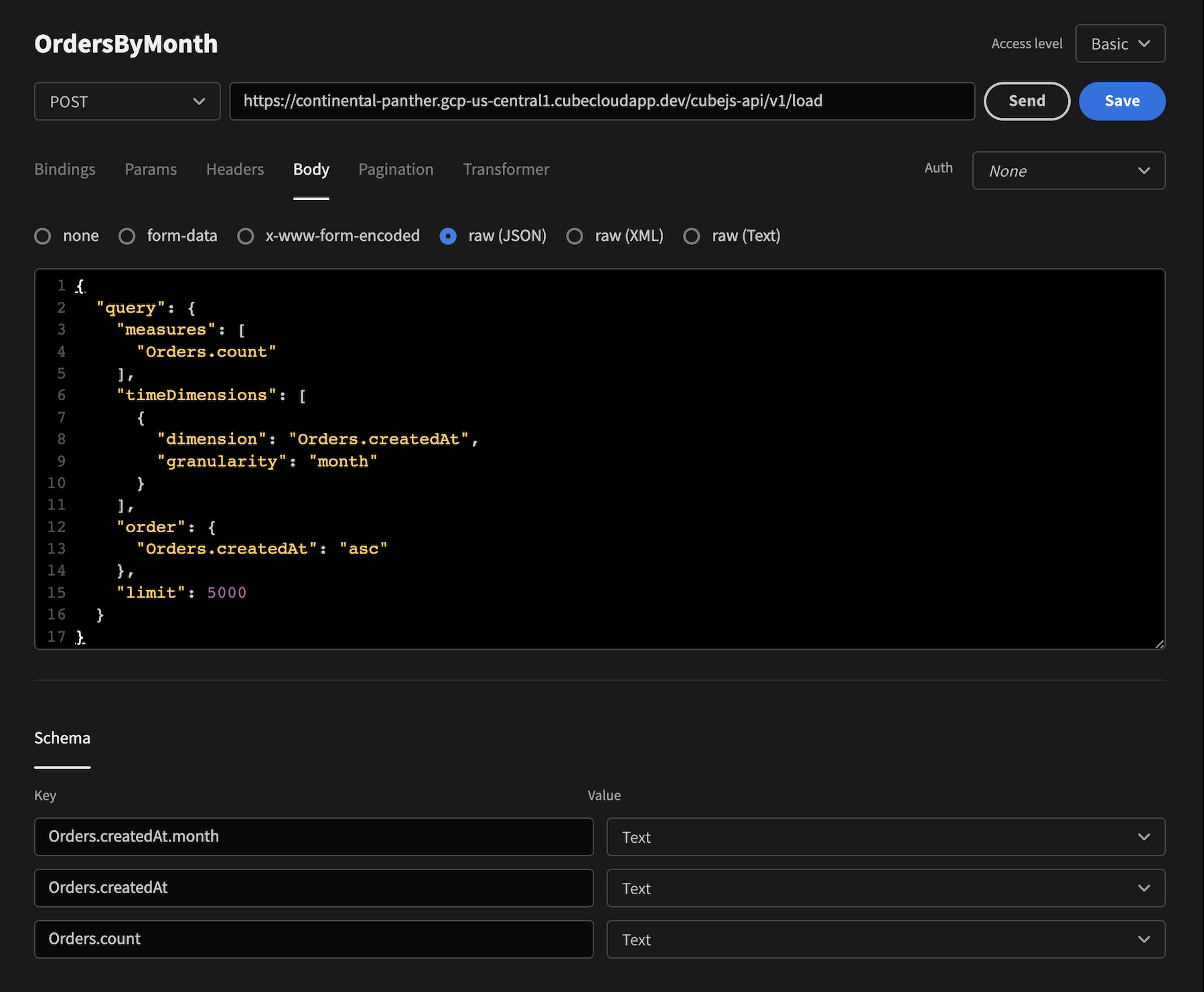
Click "+ Add Query".
Copy and paste the Cube REST (JSON) API, including the `/load` path, in the API field.
Make sure to select "POST" as the request.
### Add a query
Click "+ Add Query".
Copy and paste the Cube REST (JSON) API, including the `/load` path, in the API field.
Make sure to select "POST" as the request.
 Get your Cube query in the JSON
[query format](/reference/core-data-apis/rest-api/query-format) ready. You can
copy it from Cube's Playground or compose manually.
Paste the JSON query in the **Body** as "raw(JSON)". Make sure to add a `query`
parameter for your JSON query.
Get your Cube query in the JSON
[query format](/reference/core-data-apis/rest-api/query-format) ready. You can
copy it from Cube's Playground or compose manually.
Paste the JSON query in the **Body** as "raw(JSON)". Make sure to add a `query`
parameter for your JSON query.
 Edit the **Transform** to return the data of the request.
```javascript theme={"dark"}
return data.data;
```
Edit the **Transform** to return the data of the request.
```javascript theme={"dark"}
return data.data;
```
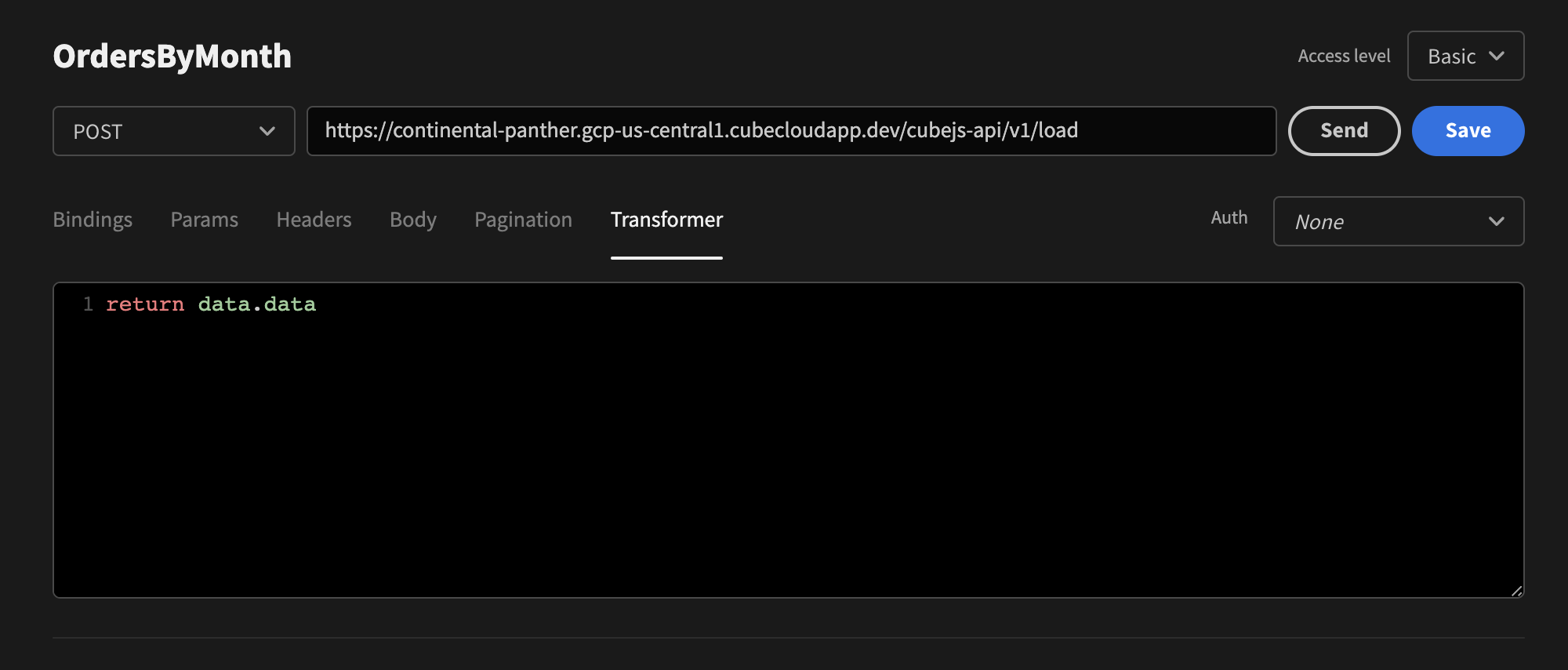 You can also give the query a name. In this sample it's called `OrdersByMonth`.
Lastly, click the "save" button and hit "send" to test the API and get a
response back.
### Create a data provider
Move to the **Design** section and open the **Components**.
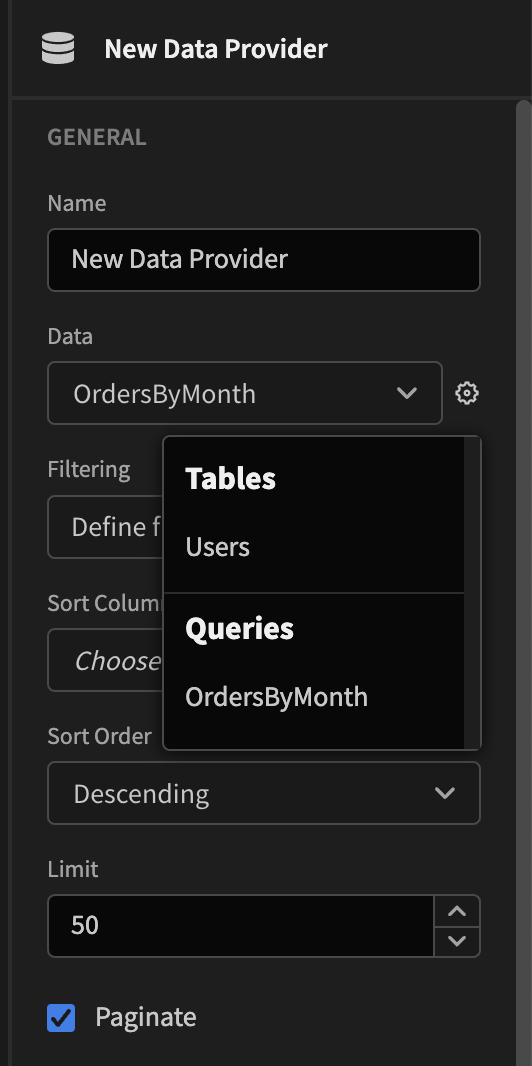
First, add a Data Provider. Select the query from above. In this sample it's
called `OrdersByMonth`.
You can also give the query a name. In this sample it's called `OrdersByMonth`.
Lastly, click the "save" button and hit "send" to test the API and get a
response back.
### Create a data provider
Move to the **Design** section and open the **Components**.
First, add a Data Provider. Select the query from above. In this sample it's
called `OrdersByMonth`.
 ### Display the data
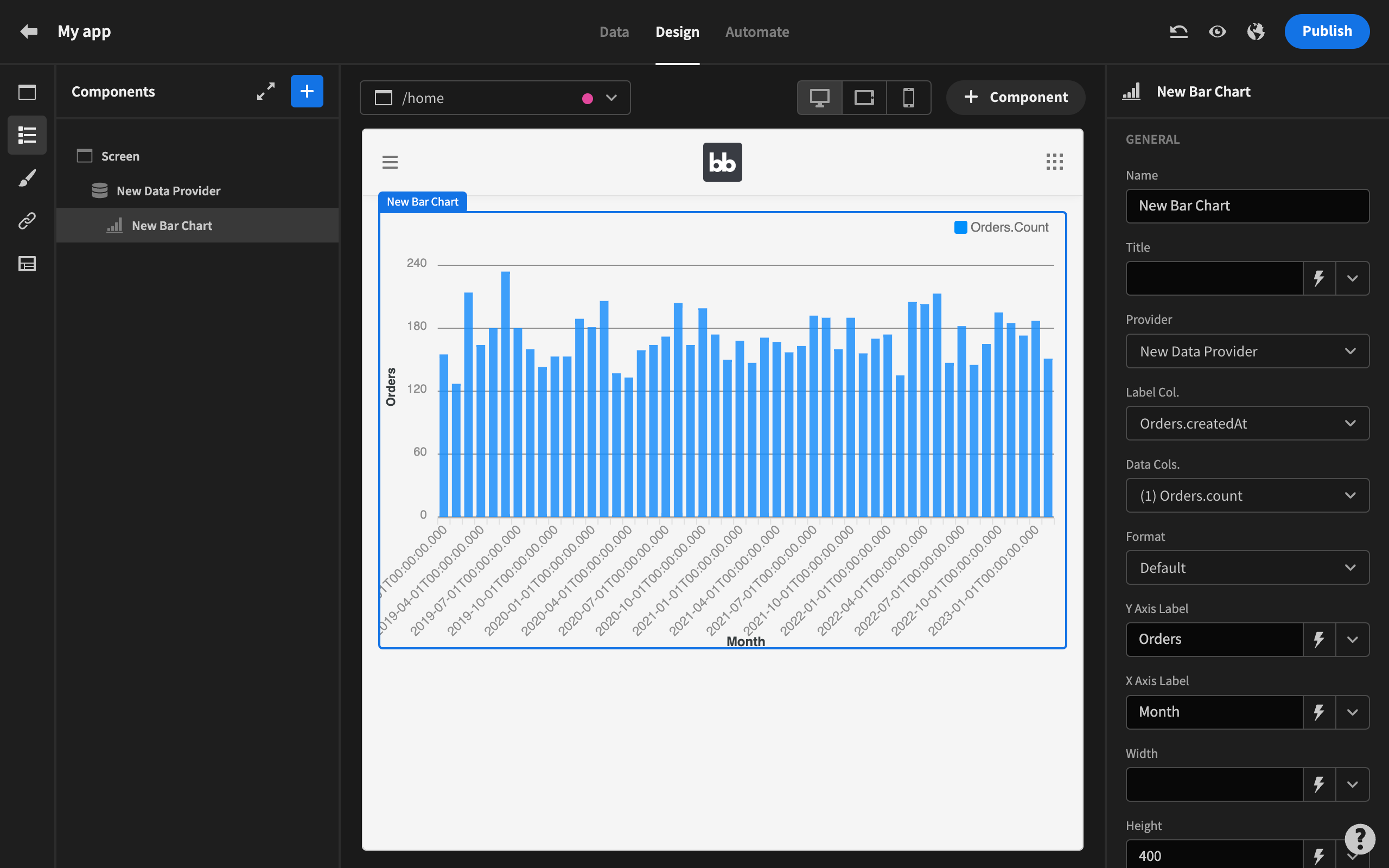
Add a chart into the data provider. Next, configure the data provider for the
chart. Make sure it's set to the data provider you just created.
Then, you set the "label column" and "data columns". In this sample you can set
`Orders.createdAt` as the label column and `Orders.count` as the data columns.
### Display the data
Add a chart into the data provider. Next, configure the data provider for the
chart. Make sure it's set to the data provider you just created.
Then, you set the "label column" and "data columns". In this sample you can set
`Orders.createdAt` as the label column and `Orders.count` as the data columns.
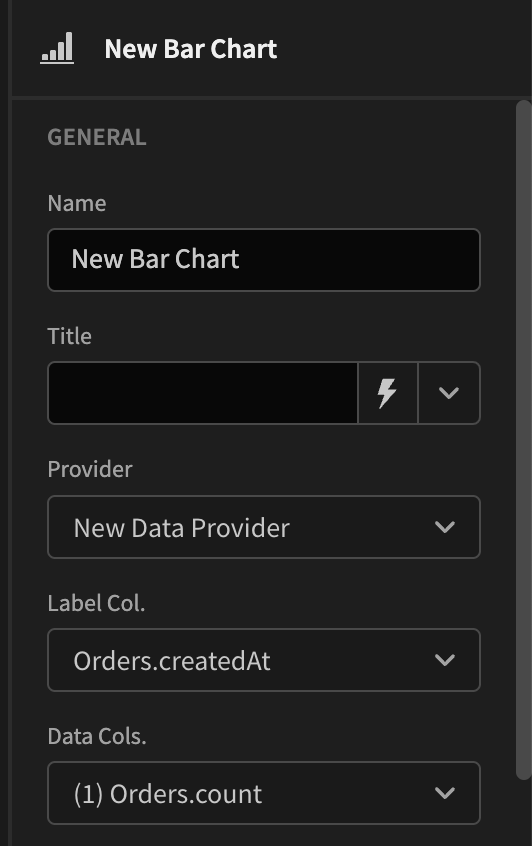 You'll see a nicely rendered chart show up.