> ## Documentation Index
> Fetch the complete documentation index at: https://docs.cube.dev/llms.txt
> Use this file to discover all available pages before exploring further.
# Private API Connectivity on AWS
> Expose Cube's HTTP and SQL APIs to your AWS network and internal BI tools over AWS PrivateLink so traffic from your applications, browsers, and BI clients never traverses the public internet.
This page covers **frontend connectivity** — exposing Cube's HTTP and SQL APIs
to your applications, browsers, BI tools, embedded analytics clients, and
Semantic Layer Sync-generated configs over a private network. For **backend
connectivity** (letting Cube reach into your network to query data sources,
auth providers, BI APIs targeted by SLS, and other upstream services), see
[AWS PrivateLink][aws-private-link] or [VPC Peering][aws-vpc-peering].
With Dedicated Infrastructure and Bring Your Own Cloud on AWS, Cube supports
establishing **AWS PrivateLink** connections from your AWS accounts to the Cube
API endpoints. This lets your applications, internal BI tools, and end-user
browsers reach the Cube HTTP, SQL, and AI APIs entirely over private AWS
networking — never touching the public internet. When private connectivity is
in place, the public API endpoints can be disabled completely on request.
Available on the [Enterprise plan](https://cube.dev/pricing) with Dedicated
Infrastructure or BYOC on AWS. [Contact us](https://cube.dev/contact) to enable
private API connectivity for your tenant.
## Architecture
Cube runs as two cooperating planes:
* The **control plane** powers the Cube UI and the product surface area
(deployment management, schema editor, dashboards, Semantic Layer Sync,
etc.) and is always served from Cube's public domain at
`https://.cubecloud.dev`. The control plane itself does not need
private connectivity — it is a SaaS UI like any other.
* The **data plane** runs your Cube deployments and serves all Cube HTTP and
SQL **data API** traffic — REST/GraphQL queries from your applications,
live data calls issued by the Cube UI while rendering charts, SQL
connections from BI tools, and AI traffic to the [Chat API][chat-api] and
other AI endpoints (including data-plane-hosted AI Engineer agents and
external agentic clients [calling the Chat API as a tool][agent-to-agent]).
The data plane is the part that talks to your databases and returns query
results, and the part this document teaches you how to expose privately.
[AWS PrivateLink][aws-privatelink] lets a service running in one VPC be
consumed from another VPC over the AWS internal network, without VPC peering
or routing through the internet. The service owner publishes a
[VPC Endpoint Service][aws-endpoint-service] in front of an internal load
balancer; the consumer creates a corresponding
[interface VPC Endpoint][aws-interface-endpoint] in their VPC, which appears
as a set of private ENIs that route traffic to the service over the AWS
backbone.
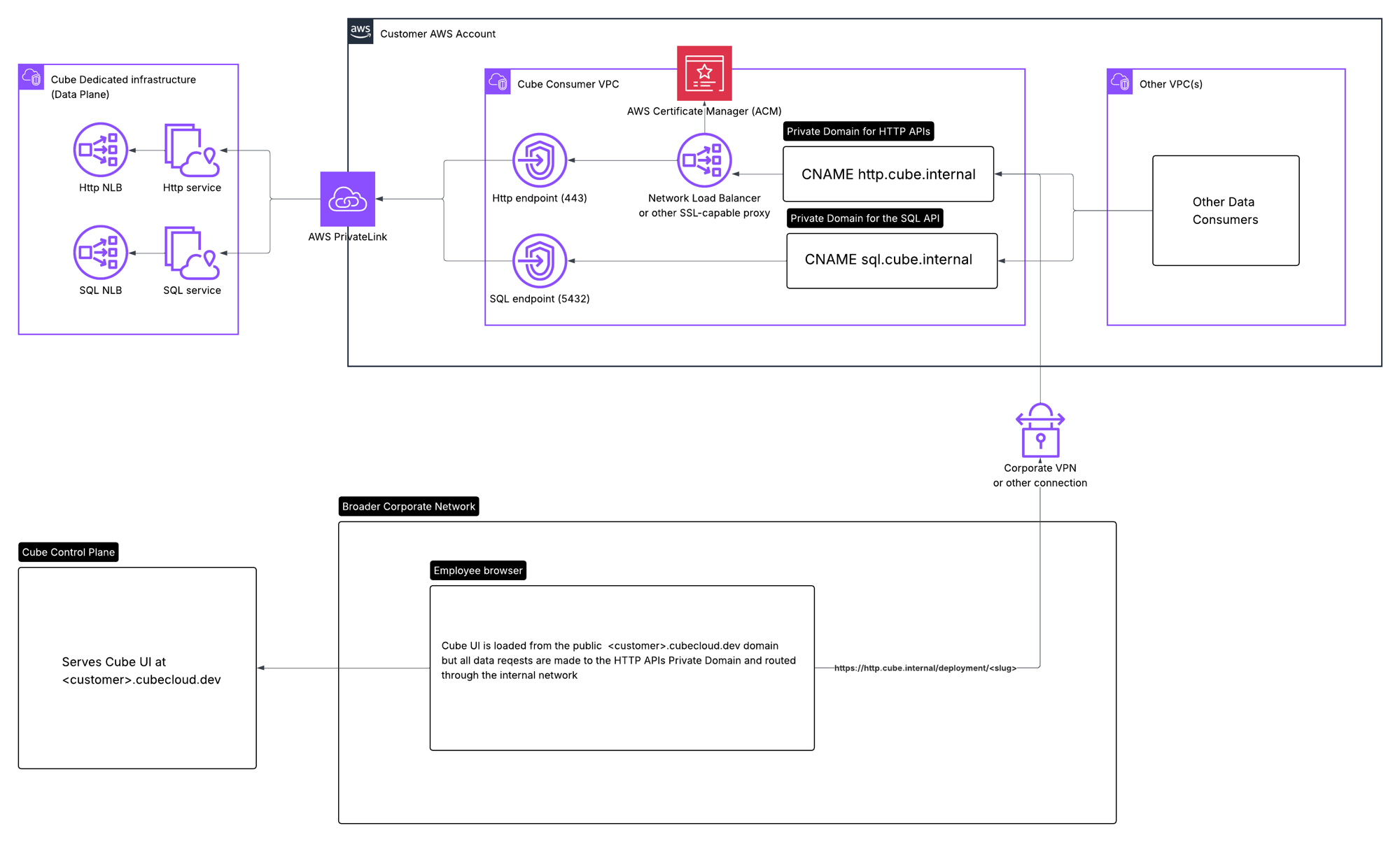
Cube exposes two VPC Endpoint Services per [Cube Region][cube-region] — one
fronting the HTTP (REST/GraphQL) data API and one fronting the SQL data API.
Each endpoint service sits in front of an internal
[Network Load Balancer][aws-nlb] (NLB) in the Cube VPC.
On the HTTP side, the NLB forwards traffic to Cube's ingress controller, which
terminates TLS using a certificate that only covers
`*..cubecloudapp.dev`. Because that certificate is bound to the
Cube-managed hostname, you have two options for presenting HTTPS to your own
clients (covered in detail [below](#tls-options-for-https)):
* **Re-terminate TLS on your side** with your own certificate for the hostname
your clients will dial (`http.cube.internal`, `cube.example.com`, …),
forwarding upstream to the HTTP VPC endpoint.
* **Reuse the Cube hostname privately** by setting up an internal DNS override
for `.cubecloudapp.dev` that points at the VPC endpoint. Cube's
certificate is then valid for all clients without any additional cert work
on your side.
On the SQL side, TLS is terminated inside the SQL API service behind the NLB,
and SQL clients connect using `sslmode=require` (or equivalent) directly to
the VPC endpoint hostname.
On your side, you create a **VPC Endpoint** (interface endpoint) in your VPC
that connects to each Cube endpoint service, and bind a DNS name to it that
resolves to the endpoint's private IPs from inside your VPN-routable network.
Your applications and BI tools then connect to that private hostname exactly
as they would to a public Cube endpoint, except the traffic flows through
PrivateLink instead of the internet.
 ## Cube Region
The endpoint services described here are scoped to a **Cube Region** — the
unit of infrastructure that hosts one or more of your deployments. Each region
has a stable identifier of the form `--`
(e.g. `aws-us-east-1-t-12345-prod` for a single-tenant Dedicated region, or
`aws-us-east-1-t-12345-byoc` for a BYOC region). The hostname you override on
your side — either privately remapping `.cubecloudapp.dev` or
fronting it with your own domain — applies to **every** deployment in that
region. See [Cube Regions][cube-region] for the full reference, including
how to find the exact region identifier for your tenant.
## How queries are routed
A single private endpoint per region serves all deployments inside that
region; there is no per-deployment subdomain or per-deployment endpoint to
provision separately.
On Cube's shared, public-facing infrastructure, traffic is routed to a
deployment by **subdomain** — `..cubecloudapp.dev`
maps to a specific deployment. When private connectivity is enabled, Cube
switches to **path-based routing** so that a single private hostname can serve
every deployment in the region.
For the HTTP API, the prefix has the shape:
```
https:///deployment//cubejs-api/v1/...
```
where `` is the leftmost label of the deployment's Cube-issued
hostname (e.g. `thirsty-raccoon` from
`thirsty-raccoon.aws-us-east-1-t-12345-prod.cubecloudapp.dev`). The same prefix
applies to all HTTP endpoints — `/cubejs-api/v1/load`, `/livez`, the GraphQL
endpoint, and so on:
```bash theme={"dark"}
curl https://http.cube.internal/deployment/thirsty-raccoon/cubejs-api/v1/load \
-H "Authorization: $CUBE_JWT" \
-d '{"query":{"measures":["orders.count"]}}'
```
The SQL API uses a TCP protocol that does not carry an HTTP path, so SQL
connections are routed at the protocol layer (via the database name and
credentials in the connection string) rather than by URL prefix. SQL clients
connect to the same private hostname on port 5432 and identify the deployment
through the SQL connection parameters.
## TLS options for HTTPS
Cube's ingress controller can terminate TLS only for the Cube-issued domain
`*..cubecloudapp.dev`. Pick the option that fits your DNS and
certificate posture:
### Option A — Reuse the Cube hostname via private DNS
Create a private DNS zone for `.cubecloudapp.dev` —
typically a [Route 53 private hosted zone][aws-route53-phz] associated with
your VPC, or an equivalent override in your corporate resolver — and point the
following records at the VPC endpoints:
| Record name | Type | Target |
| -------------------------------------- | ---- | ------------------------------ |
| `.cubecloudapp.dev` | A | Alias to the HTTP VPC endpoint |
| `*..cubecloudapp.dev` | A | Alias to the HTTP VPC endpoint |
| `sql..cubecloudapp.dev` | A | Alias to the SQL VPC endpoint |
| `*.sql..cubecloudapp.dev` | A | Alias to the SQL VPC endpoint |
Clients then dial:
```
https://.cubecloudapp.dev/deployment//cubejs-api/v1/...
```
TLS is terminated by Cube's ingress controller using Cube's own certificate
for `*.cubecloudapp.dev` — you don't need to manage a certificate yourself.
This is the simplest setup if you control DNS resolution on the networks your
clients live on. Configure the same hostname in Cube's admin interface so
that the UI and Semantic Layer Sync generate links and configs against it.
### Option B — Front the endpoint with your own domain and certificate
If you'd rather present clients a hostname inside your own domain (e.g.
`cube.example.com`), stand up a customer-side proxy — typically an internal
NLB with a TLS listener bound to a certificate you own, or any reverse proxy
such as nginx, HAProxy, Envoy, or an ALB — that terminates TLS with your
certificate and forwards traffic to the Cube HTTP VPC endpoint. Because
Cube's ingress only has a cert for `*.cubecloudapp.dev`, the proxy must do
its own TLS termination; it cannot pass-through your custom-domain TLS to
Cube. Once your proxy is in place, configure its hostname in Cube's admin
interface so generated links and SLS configs match.
## Reaching Cube from every client
The same private hostname is used by three distinct classes of client, and
each imposes a requirement on how the name resolves:
1. **Your application servers** inside the same VPC as the VPC endpoint
resolve the private hostname via the VPC's DNS resolver and connect over
PrivateLink directly.
2. **End-user browsers loading the Cube UI.** When a developer opens
`https://.cubecloud.dev` and renders a dashboard, the page issues
live queries against the Cube data API from the user's browser. Those
calls originate on the user's laptop, not from a Cube backend, so the URL
embedded in the UI must be a hostname the user's machine can resolve and
reach. For this to use PrivateLink, the hostname has to resolve to the
VPC endpoint over your corporate VPN's DNS and route over the VPN to your
VPC. A purely internal name that only resolves inside the VPC will fail
when the user is on the corporate network but not in the VPC; a public
name that resolves outside the VPN will bypass PrivateLink entirely.
3. **Internal BI tools configured by Semantic Layer Sync (SLS).** If you
publish Cube datasets to BI tools via SLS, Cube generates connection
configs that embed the Cube API hostname. Those configs are used by BI
desktop clients, BI gateways, or other clients running inside your
network — so SLS must be configured with a hostname those clients can
resolve and reach over your VPN.
In short, the **private hostname must be visible and routable from every
place the Cube API needs to be reached** — your VPCs, your corporate
VPN-connected laptops, and any BI gateway hosts. Cube cannot infer your
internal DNS; you tell us the hostname you want to use, and you point it at
the VPC endpoint on your side.
If a user opens the Cube UI and sees a **"Network Error"** banner while
loading charts, dashboards, or other data-driven views, it means the
browser cannot reach the data plane over your private network. See
[Troubleshooting "Network Error" in the Cube UI](#troubleshooting-network-error-in-the-cube-ui)
below for steps to isolate the failure.
## Configuring the private domain
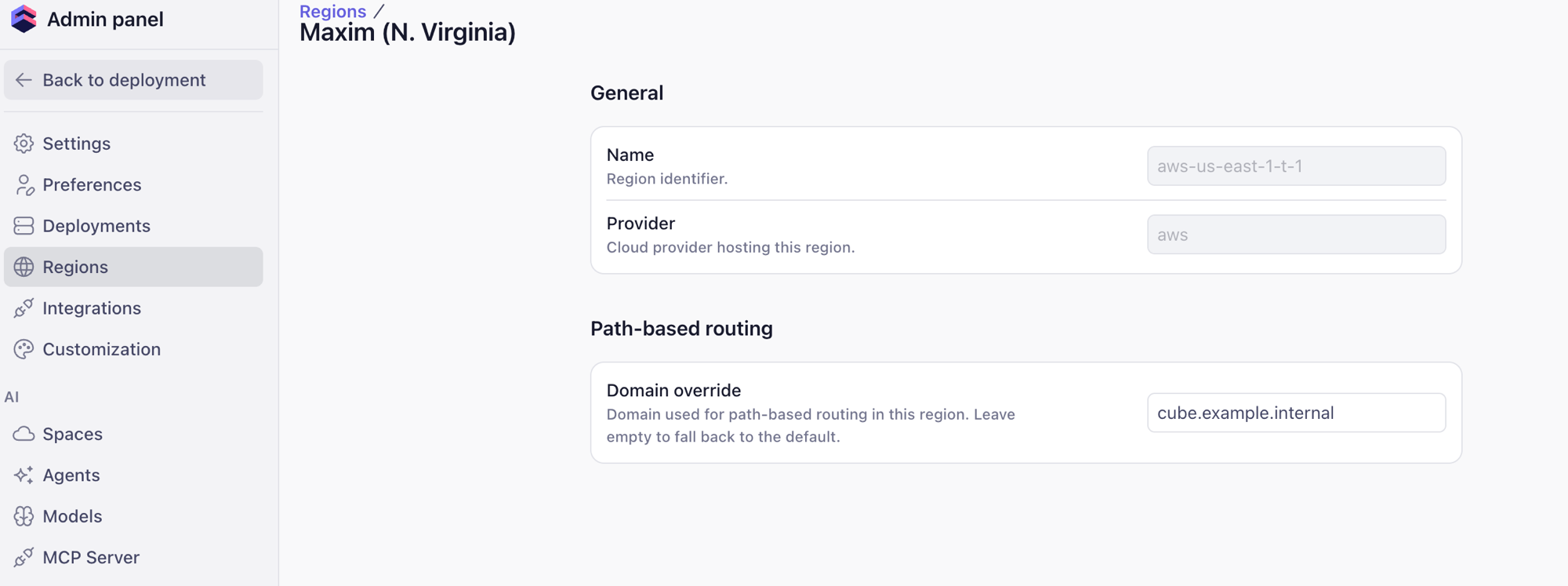
Configure the private hostname for each Cube Region from the Cube admin panel,
under **Regions → \ → Path-based routing → Domain override**.
The domain override tells Cube **where the data plane lives from the
caller's point of view**. It does *not* re-route traffic on Cube's side and
it does *not* open a new tunnel — it is purely a string Cube embeds when
generating outbound references to the data API. Specifically, Cube uses the
override value when generating:
* Links inside the Cube UI (used by **browsers** when rendering dashboards
and the schema editor — every Cube API call the UI issues goes to this
hostname directly from the user's machine).
* Connection configs generated by Semantic Layer Sync (used by BI
desktop clients and gateways inside your network).
* API connection details surfaced to your applications on the
deployment's API page.
Because every one of those callers — the browser, the BI client, your
application — connects to the hostname **directly**, the override only
works if that hostname is resolvable and reachable from each of those
networks. Setting the override does not give Cube's control plane a new
way to talk to your data plane; it tells *your* clients to stop using the
public Cube domain and start using the private one *you* have published.
Use the hostname your clients will actually dial — the custom-domain front-end
in Option B (e.g. `http.cube.internal`), or the Cube-issued
`.cubecloudapp.dev` if you went with Option A. Leaving the field
empty falls back to the default public hostname, and clients will not use
PrivateLink even if the endpoint service is connected.
## Cube Region
The endpoint services described here are scoped to a **Cube Region** — the
unit of infrastructure that hosts one or more of your deployments. Each region
has a stable identifier of the form `--`
(e.g. `aws-us-east-1-t-12345-prod` for a single-tenant Dedicated region, or
`aws-us-east-1-t-12345-byoc` for a BYOC region). The hostname you override on
your side — either privately remapping `.cubecloudapp.dev` or
fronting it with your own domain — applies to **every** deployment in that
region. See [Cube Regions][cube-region] for the full reference, including
how to find the exact region identifier for your tenant.
## How queries are routed
A single private endpoint per region serves all deployments inside that
region; there is no per-deployment subdomain or per-deployment endpoint to
provision separately.
On Cube's shared, public-facing infrastructure, traffic is routed to a
deployment by **subdomain** — `..cubecloudapp.dev`
maps to a specific deployment. When private connectivity is enabled, Cube
switches to **path-based routing** so that a single private hostname can serve
every deployment in the region.
For the HTTP API, the prefix has the shape:
```
https:///deployment//cubejs-api/v1/...
```
where `` is the leftmost label of the deployment's Cube-issued
hostname (e.g. `thirsty-raccoon` from
`thirsty-raccoon.aws-us-east-1-t-12345-prod.cubecloudapp.dev`). The same prefix
applies to all HTTP endpoints — `/cubejs-api/v1/load`, `/livez`, the GraphQL
endpoint, and so on:
```bash theme={"dark"}
curl https://http.cube.internal/deployment/thirsty-raccoon/cubejs-api/v1/load \
-H "Authorization: $CUBE_JWT" \
-d '{"query":{"measures":["orders.count"]}}'
```
The SQL API uses a TCP protocol that does not carry an HTTP path, so SQL
connections are routed at the protocol layer (via the database name and
credentials in the connection string) rather than by URL prefix. SQL clients
connect to the same private hostname on port 5432 and identify the deployment
through the SQL connection parameters.
## TLS options for HTTPS
Cube's ingress controller can terminate TLS only for the Cube-issued domain
`*..cubecloudapp.dev`. Pick the option that fits your DNS and
certificate posture:
### Option A — Reuse the Cube hostname via private DNS
Create a private DNS zone for `.cubecloudapp.dev` —
typically a [Route 53 private hosted zone][aws-route53-phz] associated with
your VPC, or an equivalent override in your corporate resolver — and point the
following records at the VPC endpoints:
| Record name | Type | Target |
| -------------------------------------- | ---- | ------------------------------ |
| `.cubecloudapp.dev` | A | Alias to the HTTP VPC endpoint |
| `*..cubecloudapp.dev` | A | Alias to the HTTP VPC endpoint |
| `sql..cubecloudapp.dev` | A | Alias to the SQL VPC endpoint |
| `*.sql..cubecloudapp.dev` | A | Alias to the SQL VPC endpoint |
Clients then dial:
```
https://.cubecloudapp.dev/deployment//cubejs-api/v1/...
```
TLS is terminated by Cube's ingress controller using Cube's own certificate
for `*.cubecloudapp.dev` — you don't need to manage a certificate yourself.
This is the simplest setup if you control DNS resolution on the networks your
clients live on. Configure the same hostname in Cube's admin interface so
that the UI and Semantic Layer Sync generate links and configs against it.
### Option B — Front the endpoint with your own domain and certificate
If you'd rather present clients a hostname inside your own domain (e.g.
`cube.example.com`), stand up a customer-side proxy — typically an internal
NLB with a TLS listener bound to a certificate you own, or any reverse proxy
such as nginx, HAProxy, Envoy, or an ALB — that terminates TLS with your
certificate and forwards traffic to the Cube HTTP VPC endpoint. Because
Cube's ingress only has a cert for `*.cubecloudapp.dev`, the proxy must do
its own TLS termination; it cannot pass-through your custom-domain TLS to
Cube. Once your proxy is in place, configure its hostname in Cube's admin
interface so generated links and SLS configs match.
## Reaching Cube from every client
The same private hostname is used by three distinct classes of client, and
each imposes a requirement on how the name resolves:
1. **Your application servers** inside the same VPC as the VPC endpoint
resolve the private hostname via the VPC's DNS resolver and connect over
PrivateLink directly.
2. **End-user browsers loading the Cube UI.** When a developer opens
`https://.cubecloud.dev` and renders a dashboard, the page issues
live queries against the Cube data API from the user's browser. Those
calls originate on the user's laptop, not from a Cube backend, so the URL
embedded in the UI must be a hostname the user's machine can resolve and
reach. For this to use PrivateLink, the hostname has to resolve to the
VPC endpoint over your corporate VPN's DNS and route over the VPN to your
VPC. A purely internal name that only resolves inside the VPC will fail
when the user is on the corporate network but not in the VPC; a public
name that resolves outside the VPN will bypass PrivateLink entirely.
3. **Internal BI tools configured by Semantic Layer Sync (SLS).** If you
publish Cube datasets to BI tools via SLS, Cube generates connection
configs that embed the Cube API hostname. Those configs are used by BI
desktop clients, BI gateways, or other clients running inside your
network — so SLS must be configured with a hostname those clients can
resolve and reach over your VPN.
In short, the **private hostname must be visible and routable from every
place the Cube API needs to be reached** — your VPCs, your corporate
VPN-connected laptops, and any BI gateway hosts. Cube cannot infer your
internal DNS; you tell us the hostname you want to use, and you point it at
the VPC endpoint on your side.
If a user opens the Cube UI and sees a **"Network Error"** banner while
loading charts, dashboards, or other data-driven views, it means the
browser cannot reach the data plane over your private network. See
[Troubleshooting "Network Error" in the Cube UI](#troubleshooting-network-error-in-the-cube-ui)
below for steps to isolate the failure.
## Configuring the private domain
Configure the private hostname for each Cube Region from the Cube admin panel,
under **Regions → \ → Path-based routing → Domain override**.
The domain override tells Cube **where the data plane lives from the
caller's point of view**. It does *not* re-route traffic on Cube's side and
it does *not* open a new tunnel — it is purely a string Cube embeds when
generating outbound references to the data API. Specifically, Cube uses the
override value when generating:
* Links inside the Cube UI (used by **browsers** when rendering dashboards
and the schema editor — every Cube API call the UI issues goes to this
hostname directly from the user's machine).
* Connection configs generated by Semantic Layer Sync (used by BI
desktop clients and gateways inside your network).
* API connection details surfaced to your applications on the
deployment's API page.
Because every one of those callers — the browser, the BI client, your
application — connects to the hostname **directly**, the override only
works if that hostname is resolvable and reachable from each of those
networks. Setting the override does not give Cube's control plane a new
way to talk to your data plane; it tells *your* clients to stop using the
public Cube domain and start using the private one *you* have published.
Use the hostname your clients will actually dial — the custom-domain front-end
in Option B (e.g. `http.cube.internal`), or the Cube-issued
`.cubecloudapp.dev` if you went with Option A. Leaving the field
empty falls back to the default public hostname, and clients will not use
PrivateLink even if the endpoint service is connected.
 HTTP and SQL APIs are typically published under two separate hostnames
(`http.cube.internal` and `sql.cube.internal` in the diagram above), since
the HTTP endpoint sits behind your TLS-terminating proxy on port 443 while
the SQL endpoint is accessed directly on port 5432.
## Provisioning checklist
1. **Request PrivateLink for your tenant.** Contact Cube and provide your
tenant name and the AWS account ID(s) that will create the VPC endpoints.
2. **Receive endpoint service names.** Cube provisions one HTTP and one SQL
VPC Endpoint Service per region and shares the service names
(`com.amazonaws.vpce..vpce-svc-…`) along with the Cube Region
identifier.
3. **Create VPC endpoints in your account.** In the AWS Console under
**VPC → Endpoints**, create an [interface endpoint][aws-interface-endpoint]
for each service. Place the endpoint in subnets that are reachable from
both your application workloads and your corporate VPN, and attach a
security group that allows inbound traffic on 443 (HTTP) or 5432 (SQL)
from those clients.
4. **Accept the connection.** Cube accepts the endpoint connection request
on the provider side once visibility is confirmed.
5. **Bind the private hostname.** Pick a TLS option above and create the
corresponding DNS records — either a [Route 53 private hosted
zone][aws-route53-phz] for `.cubecloudapp.dev` (Option A) or
a single record for your custom hostname pointing at your proxy
(Option B). Make sure the records resolve from every network that needs
to reach Cube, corporate VPN included.
6. **Set the domain in Cube.** In the admin panel under
**Regions → \ → Path-based routing → Domain override**,
enter the chosen hostname so that Cube generates UI links and SLS configs
using that name.
7. **(Optional) Disable public endpoints.** Once private connectivity is
verified end-to-end, ask Cube support to disable the public HTTP and SQL
endpoints for your deployment.
## Availability Zone alignment
Cube's dedicated infrastructure in each AWS region is deployed across a
**limited, fixed set of Availability Zones**.
[AWS PrivateLink requires][aws-privatelink-az] the consumer's VPC endpoint
to have a subnet in **at least one of the same AZs** where the provider's
endpoint service is exposed. If none of the subnets in your VPC live in a
Cube-supported AZ for that region, the VPC endpoint will fail to attach.
The remedy is to create an additional subnet in one of the Cube-supported
AZs inside your VPC, attach the VPC endpoint to that subnet, and route
traffic from your other AZs to it. AWS-internal AZ IDs (e.g. `use1-az2`)
differ per-account, so coordinate with the Cube team to confirm the
correct AZ IDs for your region before adding the subnet.
## Verifying connectivity
From a host inside the consumer VPC or attached to the corporate VPN:
```bash theme={"dark"}
# DNS resolves the HTTP and SQL names to their VPC endpoints' private IPs
dig +short http.cube.internal
dig +short sql.cube.internal
# HTTPS reachable over PrivateLink, routed to a specific deployment by path prefix
curl -v https://http.cube.internal/deployment//livez
# SQL API reachable
psql "host=sql.cube.internal port=5432 user=… dbname=… sslmode=require" -c "select 1;"
```
If DNS resolves but connections hang, check the VPC endpoint state, security
group rules on the endpoint ENIs, and that your VPN's route tables include
the VPC's CIDR.
## Troubleshooting "Network Error" in the Cube UI
When the domain override is configured, the Cube UI stops calling the
public Cube data API and starts calling the private hostname you supplied
**directly from the user's browser**. If that hostname is not reachable
from the machine the UI is loaded on, the UI surfaces a red **"Network
Error"** banner on charts, the schema editor, the playground, and any
other view that issues data queries — even though direct API calls (e.g.
`curl` from inside the VPC, or your application servers) keep working.
The fix is usually somewhere along the network path between the browser
and the VPC endpoint. Use the browser's developer tools to pinpoint which
hop is failing:
Reload the page that shows the **"Network Error"** banner with the
Network tab open. Filter for `Fetch/XHR` requests and look for the
failing call — it will be a request to the private hostname you
configured as the domain override (for example
`https://http.cube.internal/deployment//cubejs-api/v1/load`),
not to `*.cubecloud.dev`.
If the failing request still points at the **public** `*.cubecloud.dev`
hostname, the domain override has not been picked up yet — re-check
the value in **Regions → \ → Path-based routing → Domain
override** and reload the UI with cache disabled.
Right-click the failing request and copy its full URL, then open it
in a new browser tab. This strips the Cube UI out of the picture so
you can see what the browser itself sees when talking to the private
hostname.
Common outcomes:
* **The page does not load at all / "This site can't be reached" /
`ERR_NAME_NOT_RESOLVED`** — DNS for the private hostname is not
reachable from the user's machine. Confirm the user is on the
corporate VPN, that the VPN pushes the private DNS zone (or that
the corporate resolver answers for the override hostname), and
that the record points at the VPC endpoint's private IPs.
* **`ERR_CONNECTION_TIMED_OUT` / `ERR_CONNECTION_REFUSED`** — DNS
resolves but TCP to the VPC endpoint is blocked. Check that the
VPN route table covers the VPC CIDR and that the security group on
the VPC endpoint ENIs allows 443 from the VPN's client CIDR.
* **`NET::ERR_CERT_COMMON_NAME_INVALID` /
`NET::ERR_CERT_AUTHORITY_INVALID` / browser interstitial about an
untrusted certificate** — TLS termination is misconfigured. With
Option A (reuse the Cube hostname), make sure the private DNS
record really is for `.cubecloudapp.dev` so Cube's
`*.cubecloudapp.dev` certificate matches. With Option B (custom
domain), make sure your proxy is presenting a certificate whose
CN/SAN matches the override hostname and is signed by a CA the
user's machine trusts.
* **HTTP 4xx/5xx from Cube** — the network path is fine; the error
is on the API itself. Inspect the response body in the new tab to
see Cube's error message and proceed as you would for any other
API error.
From a host inside the consumer VPC, run the same request with
`curl -v` (see [Verifying connectivity](#verifying-connectivity)
above). If it succeeds from the VPC but fails from the user's
laptop, the data plane is healthy and the problem is strictly in the
VPN → VPC endpoint path for that user.
If every request from every machine fails, re-open
**Regions → \ → Path-based routing → Domain override**
and confirm:
* The hostname has no scheme prefix (no `https://`) and no path.
* The hostname matches the DNS record you actually published.
* For Option B, the hostname matches the certificate on your TLS
proxy.
* Clearing the field falls back to the public hostname — useful as
a quick smoke test to confirm the UI itself is healthy and the
problem is the private path.
[cube-region]: /admin/deployment/infrastructure#understanding-cube-cloud-region
[aws-private-link]: /admin/deployment/dedicated/aws/private-link
[aws-vpc-peering]: /admin/deployment/dedicated/aws/vpc-peering
[chat-api]: /reference/embed-apis/chat-api
[agent-to-agent]: /recipes/ai/agent-to-agent
[aws-privatelink]: https://docs.aws.amazon.com/vpc/latest/privatelink/what-is-privatelink.html
[aws-endpoint-service]: https://docs.aws.amazon.com/vpc/latest/privatelink/configure-endpoint-service.html
[aws-interface-endpoint]: https://docs.aws.amazon.com/vpc/latest/privatelink/create-interface-endpoint.html
[aws-nlb]: https://docs.aws.amazon.com/elasticloadbalancing/latest/network/introduction.html
[aws-privatelink-az]: https://docs.aws.amazon.com/vpc/latest/privatelink/configure-endpoint-service.html#endpoint-service-availability-zones
[aws-route53-phz]: https://docs.aws.amazon.com/Route53/latest/DeveloperGuide/hosted-zones-private.html
HTTP and SQL APIs are typically published under two separate hostnames
(`http.cube.internal` and `sql.cube.internal` in the diagram above), since
the HTTP endpoint sits behind your TLS-terminating proxy on port 443 while
the SQL endpoint is accessed directly on port 5432.
## Provisioning checklist
1. **Request PrivateLink for your tenant.** Contact Cube and provide your
tenant name and the AWS account ID(s) that will create the VPC endpoints.
2. **Receive endpoint service names.** Cube provisions one HTTP and one SQL
VPC Endpoint Service per region and shares the service names
(`com.amazonaws.vpce..vpce-svc-…`) along with the Cube Region
identifier.
3. **Create VPC endpoints in your account.** In the AWS Console under
**VPC → Endpoints**, create an [interface endpoint][aws-interface-endpoint]
for each service. Place the endpoint in subnets that are reachable from
both your application workloads and your corporate VPN, and attach a
security group that allows inbound traffic on 443 (HTTP) or 5432 (SQL)
from those clients.
4. **Accept the connection.** Cube accepts the endpoint connection request
on the provider side once visibility is confirmed.
5. **Bind the private hostname.** Pick a TLS option above and create the
corresponding DNS records — either a [Route 53 private hosted
zone][aws-route53-phz] for `.cubecloudapp.dev` (Option A) or
a single record for your custom hostname pointing at your proxy
(Option B). Make sure the records resolve from every network that needs
to reach Cube, corporate VPN included.
6. **Set the domain in Cube.** In the admin panel under
**Regions → \ → Path-based routing → Domain override**,
enter the chosen hostname so that Cube generates UI links and SLS configs
using that name.
7. **(Optional) Disable public endpoints.** Once private connectivity is
verified end-to-end, ask Cube support to disable the public HTTP and SQL
endpoints for your deployment.
## Availability Zone alignment
Cube's dedicated infrastructure in each AWS region is deployed across a
**limited, fixed set of Availability Zones**.
[AWS PrivateLink requires][aws-privatelink-az] the consumer's VPC endpoint
to have a subnet in **at least one of the same AZs** where the provider's
endpoint service is exposed. If none of the subnets in your VPC live in a
Cube-supported AZ for that region, the VPC endpoint will fail to attach.
The remedy is to create an additional subnet in one of the Cube-supported
AZs inside your VPC, attach the VPC endpoint to that subnet, and route
traffic from your other AZs to it. AWS-internal AZ IDs (e.g. `use1-az2`)
differ per-account, so coordinate with the Cube team to confirm the
correct AZ IDs for your region before adding the subnet.
## Verifying connectivity
From a host inside the consumer VPC or attached to the corporate VPN:
```bash theme={"dark"}
# DNS resolves the HTTP and SQL names to their VPC endpoints' private IPs
dig +short http.cube.internal
dig +short sql.cube.internal
# HTTPS reachable over PrivateLink, routed to a specific deployment by path prefix
curl -v https://http.cube.internal/deployment//livez
# SQL API reachable
psql "host=sql.cube.internal port=5432 user=… dbname=… sslmode=require" -c "select 1;"
```
If DNS resolves but connections hang, check the VPC endpoint state, security
group rules on the endpoint ENIs, and that your VPN's route tables include
the VPC's CIDR.
## Troubleshooting "Network Error" in the Cube UI
When the domain override is configured, the Cube UI stops calling the
public Cube data API and starts calling the private hostname you supplied
**directly from the user's browser**. If that hostname is not reachable
from the machine the UI is loaded on, the UI surfaces a red **"Network
Error"** banner on charts, the schema editor, the playground, and any
other view that issues data queries — even though direct API calls (e.g.
`curl` from inside the VPC, or your application servers) keep working.
The fix is usually somewhere along the network path between the browser
and the VPC endpoint. Use the browser's developer tools to pinpoint which
hop is failing:
Reload the page that shows the **"Network Error"** banner with the
Network tab open. Filter for `Fetch/XHR` requests and look for the
failing call — it will be a request to the private hostname you
configured as the domain override (for example
`https://http.cube.internal/deployment//cubejs-api/v1/load`),
not to `*.cubecloud.dev`.
If the failing request still points at the **public** `*.cubecloud.dev`
hostname, the domain override has not been picked up yet — re-check
the value in **Regions → \ → Path-based routing → Domain
override** and reload the UI with cache disabled.
Right-click the failing request and copy its full URL, then open it
in a new browser tab. This strips the Cube UI out of the picture so
you can see what the browser itself sees when talking to the private
hostname.
Common outcomes:
* **The page does not load at all / "This site can't be reached" /
`ERR_NAME_NOT_RESOLVED`** — DNS for the private hostname is not
reachable from the user's machine. Confirm the user is on the
corporate VPN, that the VPN pushes the private DNS zone (or that
the corporate resolver answers for the override hostname), and
that the record points at the VPC endpoint's private IPs.
* **`ERR_CONNECTION_TIMED_OUT` / `ERR_CONNECTION_REFUSED`** — DNS
resolves but TCP to the VPC endpoint is blocked. Check that the
VPN route table covers the VPC CIDR and that the security group on
the VPC endpoint ENIs allows 443 from the VPN's client CIDR.
* **`NET::ERR_CERT_COMMON_NAME_INVALID` /
`NET::ERR_CERT_AUTHORITY_INVALID` / browser interstitial about an
untrusted certificate** — TLS termination is misconfigured. With
Option A (reuse the Cube hostname), make sure the private DNS
record really is for `.cubecloudapp.dev` so Cube's
`*.cubecloudapp.dev` certificate matches. With Option B (custom
domain), make sure your proxy is presenting a certificate whose
CN/SAN matches the override hostname and is signed by a CA the
user's machine trusts.
* **HTTP 4xx/5xx from Cube** — the network path is fine; the error
is on the API itself. Inspect the response body in the new tab to
see Cube's error message and proceed as you would for any other
API error.
From a host inside the consumer VPC, run the same request with
`curl -v` (see [Verifying connectivity](#verifying-connectivity)
above). If it succeeds from the VPC but fails from the user's
laptop, the data plane is healthy and the problem is strictly in the
VPN → VPC endpoint path for that user.
If every request from every machine fails, re-open
**Regions → \ → Path-based routing → Domain override**
and confirm:
* The hostname has no scheme prefix (no `https://`) and no path.
* The hostname matches the DNS record you actually published.
* For Option B, the hostname matches the certificate on your TLS
proxy.
* Clearing the field falls back to the public hostname — useful as
a quick smoke test to confirm the UI itself is healthy and the
problem is the private path.
[cube-region]: /admin/deployment/infrastructure#understanding-cube-cloud-region
[aws-private-link]: /admin/deployment/dedicated/aws/private-link
[aws-vpc-peering]: /admin/deployment/dedicated/aws/vpc-peering
[chat-api]: /reference/embed-apis/chat-api
[agent-to-agent]: /recipes/ai/agent-to-agent
[aws-privatelink]: https://docs.aws.amazon.com/vpc/latest/privatelink/what-is-privatelink.html
[aws-endpoint-service]: https://docs.aws.amazon.com/vpc/latest/privatelink/configure-endpoint-service.html
[aws-interface-endpoint]: https://docs.aws.amazon.com/vpc/latest/privatelink/create-interface-endpoint.html
[aws-nlb]: https://docs.aws.amazon.com/elasticloadbalancing/latest/network/introduction.html
[aws-privatelink-az]: https://docs.aws.amazon.com/vpc/latest/privatelink/configure-endpoint-service.html#endpoint-service-availability-zones
[aws-route53-phz]: https://docs.aws.amazon.com/Route53/latest/DeveloperGuide/hosted-zones-private.html