> ## Documentation Index
> Fetch the complete documentation index at: https://docs.cube.dev/llms.txt
> Use this file to discover all available pages before exploring further.
# AWS
> Configure AWS IAM trust for Cube's OIDC issuer and use it for Athena, Redshift, S3 export buckets, Cube Store CSPS, and Bedrock.
This guide walks through configuring AWS to trust Cube's OIDC issuer and
shows the trust policies for the most common targets — Athena, Redshift, an
S3 export bucket, Cube Store CSPS, and Bedrock for bring-your-own LLM.
If you haven't enabled OIDC for your tenant yet, start with the
[OIDC overview][ref-oidc-overview].
Available on the [Enterprise plan](https://cube.dev/pricing).
## Prerequisites
* The Cube tenant has OIDC enabled and an `AWS` token config exists under
**Admin → OIDC**.
* IAM access to your AWS account sufficient to register an IAM OIDC provider
and create / update IAM roles.
* Your tenant slug — the leftmost label of your tenant's console URL.
Throughout this guide it's referenced as `` (and the full
issuer URL as `https://.cubecloud.dev`). Substitute your
actual slug everywhere it appears.
The trust policies, env vars, and CLI commands in this guide use angle-bracket
placeholders — ``, ``, ``,
etc. **Replace each placeholder with your real value** before
copying. AWS will accept these strings literally and the federation call will
fail with a confusing error.
## Step 1: Register Cube as an OIDC provider in AWS
This is a **one-time** setup per AWS account. Once registered, every IAM role
in this account can be configured to trust deployments in your Cube tenant.
```bash theme={"dark"}
aws iam create-open-id-connect-provider \
--url https://.cubecloud.dev \
--client-id-list sts.amazonaws.com
```
AWS no longer requires a TLS thumbprint for HTTPS OIDC providers. The
`--thumbprint-list` parameter is accepted for compatibility but ignored —
AWS validates the issuer's certificate chain against its own trust store.
The command returns the provider ARN, which looks like:
```
arn:aws:iam:::oidc-provider/.cubecloud.dev
```
You'll reference this ARN as the `Federated` principal in every trust policy
below. From AWS's point of view, this provider *is* your Cube tenant.
## Step 2: Set the deployment identity
Add `AWS_ROLE_ARN` to your deployment's environment variables under
**Settings → Environment variables**. This is the IAM role Cube assumes by
default for every AWS SDK call inside the deployment — drivers, export
bucket I/O, custom code in `cube.py` / `cube.js`. You can either grant this
role direct access to your data, or use it as the entry point for further
`AssumeRole` hops.
```dotenv theme={"dark"}
AWS_ROLE_ARN=arn:aws:iam:::role/cube-deployment-
```
`sts:AssumeRoleWithWebIdentity` does **not** accept `sts:ExternalId`. Trust
policies for OIDC-federated roles can only condition on the standard OIDC
claims (`aud`, `sub`, `iss`). If you copy a trust policy from a non-federated
role assumption (cross-account access keys, for example) and it includes
`sts:ExternalId`, remove it — STS will reject the federation call. Use the
`sub` claim to pin the role to a specific deployment or component instead.
## Step 3: Build the trust policy
Every IAM role you want Cube to assume needs a trust policy with this shape:
```json theme={"dark"}
{
"Version": "2012-10-17",
"Statement": [
{
"Effect": "Allow",
"Principal": {
"Federated": "arn:aws:iam:::oidc-provider/.cubecloud.dev"
},
"Action": "sts:AssumeRoleWithWebIdentity",
"Condition": {
"StringEquals": {
".cubecloud.dev:aud": "sts.amazonaws.com"
},
"StringLike": {
".cubecloud.dev:sub": "cube:deployment::component:cube_api"
}
}
}
]
}
```
The `aud` condition pins the audience to AWS STS — exactly what Cube's `aws`
token config emits. The `sub` condition is what scopes the trust to a
specific deployment (and optionally a specific Cube component). Patterns:
| Trust scope | `sub` pattern |
| ----------------------------------------------------------------------- | ------------------------------------------------------ |
| One specific deployment, any component | `cube:deployment::component:*` |
| One deployment, only the Cube API and refresh worker | `cube:deployment::component:cube_api` |
| One deployment, only Cube Store | `cube:deployment::component:cube_store` |
| Every deployment in the tenant, only Cube Store (e.g. tenant-wide CSPS) | `cube:deployment:*:component:cube_store` |
| Every deployment, every component | `cube:deployment:*:component:*` |
Cube's default `sub` claim is `cube:deployment:`. To match
the `:component:` patterns in the table above (or to add
`:region:`), open your AWS token config in **Admin → OIDC** and
paste one of these templates into the **Subject Claim Format** field:
* `cube:deployment:{deployment_id}:component:{component}` — for the patterns
in the table above.
* `cube:deployment:{deployment_id}:component:{component}:region:{region}` —
to additionally pin a [Cube Cloud region][ref-cube-cloud-region], useful
when you have dedicated regions per environment.
See [the subject editor section][ref-sub-editor] for the full syntax.
Update your AWS trust policy first, then change the **Subject Claim Format**
on the token config — otherwise existing tokens won't match the trust policy
and `AssumeRoleWithWebIdentity` will start failing.
## Athena
Configure an IAM role with permissions to query Athena and read query
results from your S3 results bucket.
Trust policy — substitute your AWS account ID, tenant slug, and
deployment ID for the angle-bracket placeholders:
```json theme={"dark"}
{
"Version": "2012-10-17",
"Statement": [
{
"Effect": "Allow",
"Principal": {
"Federated": "arn:aws:iam:::oidc-provider/.cubecloud.dev"
},
"Action": "sts:AssumeRoleWithWebIdentity",
"Condition": {
"StringEquals": {
".cubecloud.dev:aud": "sts.amazonaws.com"
},
"StringLike": {
".cubecloud.dev:sub": "cube:deployment::component:cube_api"
}
}
}
]
}
```
Athena needs permission to start queries, read Glue metadata, and
read / write the S3 results bucket. The example below scopes the S3
permissions to a single bucket; tighten the resource list as needed.
```json theme={"dark"}
{
"Version": "2012-10-17",
"Statement": [
{
"Effect": "Allow",
"Action": [
"athena:StartQueryExecution",
"athena:GetQueryExecution",
"athena:GetQueryResults",
"athena:StopQueryExecution",
"athena:ListQueryExecutions",
"athena:GetWorkGroup",
"athena:ListWorkGroups"
],
"Resource": "*"
},
{
"Effect": "Allow",
"Action": [
"glue:GetDatabase",
"glue:GetDatabases",
"glue:GetTable",
"glue:GetTables",
"glue:GetPartitions"
],
"Resource": "*"
},
{
"Effect": "Allow",
"Action": [
"s3:GetBucketLocation",
"s3:GetObject",
"s3:ListBucket",
"s3:PutObject",
"s3:DeleteObject",
"s3:AbortMultipartUpload",
"s3:ListMultipartUploadParts"
],
"Resource": [
"arn:aws:s3:::my-athena-results",
"arn:aws:s3:::my-athena-results/*",
"arn:aws:s3:::my-athena-data",
"arn:aws:s3:::my-athena-data/*"
]
}
]
}
```
Set the deployment-level Athena env vars. With `AWS_ROLE_ARN` in place,
the Athena driver automatically assumes the role via OIDC federation —
no static credentials needed.
```dotenv theme={"dark"}
CUBEJS_DB_TYPE=athena
AWS_ROLE_ARN=arn:aws:iam:::role/cube-deployment-
CUBEJS_AWS_REGION=us-east-1
CUBEJS_AWS_S3_OUTPUT_LOCATION=s3://my-athena-results/queries/
```
If Athena lives in a different role / account from the deployment's
default identity, set [`CUBEJS_AWS_ATHENA_ASSUME_ROLE_ARN`][ref-athena-assume-role]
in addition to `AWS_ROLE_ARN`. The Athena driver uses the deployment
identity to perform a second `AssumeRole` hop into the Athena role.
## Redshift
Configure an IAM role that can obtain temporary Redshift database
credentials. The Redshift driver uses the deployment's federated identity
to call `redshift:GetClusterCredentialsWithIAM` — no database password is
stored anywhere.
Use the same trust policy shape as [Athena](#athena) — federated
principal, `aud` pinned to `sts.amazonaws.com`, and `sub` pinned to your
deployment.
The role needs to fetch temporary credentials and describe the cluster:
```json theme={"dark"}
{
"Version": "2012-10-17",
"Statement": [
{
"Effect": "Allow",
"Action": [
"redshift:GetClusterCredentialsWithIAM",
"redshift:DescribeClusters"
],
"Resource": "*"
}
]
}
```
Tighten `Resource` to your cluster and database ARNs in production.
Set the Redshift driver env vars for [IAM
authentication][ref-redshift-driver-iam] and omit `CUBEJS_DB_USER` /
`CUBEJS_DB_PASS`. With `AWS_ROLE_ARN` in place, the driver assumes the
role via OIDC federation and exchanges it for temporary database
credentials:
```dotenv theme={"dark"}
CUBEJS_DB_TYPE=redshift
AWS_ROLE_ARN=arn:aws:iam:::role/cube-deployment-
CUBEJS_DB_HOST=my-cluster.xxx.us-east-1.redshift.amazonaws.com
CUBEJS_DB_NAME=my_database
CUBEJS_DB_SSL=true
CUBEJS_DB_REDSHIFT_AWS_REGION=us-east-1
CUBEJS_DB_REDSHIFT_CLUSTER_IDENTIFIER=my-cluster
```
## S3 export bucket
If your data source uses an [export bucket][ref-export-bucket] for
pre-aggregation unloads (Snowflake, Redshift, Athena, BigQuery, …), Cube
needs `s3:PutObject` / `s3:GetObject` / `s3:ListBucket` on the bucket. The
deployment's default identity is the simplest place to put this.
Add an inline statement to the policy attached to your deployment's
`AWS_ROLE_ARN`:
```json theme={"dark"}
{
"Version": "2012-10-17",
"Statement": [
{
"Effect": "Allow",
"Action": [
"s3:GetObject",
"s3:PutObject",
"s3:DeleteObject",
"s3:ListBucket",
"s3:GetBucketLocation",
"s3:AbortMultipartUpload",
"s3:ListMultipartUploadParts"
],
"Resource": [
"arn:aws:s3:::my-export-bucket",
"arn:aws:s3:::my-export-bucket/*"
]
}
]
}
```
Set the export bucket env vars on the deployment — leave the AWS access
key vars empty so the SDK falls back to the OIDC-derived credentials:
```dotenv theme={"dark"}
CUBEJS_DB_EXPORT_BUCKET_TYPE=s3
CUBEJS_DB_EXPORT_BUCKET=my-export-bucket
CUBEJS_DB_EXPORT_BUCKET_AWS_REGION=us-east-1
```
See the [export bucket reference][ref-export-bucket] for the full set
of variables.
OIDC only covers Cube's **read** side of the export bucket. The data
warehouse itself (Snowflake, Redshift, Athena, BigQuery, …) runs the
`UNLOAD` that writes objects to the bucket, and the warehouse cannot
federate with Cube's OIDC issuer. You still need to provide **separate
credentials for the `UNLOAD`** so the warehouse can write to S3 — typically
an AWS access key pair or a warehouse-side storage integration / IAM role
— via the standard export bucket env vars (e.g.
`CUBEJS_DB_EXPORT_BUCKET_AWS_KEY` and `CUBEJS_DB_EXPORT_BUCKET_AWS_SECRET`,
or the driver-specific storage-integration variables). OIDC then handles
Cube's download of the unloaded objects from the bucket.
## Cube Store CSPS bucket
Cube Store CSPS lets you store pre-aggregations in your own S3 bucket.
Cube Store gets a separate OIDC token whose `sub` claim ends in
`component:cube_store`, so the trust policy can be locked down to that
component — even if the same role were ever shared with the rest of the
deployment, only Cube Store would be able to assume it.
Because every Cube Store worker emits a `sub` of the form
`cube:deployment::component:cube_store`, the trust policy's
`StringLike` condition controls how broadly the role is shared:
* `cube:deployment:*:component:cube_store` — **one role + one bucket for the
whole tenant.** Every deployment in the tenant writes pre-aggregations to
the same bucket, isolated only by Cube Store's own per-deployment path
prefix. Easiest to operate and the most common setup.
* `cube:deployment::component:cube_store` — **per-deployment
isolation.** Pin the role to one deployment so its pre-aggregations live
in a dedicated bucket that no other deployment can read or write.
The example below shows the tenant-wide pattern; swap `*` for a specific
deployment ID if you want isolation.
Trust policy — note the `StringLike` condition pinning the component
and using `*` so every deployment in the tenant can assume the role:
```json theme={"dark"}
{
"Version": "2012-10-17",
"Statement": [
{
"Effect": "Allow",
"Principal": {
"Federated": "arn:aws:iam:::oidc-provider/.cubecloud.dev"
},
"Action": "sts:AssumeRoleWithWebIdentity",
"Condition": {
"StringEquals": {
".cubecloud.dev:aud": "sts.amazonaws.com"
},
"StringLike": {
".cubecloud.dev:sub": "cube:deployment:*:component:cube_store"
}
}
}
]
}
```
Allow the role to read, write, and list objects in your CSPS bucket.
Cube Store needs all of the actions below — including the multipart
upload primitives — to handle large pre-aggregation partitions:
```json theme={"dark"}
{
"Version": "2012-10-17",
"Statement": [
{
"Effect": "Allow",
"Action": [
"s3:GetObject",
"s3:PutObject",
"s3:DeleteObject",
"s3:ListBucket",
"s3:GetBucketLocation",
"s3:AbortMultipartUpload",
"s3:ListMultipartUploadParts"
],
"Resource": [
"arn:aws:s3:::my-csps-bucket",
"arn:aws:s3:::my-csps-bucket/*"
]
}
]
}
```
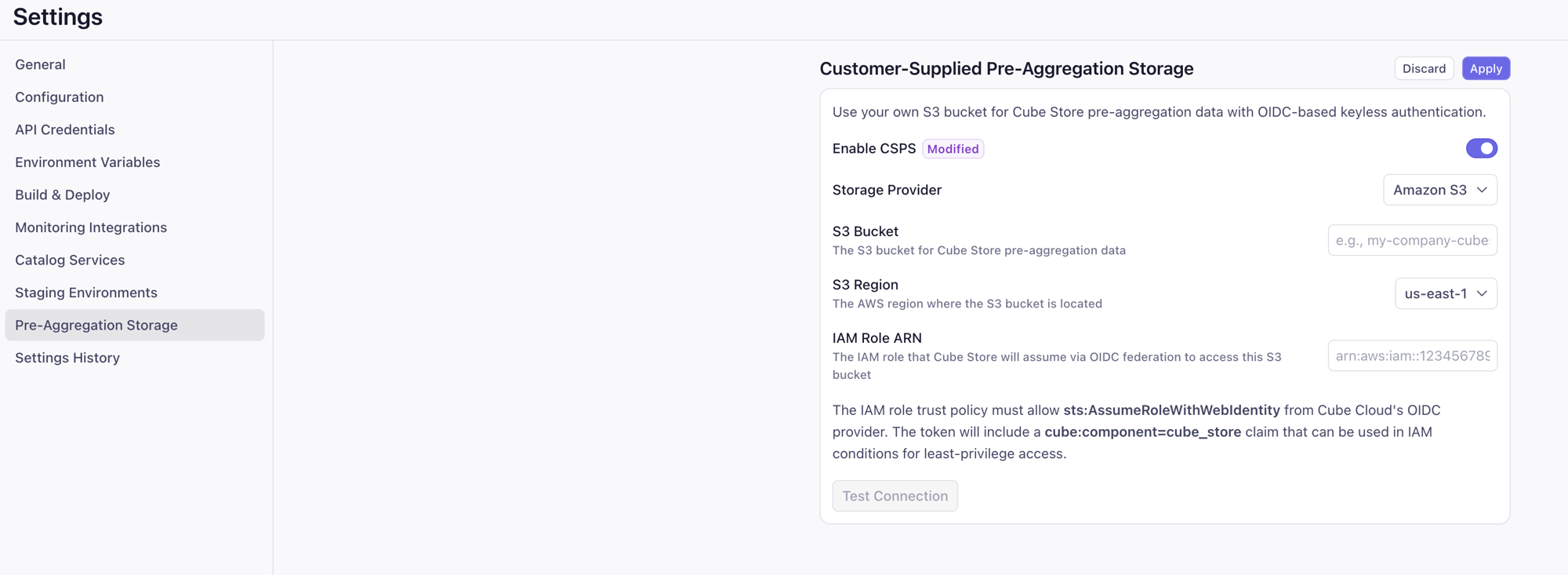
For each deployment that should use this bucket, go to **Settings →
Pre-Aggregation Storage** on the deployment and:
* Toggle **Enable CSPS** on.
* **Storage Provider**: Amazon S3.
* **S3 Bucket**: `my-csps-bucket`.
* **S3 Region**: e.g. `us-east-1`.
* **IAM Role ARN**: `arn:aws:iam:::role/cube-cubestore-`.
Click **Test Connection** to verify Cube Store can assume the role and
access the bucket, then **Apply**. Cube Store starts writing
pre-aggregations to your bucket on the next refresh. With the
tenant-wide trust policy above, every deployment in the tenant points
at the same role — no need to provision a new IAM role per deployment.
 ## Bedrock for bring-your-own LLM
Bring-your-own LLM lets the AI engineer service call Bedrock through your
own AWS account. The AI engineer's `sub` claim ends in
`component:ai_engineer`, so the trust policy uses a `StringLike` match on
`cube:deployment:*:component:ai_engineer` to grant access tenant-wide
(every deployment's AI engineer assumes the same role and writes against
the same Bedrock account).
Trust policy — note the `StringLike` condition pinning the component:
```json theme={"dark"}
{
"Version": "2012-10-17",
"Statement": [
{
"Effect": "Allow",
"Principal": {
"Federated": "arn:aws:iam:::oidc-provider/.cubecloud.dev"
},
"Action": "sts:AssumeRoleWithWebIdentity",
"Condition": {
"StringEquals": {
".cubecloud.dev:aud": "sts.amazonaws.com"
},
"StringLike": {
".cubecloud.dev:sub": "cube:deployment:*:component:ai_engineer"
}
}
}
]
}
```
Grant access only to the foundation models and inference profiles you
intend to use:
```json theme={"dark"}
{
"Version": "2012-10-17",
"Statement": [
{
"Effect": "Allow",
"Action": [
"bedrock:InvokeModel",
"bedrock:InvokeModelWithResponseStream",
"bedrock:Converse",
"bedrock:ConverseStream"
],
"Resource": [
"arn:aws:bedrock:*::foundation-model/anthropic.*",
"arn:aws:bedrock:*::inference-profile/*"
]
}
]
}
```
Cross-region inference profiles need access to the foundation model in
every region the profile routes through, hence the `*` region in the
foundation-model ARN.
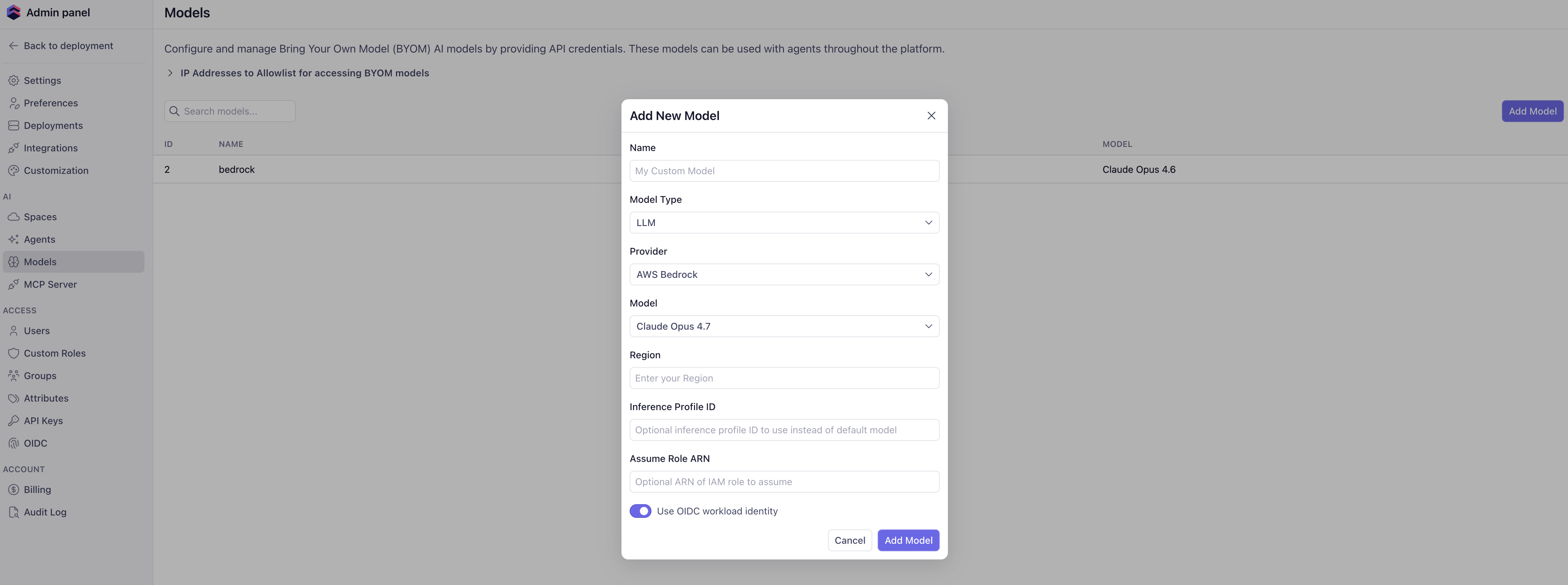
Under **Admin → AI → Models**, click **Add Model** and configure:
* **Name** — a human-readable label for this BYOM entry.
* **Model Type** — `LLM`.
* **Provider** — `AWS Bedrock`.
* **Model** — the Claude (or other) model you want the AI engineer to
call.
* **Region** — the Bedrock region (e.g. `us-east-1`).
* **Inference Profile ID** — optional; leave blank to call the
foundation model directly, or set to a cross-region inference
profile ID.
* **Assume Role ARN** — the role you created above.
* **Use OIDC workload identity** — toggle on. With this on, the AI
engineer authenticates via the deployment's OIDC token instead of
static AWS credentials.
## Bedrock for bring-your-own LLM
Bring-your-own LLM lets the AI engineer service call Bedrock through your
own AWS account. The AI engineer's `sub` claim ends in
`component:ai_engineer`, so the trust policy uses a `StringLike` match on
`cube:deployment:*:component:ai_engineer` to grant access tenant-wide
(every deployment's AI engineer assumes the same role and writes against
the same Bedrock account).
Trust policy — note the `StringLike` condition pinning the component:
```json theme={"dark"}
{
"Version": "2012-10-17",
"Statement": [
{
"Effect": "Allow",
"Principal": {
"Federated": "arn:aws:iam:::oidc-provider/.cubecloud.dev"
},
"Action": "sts:AssumeRoleWithWebIdentity",
"Condition": {
"StringEquals": {
".cubecloud.dev:aud": "sts.amazonaws.com"
},
"StringLike": {
".cubecloud.dev:sub": "cube:deployment:*:component:ai_engineer"
}
}
}
]
}
```
Grant access only to the foundation models and inference profiles you
intend to use:
```json theme={"dark"}
{
"Version": "2012-10-17",
"Statement": [
{
"Effect": "Allow",
"Action": [
"bedrock:InvokeModel",
"bedrock:InvokeModelWithResponseStream",
"bedrock:Converse",
"bedrock:ConverseStream"
],
"Resource": [
"arn:aws:bedrock:*::foundation-model/anthropic.*",
"arn:aws:bedrock:*::inference-profile/*"
]
}
]
}
```
Cross-region inference profiles need access to the foundation model in
every region the profile routes through, hence the `*` region in the
foundation-model ARN.
Under **Admin → AI → Models**, click **Add Model** and configure:
* **Name** — a human-readable label for this BYOM entry.
* **Model Type** — `LLM`.
* **Provider** — `AWS Bedrock`.
* **Model** — the Claude (or other) model you want the AI engineer to
call.
* **Region** — the Bedrock region (e.g. `us-east-1`).
* **Inference Profile ID** — optional; leave blank to call the
foundation model directly, or set to a cross-region inference
profile ID.
* **Assume Role ARN** — the role you created above.
* **Use OIDC workload identity** — toggle on. With this on, the AI
engineer authenticates via the deployment's OIDC token instead of
static AWS credentials.
 ## Verifying the setup
The fastest way to confirm the trust policy is wired up correctly is the
**Test connection** button on the relevant settings page (data source
wizard, CSPS settings, BYO LLM provider). Behind the scenes, this issues a
real Cube OIDC token, runs `AssumeRoleWithWebIdentity` against AWS STS, and
returns a precise error if the trust policy rejects it.
If the test fails:
| Symptom | Likely cause |
| --------------------------------------------------------- | --------------------------------------------------------------------------------------------------------------------------------------------------------------------------------------- |
| `Not authorized to perform sts:AssumeRoleWithWebIdentity` | The trust policy's `sub` condition doesn't match the deployment / component. Compare the `sub` in the error with what your `StringLike` allows. |
| `Incorrect token audience` | `aud` condition is wrong, or you copied a trust policy from a different tenant. The condition key must be `.cubecloud.dev:aud`. |
| `OpenIDConnectProvider not found` | The OIDC provider hasn't been registered in this AWS account yet, or its URL doesn't match your tenant's domain. Re-run `aws iam create-open-id-connect-provider` with the correct URL. |
| `An error occurred ... InvalidIdentityToken` | Trying to use `sts:ExternalId`. Remove it — federated assume-role doesn't accept it. |
`AssumeRoleWithWebIdentity` events show up in CloudTrail with the deployment
subject in the `userIdentity.webIdFederationData.federatedProvider` and
`...attributes` fields — useful for auditing which deployments are
authenticating against which roles.
[ref-oidc-overview]: /admin/deployment/oidc
[ref-sub-editor]: /admin/deployment/oidc#subject-claim-format
[ref-cube-cloud-region]: /admin/deployment/infrastructure#what-is-a-cube-cloud-region
[ref-export-bucket]: /admin/connect-to-data#export-bucket
[ref-athena-assume-role]: /admin/connect-to-data/data-sources/aws-athena#environment-variables
[ref-redshift-driver-iam]: /admin/connect-to-data/data-sources/aws-redshift#iam-authentication
## Verifying the setup
The fastest way to confirm the trust policy is wired up correctly is the
**Test connection** button on the relevant settings page (data source
wizard, CSPS settings, BYO LLM provider). Behind the scenes, this issues a
real Cube OIDC token, runs `AssumeRoleWithWebIdentity` against AWS STS, and
returns a precise error if the trust policy rejects it.
If the test fails:
| Symptom | Likely cause |
| --------------------------------------------------------- | --------------------------------------------------------------------------------------------------------------------------------------------------------------------------------------- |
| `Not authorized to perform sts:AssumeRoleWithWebIdentity` | The trust policy's `sub` condition doesn't match the deployment / component. Compare the `sub` in the error with what your `StringLike` allows. |
| `Incorrect token audience` | `aud` condition is wrong, or you copied a trust policy from a different tenant. The condition key must be `.cubecloud.dev:aud`. |
| `OpenIDConnectProvider not found` | The OIDC provider hasn't been registered in this AWS account yet, or its URL doesn't match your tenant's domain. Re-run `aws iam create-open-id-connect-provider` with the correct URL. |
| `An error occurred ... InvalidIdentityToken` | Trying to use `sts:ExternalId`. Remove it — federated assume-role doesn't accept it. |
`AssumeRoleWithWebIdentity` events show up in CloudTrail with the deployment
subject in the `userIdentity.webIdFederationData.federatedProvider` and
`...attributes` fields — useful for auditing which deployments are
authenticating against which roles.
[ref-oidc-overview]: /admin/deployment/oidc
[ref-sub-editor]: /admin/deployment/oidc#subject-claim-format
[ref-cube-cloud-region]: /admin/deployment/infrastructure#what-is-a-cube-cloud-region
[ref-export-bucket]: /admin/connect-to-data#export-bucket
[ref-athena-assume-role]: /admin/connect-to-data/data-sources/aws-athena#environment-variables
[ref-redshift-driver-iam]: /admin/connect-to-data/data-sources/aws-redshift#iam-authentication