> ## Documentation Index
> Fetch the complete documentation index at: https://docs.cube.dev/llms.txt
> Use this file to discover all available pages before exploring further.
# Getting started
> Build a reusable semantic layer that provides the shared context for AI agents, BI dashboards, and embedded analytics — turning warehouse tables into governed metrics and dimensions.
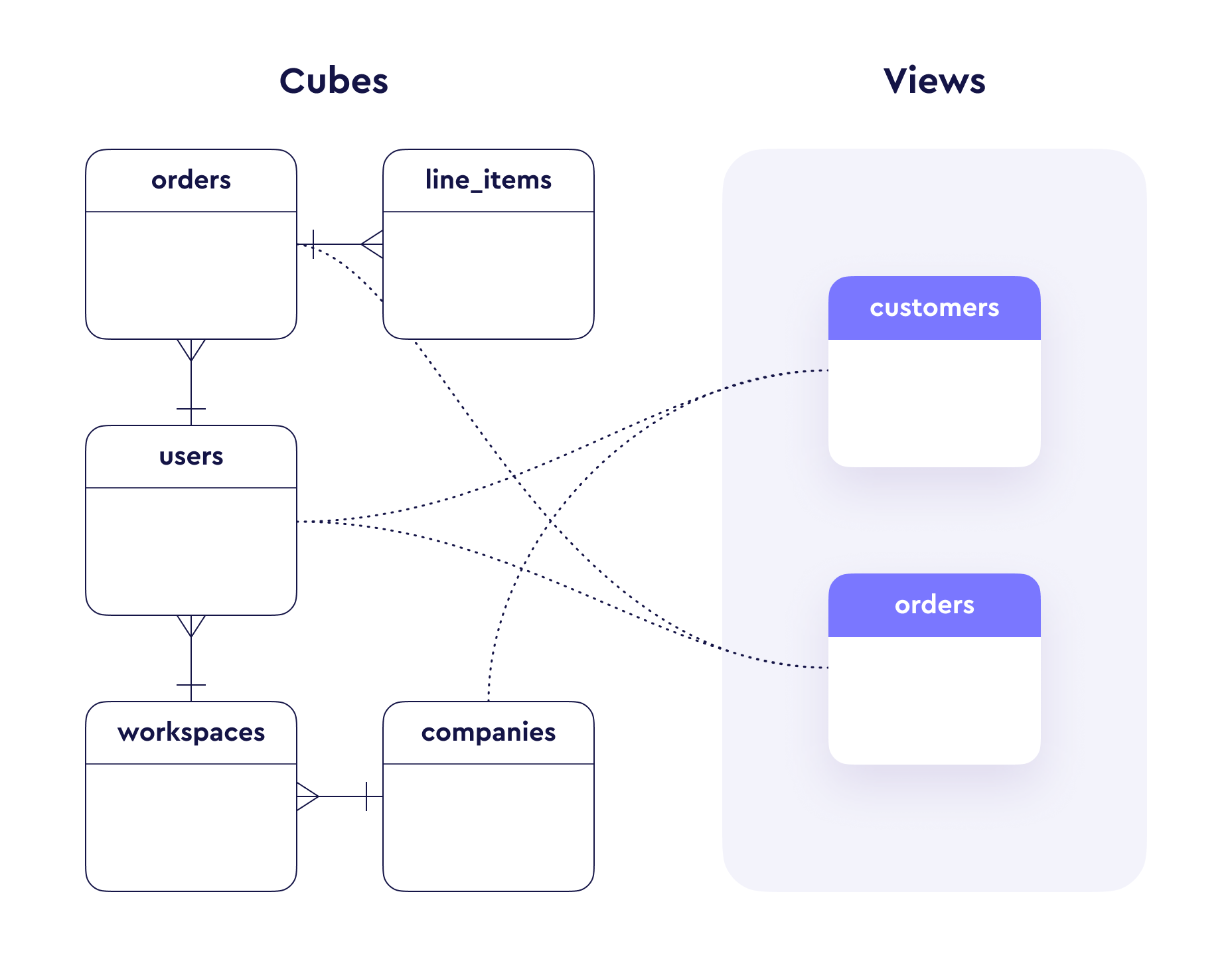 Let’s use a users table with the following columns as an example:
| id | paying | city | company\_name |
| -- | ------ | ------------- | ------------- |
| 1 | true | San Francisco | Pied Piper |
| 2 | true | Palo Alto | Raviga |
| 3 | true | Redwood | Aviato |
| 4 | false | Mountain View | Bream-Hall |
| 5 | false | Santa Cruz | Hooli |
We can start with a set of simple questions about users we want to answer:
* How many users do we have?
* How many paying users?
* What is the percentage of paying users out of the total?
* How many users, paying or not, are from different cities and companies?
We don’t need to write SQL queries for every question, since the data model
allows building well-organized and reusable SQL.
## 1. Creating a Cube
In Cube, [cubes][ref-schema-cube] are used to organize tables and connections
between tables. Usually one cube is created for each table in the database,
such as `users`, `orders`, `products`, etc. In the `sql_table` parameter of the
cube we define a base table for this cube. In our case, the base table is simply
our `users` table.
```yaml title="YAML" theme={"dark"}
cubes:
- name: users
sql_table: users
```
```javascript title="JavaScript" theme={"dark"}
cube(`users`, {
sql_table: `users`
})
```
## 2. Adding Measures and Dimensions
Once the base table is defined, the next step is to add
[measures][ref-schema-measures] and [dimensions][ref-schema-dimensions] to the
cube.
**Measures** are referred to as quantitative data, such as number of units sold,
number of unique visits, profit, and so on.
**Dimensions** are referred to as categorical data, such as state, gender,
product name, or units of time (e.g., day, week, month).
Let's go ahead and create our first measure and two dimensions:
```yaml title="YAML" theme={"dark"}
cubes:
- name: users
sql_table: users
measures:
- name: count
sql: id
type: count
dimensions:
- name: city
sql: city
type: string
- name: company_name
sql: company_name
type: string
```
```javascript title="JavaScript" theme={"dark"}
cube(`users`, {
sql_table: `users`,
measures: {
count: {
sql: `id`,
type: `count`
}
},
dimensions: {
city: {
sql: `city`,
type: `string`
},
company_name: {
sql: `company_name`,
type: `string`
}
}
})
```
Let's break down the above code snippet piece-by-piece. After defining the base
table for the cube (with the `sql_table` property), we create a `count` measure
in the `measures` block. The `count` [type][ref-schema-types-formats] and sql
`id` means that when this measure will be requested via an API, Cube will
generate and execute the following SQL:
```sql theme={"dark"}
SELECT COUNT(id) AS count
FROM users;
```
When we apply a city dimension to the measure to see "Where are users based?",
Cube will generate SQL with a `GROUP BY` clause:
```sql theme={"dark"}
SELECT city, COUNT(id) AS count
FROM users
GROUP BY 1;
```
You can add as many dimensions as you want to your query when you perform
grouping.
## 3. Adding Filters to Measures
Now let's answer the next question – "How many paying users do we have?". To
accomplish this, we will introduce **measure filters**:
```yaml title="YAML" theme={"dark"}
cubes:
- name: users
measures:
- name: count
sql: id
type: count
- name: paying_count
sql: id
type: count
filters:
- sql: "{CUBE}.paying = 'true'"
# ...
```
```javascript title="JavaScript" theme={"dark"}
cube(`users`, {
measures: {
count: {
sql: `id`,
type: `count`
},
paying_count: {
sql: `id`,
type: `count`,
filters: [{ sql: `${CUBE}.paying = 'true'` }]
}
},
// ...
})
```
It is best practice to prefix references to table columns with the name of the
cube or with the `CUBE` constant when referencing the current cube's column.
That's it! Now we have the `paying_count` measure, which shows only our paying
users. When this measure is requested, Cube will generate the following SQL:
```sql theme={"dark"}
SELECT
COUNT(
CASE WHEN (users.paying = 'true') THEN users.id END
) AS paying_count
FROM users
```
Since the `filters` property is an array, you can apply as many filters as
required. `paying_count` can be used with dimensions the same way as a simple
`count`. We can group `paying_count` by `city` and `companyName` simply by
adding these dimensions alongside measures in the requested query.
## 4. Using Calculated Measures
To answer "What is the percentage of paying users out of the total?", we need to
calculate the paying users ratio, which is basically `paying_count / count`.
Cube makes it extremely easy to perform this kind of calculation by defining a
[calculated measure][ref-calculated-measures]. Let's add a new measure to our cube
called `paying_percentage`:
```yaml title="YAML" theme={"dark"}
cubes:
- name: users
measures:
- name: count
sql: id
type: count
- name: paying_count
sql: id
type: count
filters:
- sql: "{CUBE}.paying = 'true'"
- name: paying_percentage
sql: "1.0 * {paying_count} / {count}"
type: number
format: percent
# ...
```
```javascript title="JavaScript" theme={"dark"}
cube(`users`, {
measures: {
count: {
sql: `id`,
type: `count`
},
paying_count: {
sql: `id`,
type: `count`,
filters: [{ sql: `${CUBE}.paying = 'true'` }]
},
paying_percentage: {
sql: `1.0 * ${paying_count} / ${count}`,
type: `number`,
format: `percent`
}
},
// ...
})
```
Here we defined a calculated measure `paying_percentage`, which divides
`paying_count` by `count`. This example shows how you can reference measures
inside other measure definitions. When you request the `paying_percentage`
measure via an API, the following SQL will be generated:
```sql theme={"dark"}
SELECT
1.0 * COUNT(
CASE WHEN (users.paying = 'true') THEN users.id END
) / COUNT(users.id) AS paying_percentage
FROM users
```
As with other measures, `paying_percentage` can be used with dimensions.
## 5. Creating a View
[Views][ref-views] sit on top of cubes and create a facade of your whole data
model, with which data consumers can interact. They are useful for defining
metrics, managing governance, and controlling which part of the data model is
exposed to end-users.
Let's create a view that exposes our users data:
```yaml title="YAML" theme={"dark"}
views:
- name: users_view
cubes:
- join_path: users
includes:
- "*"
```
```javascript title="JavaScript" theme={"dark"}
view(`users_view`, {
cubes: [
{
join_path: users,
includes: `*`
}
]
})
```
End-users query data through views in Cube. This gives you a layer of
abstraction that makes it easier to manage changes to the underlying data
model.
## 6. Next Steps
1. [Explore][ref-explore] your data model
2. Use [Workbooks][ref-workbooks] to save your analysis and present it as a dashboard
[ref-backend-restapi]: /reference/rest-api/reference
[ref-schema-cube]: /reference/data-modeling/cube
[ref-schema-measures]: /reference/data-modeling/measures
[ref-schema-dimensions]: /reference/data-modeling/dimensions
[ref-schema-types-formats]: /reference/data-modeling/measures#type
[ref-backend-query-format]: /reference/rest-api/query-format
[ref-demo-deployment]: /docs/deployment/cloud/deployments#demo-deployments
[ref-apis]: /reference
[ref-calculated-measures]: /docs/data-modeling/measures#calculated-measures
[ref-views]: /reference/data-modeling/view
[ref-explore]: /analytics/explore
[ref-workbooks]: /analytics/workbooks
Let’s use a users table with the following columns as an example:
| id | paying | city | company\_name |
| -- | ------ | ------------- | ------------- |
| 1 | true | San Francisco | Pied Piper |
| 2 | true | Palo Alto | Raviga |
| 3 | true | Redwood | Aviato |
| 4 | false | Mountain View | Bream-Hall |
| 5 | false | Santa Cruz | Hooli |
We can start with a set of simple questions about users we want to answer:
* How many users do we have?
* How many paying users?
* What is the percentage of paying users out of the total?
* How many users, paying or not, are from different cities and companies?
We don’t need to write SQL queries for every question, since the data model
allows building well-organized and reusable SQL.
## 1. Creating a Cube
In Cube, [cubes][ref-schema-cube] are used to organize tables and connections
between tables. Usually one cube is created for each table in the database,
such as `users`, `orders`, `products`, etc. In the `sql_table` parameter of the
cube we define a base table for this cube. In our case, the base table is simply
our `users` table.
```yaml title="YAML" theme={"dark"}
cubes:
- name: users
sql_table: users
```
```javascript title="JavaScript" theme={"dark"}
cube(`users`, {
sql_table: `users`
})
```
## 2. Adding Measures and Dimensions
Once the base table is defined, the next step is to add
[measures][ref-schema-measures] and [dimensions][ref-schema-dimensions] to the
cube.
**Measures** are referred to as quantitative data, such as number of units sold,
number of unique visits, profit, and so on.
**Dimensions** are referred to as categorical data, such as state, gender,
product name, or units of time (e.g., day, week, month).
Let's go ahead and create our first measure and two dimensions:
```yaml title="YAML" theme={"dark"}
cubes:
- name: users
sql_table: users
measures:
- name: count
sql: id
type: count
dimensions:
- name: city
sql: city
type: string
- name: company_name
sql: company_name
type: string
```
```javascript title="JavaScript" theme={"dark"}
cube(`users`, {
sql_table: `users`,
measures: {
count: {
sql: `id`,
type: `count`
}
},
dimensions: {
city: {
sql: `city`,
type: `string`
},
company_name: {
sql: `company_name`,
type: `string`
}
}
})
```
Let's break down the above code snippet piece-by-piece. After defining the base
table for the cube (with the `sql_table` property), we create a `count` measure
in the `measures` block. The `count` [type][ref-schema-types-formats] and sql
`id` means that when this measure will be requested via an API, Cube will
generate and execute the following SQL:
```sql theme={"dark"}
SELECT COUNT(id) AS count
FROM users;
```
When we apply a city dimension to the measure to see "Where are users based?",
Cube will generate SQL with a `GROUP BY` clause:
```sql theme={"dark"}
SELECT city, COUNT(id) AS count
FROM users
GROUP BY 1;
```
You can add as many dimensions as you want to your query when you perform
grouping.
## 3. Adding Filters to Measures
Now let's answer the next question – "How many paying users do we have?". To
accomplish this, we will introduce **measure filters**:
```yaml title="YAML" theme={"dark"}
cubes:
- name: users
measures:
- name: count
sql: id
type: count
- name: paying_count
sql: id
type: count
filters:
- sql: "{CUBE}.paying = 'true'"
# ...
```
```javascript title="JavaScript" theme={"dark"}
cube(`users`, {
measures: {
count: {
sql: `id`,
type: `count`
},
paying_count: {
sql: `id`,
type: `count`,
filters: [{ sql: `${CUBE}.paying = 'true'` }]
}
},
// ...
})
```
It is best practice to prefix references to table columns with the name of the
cube or with the `CUBE` constant when referencing the current cube's column.
That's it! Now we have the `paying_count` measure, which shows only our paying
users. When this measure is requested, Cube will generate the following SQL:
```sql theme={"dark"}
SELECT
COUNT(
CASE WHEN (users.paying = 'true') THEN users.id END
) AS paying_count
FROM users
```
Since the `filters` property is an array, you can apply as many filters as
required. `paying_count` can be used with dimensions the same way as a simple
`count`. We can group `paying_count` by `city` and `companyName` simply by
adding these dimensions alongside measures in the requested query.
## 4. Using Calculated Measures
To answer "What is the percentage of paying users out of the total?", we need to
calculate the paying users ratio, which is basically `paying_count / count`.
Cube makes it extremely easy to perform this kind of calculation by defining a
[calculated measure][ref-calculated-measures]. Let's add a new measure to our cube
called `paying_percentage`:
```yaml title="YAML" theme={"dark"}
cubes:
- name: users
measures:
- name: count
sql: id
type: count
- name: paying_count
sql: id
type: count
filters:
- sql: "{CUBE}.paying = 'true'"
- name: paying_percentage
sql: "1.0 * {paying_count} / {count}"
type: number
format: percent
# ...
```
```javascript title="JavaScript" theme={"dark"}
cube(`users`, {
measures: {
count: {
sql: `id`,
type: `count`
},
paying_count: {
sql: `id`,
type: `count`,
filters: [{ sql: `${CUBE}.paying = 'true'` }]
},
paying_percentage: {
sql: `1.0 * ${paying_count} / ${count}`,
type: `number`,
format: `percent`
}
},
// ...
})
```
Here we defined a calculated measure `paying_percentage`, which divides
`paying_count` by `count`. This example shows how you can reference measures
inside other measure definitions. When you request the `paying_percentage`
measure via an API, the following SQL will be generated:
```sql theme={"dark"}
SELECT
1.0 * COUNT(
CASE WHEN (users.paying = 'true') THEN users.id END
) / COUNT(users.id) AS paying_percentage
FROM users
```
As with other measures, `paying_percentage` can be used with dimensions.
## 5. Creating a View
[Views][ref-views] sit on top of cubes and create a facade of your whole data
model, with which data consumers can interact. They are useful for defining
metrics, managing governance, and controlling which part of the data model is
exposed to end-users.
Let's create a view that exposes our users data:
```yaml title="YAML" theme={"dark"}
views:
- name: users_view
cubes:
- join_path: users
includes:
- "*"
```
```javascript title="JavaScript" theme={"dark"}
view(`users_view`, {
cubes: [
{
join_path: users,
includes: `*`
}
]
})
```
End-users query data through views in Cube. This gives you a layer of
abstraction that makes it easier to manage changes to the underlying data
model.
## 6. Next Steps
1. [Explore][ref-explore] your data model
2. Use [Workbooks][ref-workbooks] to save your analysis and present it as a dashboard
[ref-backend-restapi]: /reference/rest-api/reference
[ref-schema-cube]: /reference/data-modeling/cube
[ref-schema-measures]: /reference/data-modeling/measures
[ref-schema-dimensions]: /reference/data-modeling/dimensions
[ref-schema-types-formats]: /reference/data-modeling/measures#type
[ref-backend-query-format]: /reference/rest-api/query-format
[ref-demo-deployment]: /docs/deployment/cloud/deployments#demo-deployments
[ref-apis]: /reference
[ref-calculated-measures]: /docs/data-modeling/measures#calculated-measures
[ref-views]: /reference/data-modeling/view
[ref-explore]: /analytics/explore
[ref-workbooks]: /analytics/workbooks