> ## Documentation Index
> Fetch the complete documentation index at: https://docs.cube.dev/llms.txt
> Use this file to discover all available pages before exploring further.
# Connect to Databricks
> Provision a Cube Cloud deployment, create a project, and connect Cube to Databricks for warehouse-backed semantic queries.
In this section, we’ll create a Cube Cloud deployment and connect it to
Databricks. A deployment represents a data model, configuration, and managed
infrastructure.
To continue with this guide, you'll need to have a Cube Cloud account. If you
don't have one yet, [click here to sign up][cube-cloud-signup] for free.
First, [sign in to your Cube Cloud account][cube-cloud-signin]. Then,
click **Create Deployment**:
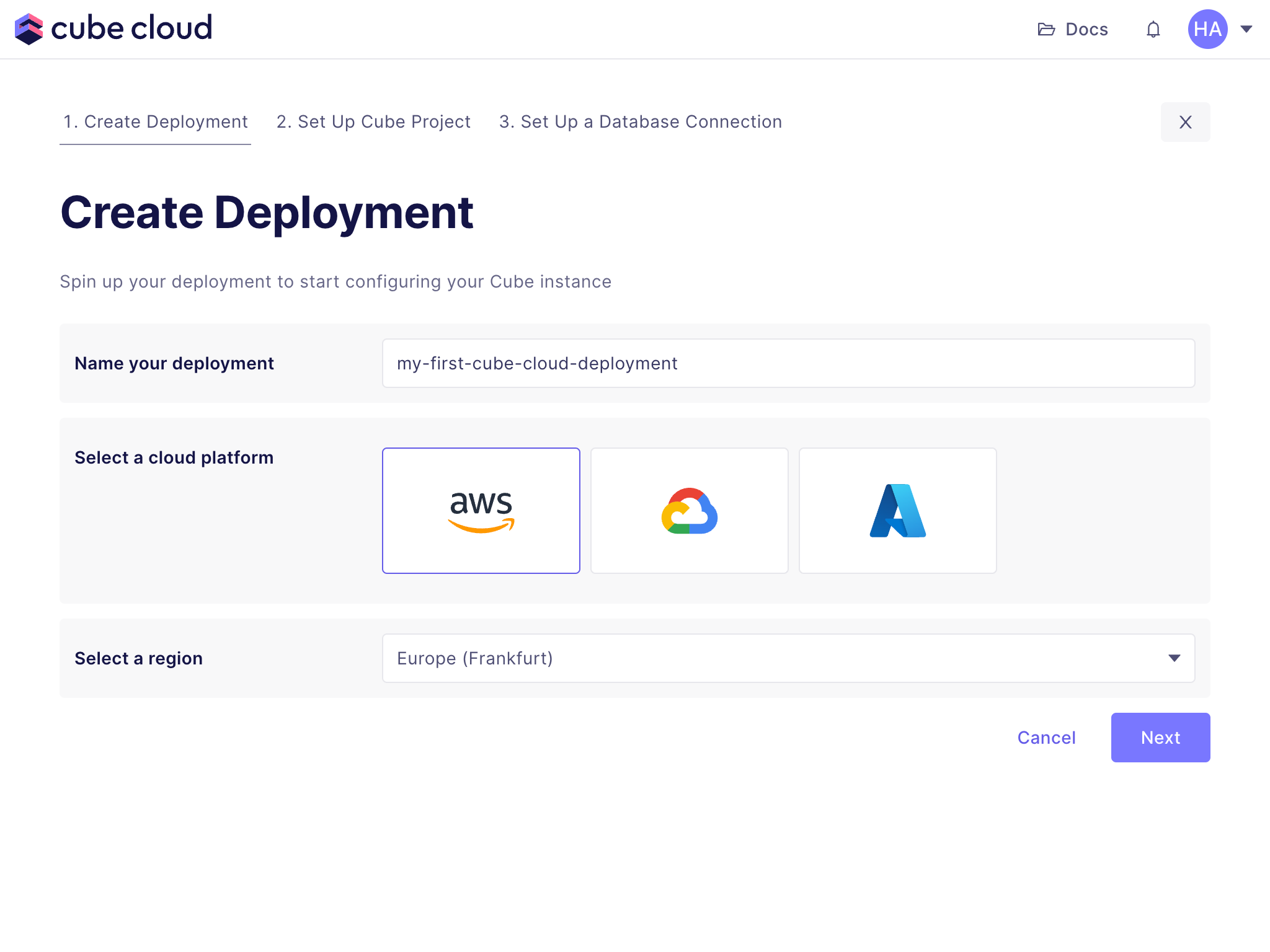
Give the deployment a name, select the cloud provider and region of your choice,
and click **Next**:
 Microsoft Azure is available on [Enterprise plan](https://cube.dev/pricing).
[Contact us](https://cube.dev/contact) for details.
## Set up a Cube project
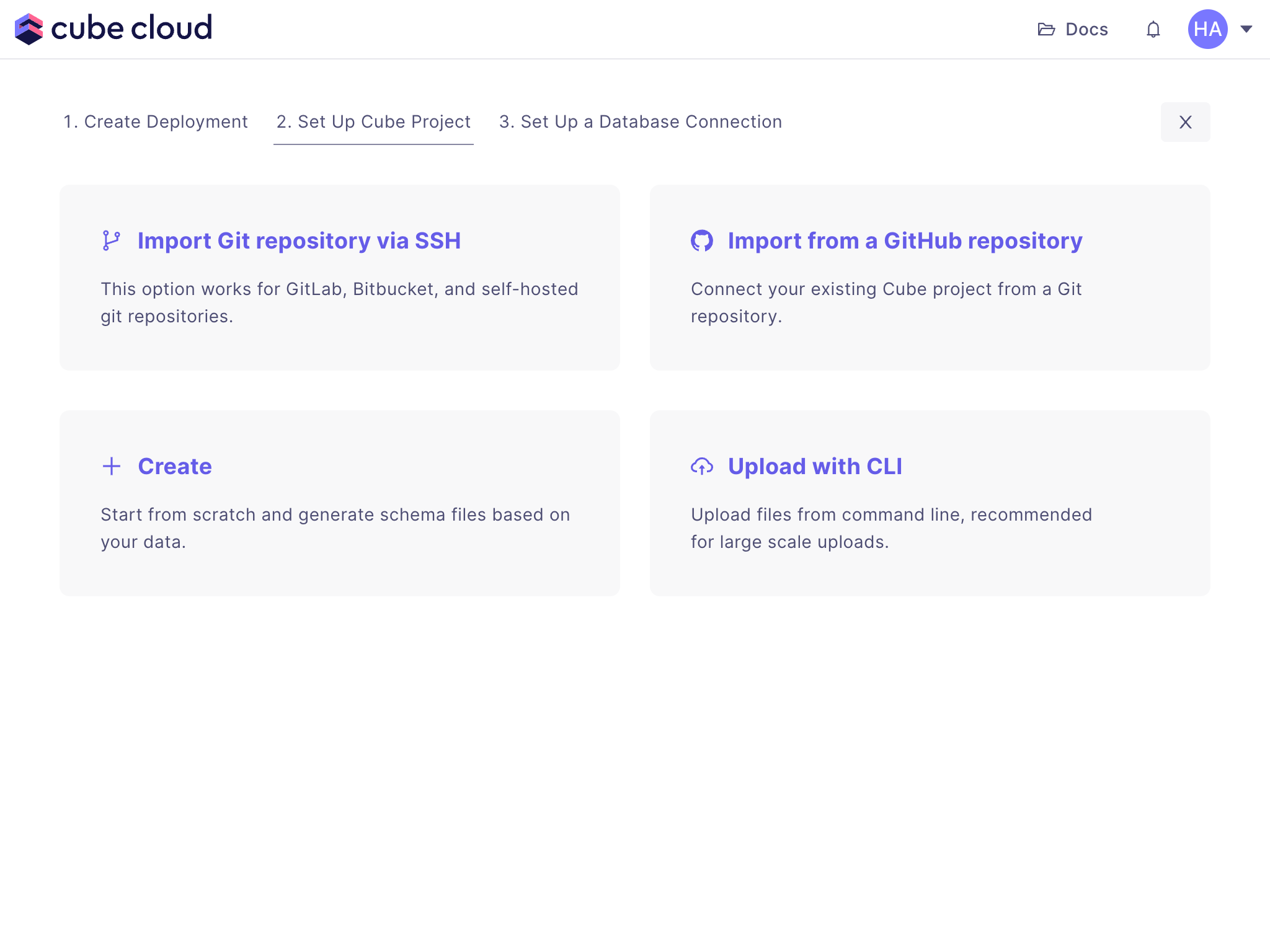
Next, click **Create** to create a new project from scratch:
Microsoft Azure is available on [Enterprise plan](https://cube.dev/pricing).
[Contact us](https://cube.dev/contact) for details.
## Set up a Cube project
Next, click **Create** to create a new project from scratch:
 ## Connect to your Databricks
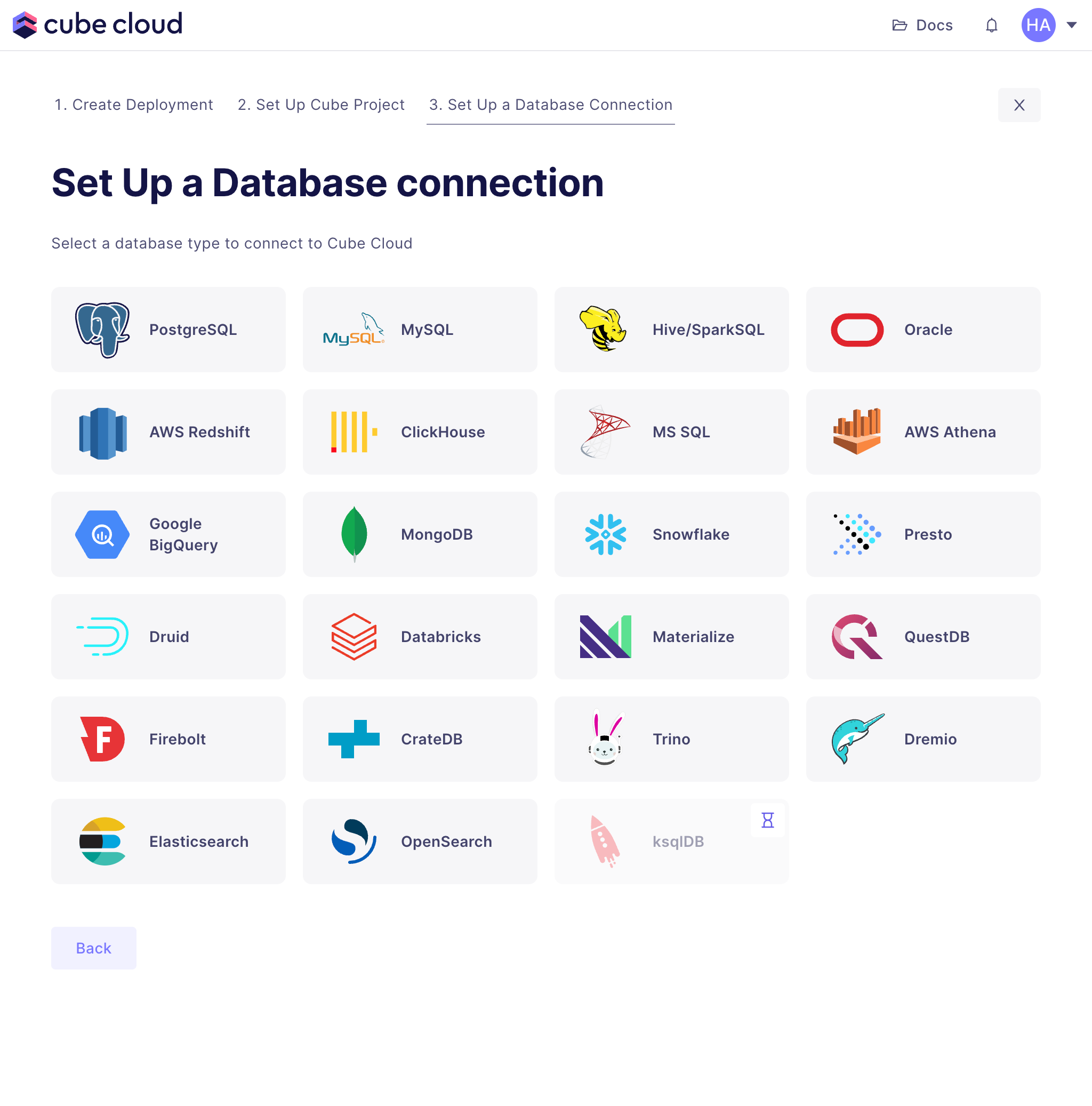
The last step is to connect Cube Cloud to Databricks. First, select it from the
grid:
## Connect to your Databricks
The last step is to connect Cube Cloud to Databricks. First, select it from the
grid:
 Then enter your Databricks credentials:
* **Access Token:** A personal access token for your Databricks account. [You
can generate one][databricks-docs-pat] in your Databricks account settings.
* **Databricks JDBC URL:** The JDBC URL for your Databricks SQL warehouse. [You
can find it][databricks-docs-jdbc-url] in the SQL warehouse settings screen.
* **Databricks Catalog:** This should match the same catalog where you uploaded
the files in the last section. If left unspecified, the `default` catalog is
used.
[databricks-docs-pat]: https://docs.databricks.com/en/dev-tools/auth/pat.html#databricks-personal-access-tokens-for-workspace-users
[databricks-docs-jdbc-url]: https://docs.databricks.com/en/integrations/jdbc/compute.html
Click **Apply**, Cube Cloud will test the connection and proceed to the
next step.
## Generate data model from your Databricks schema
Cube can now generate a basic data model from your data warehouse, which helps
getting started with data modeling faster. Select all four tables in our catalog
and click through the data model generation wizard. We'll inspect these
generated files in the next section and start making changes to them.
[cube-cloud-signin]: https://cubecloud.dev/auth
[cube-cloud-signup]: https://cubecloud.dev/auth/signup
Then enter your Databricks credentials:
* **Access Token:** A personal access token for your Databricks account. [You
can generate one][databricks-docs-pat] in your Databricks account settings.
* **Databricks JDBC URL:** The JDBC URL for your Databricks SQL warehouse. [You
can find it][databricks-docs-jdbc-url] in the SQL warehouse settings screen.
* **Databricks Catalog:** This should match the same catalog where you uploaded
the files in the last section. If left unspecified, the `default` catalog is
used.
[databricks-docs-pat]: https://docs.databricks.com/en/dev-tools/auth/pat.html#databricks-personal-access-tokens-for-workspace-users
[databricks-docs-jdbc-url]: https://docs.databricks.com/en/integrations/jdbc/compute.html
Click **Apply**, Cube Cloud will test the connection and proceed to the
next step.
## Generate data model from your Databricks schema
Cube can now generate a basic data model from your data warehouse, which helps
getting started with data modeling faster. Select all four tables in our catalog
and click through the data model generation wizard. We'll inspect these
generated files in the next section and start making changes to them.
[cube-cloud-signin]: https://cubecloud.dev/auth
[cube-cloud-signup]: https://cubecloud.dev/auth/signup