> ## Documentation Index
> Fetch the complete documentation index at: https://docs.cube.dev/llms.txt
> Use this file to discover all available pages before exploring further.
# Load data
> The following steps will guide you through setting up a Databricks account and uploading the demo dataset, which is stored as CSV files in a public S3 bucket.
First, download the following files to your local machine:
* [`line_items.csv`](https://cube-tutorial.s3.us-east-2.amazonaws.com/line_items.csv)
* [`orders.csv`](https://cube-tutorial.s3.us-east-2.amazonaws.com/orders.csv)
* [`users.csv`](https://cube-tutorial.s3.us-east-2.amazonaws.com/users.csv)
* [`products.csv`](https://cube-tutorial.s3.us-east-2.amazonaws.com/products.csv)
Next, let's ensure we have a SQL warehouse that is active. Log in to your
Databricks account, then from the sidebar, click on **SQL → SQL
Warehouses**:
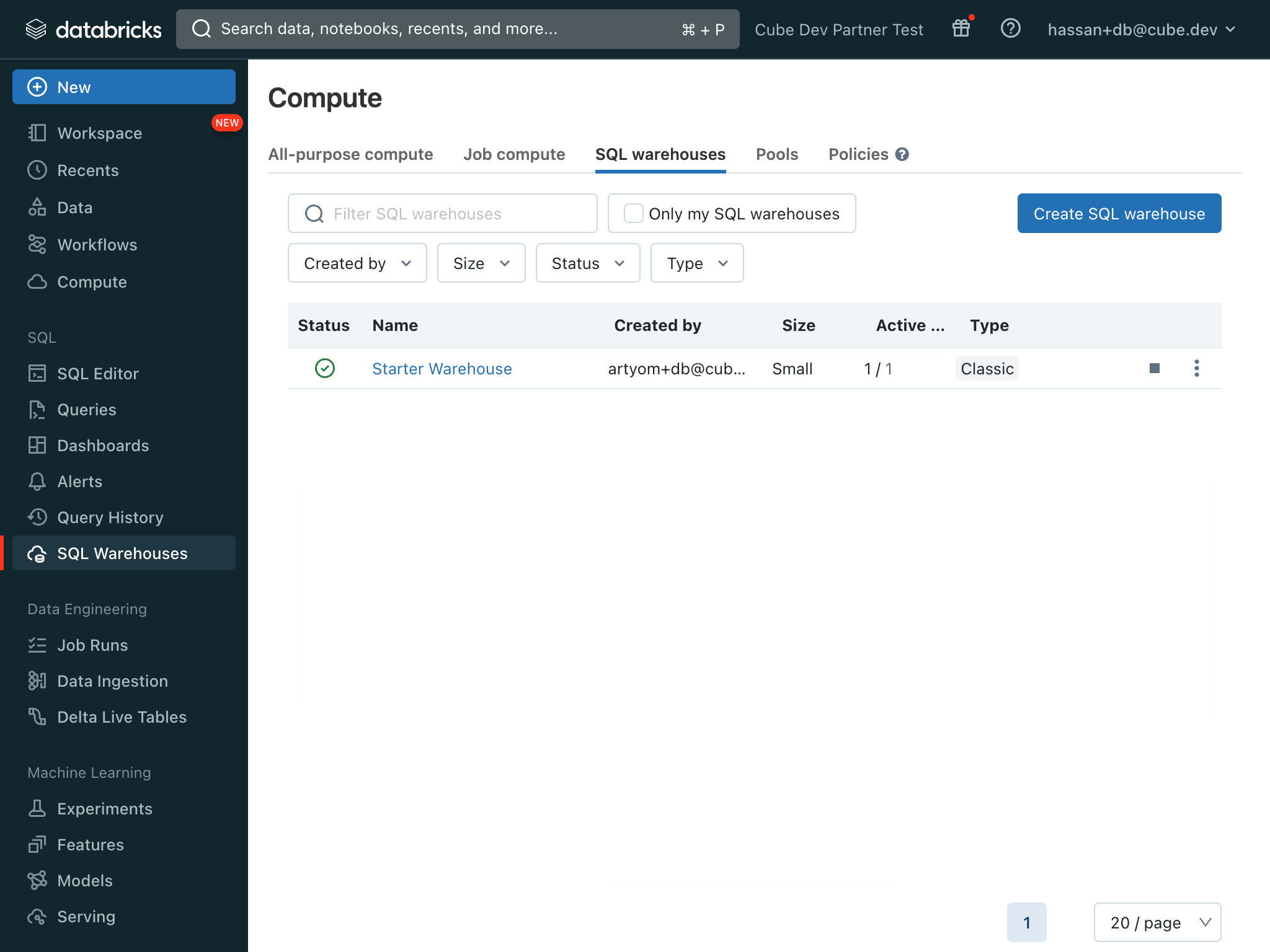 Ensure the warehouse is active by checking its status; if it is inactive, click
**▶️** to start it.
Next, click **New → File upload** from the sidebar, and upload
`line_items.csv`. The UI will show a preview of the data within the file; when
ready, click **Create table**.
Repeat the above steps for the three other files.
Ensure the warehouse is active by checking its status; if it is inactive, click
**▶️** to start it.
Next, click **New → File upload** from the sidebar, and upload
`line_items.csv`. The UI will show a preview of the data within the file; when
ready, click **Create table**.
Repeat the above steps for the three other files.