> ## Documentation Index
> Fetch the complete documentation index at: https://docs.cube.dev/llms.txt
> Use this file to discover all available pages before exploring further.
# Import a GitHub repository
> This guide walks you through setting up Cube Cloud, importing a GitHub repository with an existing Cube project, and connecting to your database.
## Step 1: Create an account
Navigate to [cubecloud.dev](https://cubecloud.dev/), and create a new Cube Cloud
account.
## Step 2: Create a new Deployment
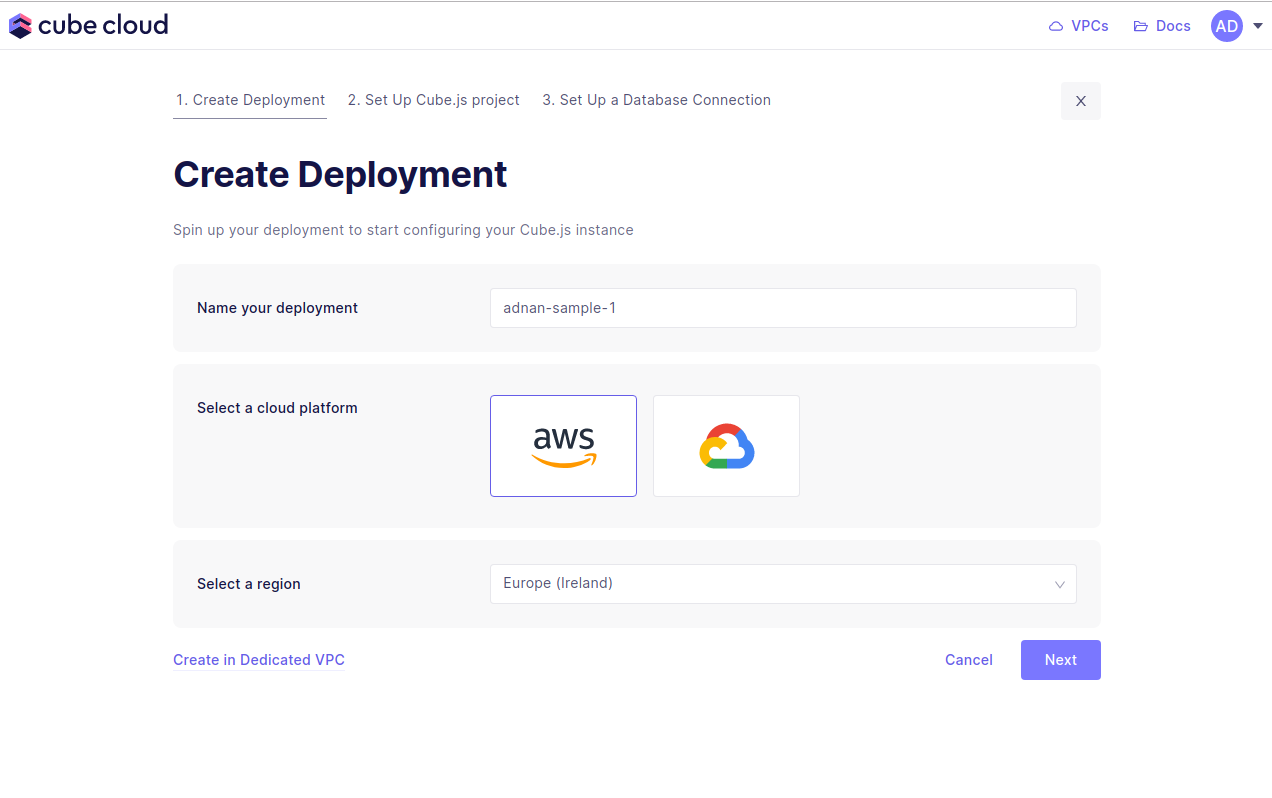
Click **Create Deployment**. This is the first step in the deployment
creation. Give it a name and select the cloud provider and region of your
choice.
Microsoft Azure is available on [Enterprise plan](https://cube.dev/pricing).
[Contact us](https://cube.dev/contact) for details.
## Step 3: Import repository from GitHub
Next up, click **Import from a GitHub repository**. This will pop open a
GitHub app authorization dialog where you must first install the Cube Cloud
GitHub app to the desired organization. After authorizing Cube Cloud to access
your GitHub repository, you should see the following screen in Cube Cloud:
Select your repository and the desired branch to use as the default. If the
repository is a monorepo, you should also provide the path to the Cube project
within it. Deployments connected to a Git monorepo will trigger a rebuild
**only** when committed files begin with the provided path.
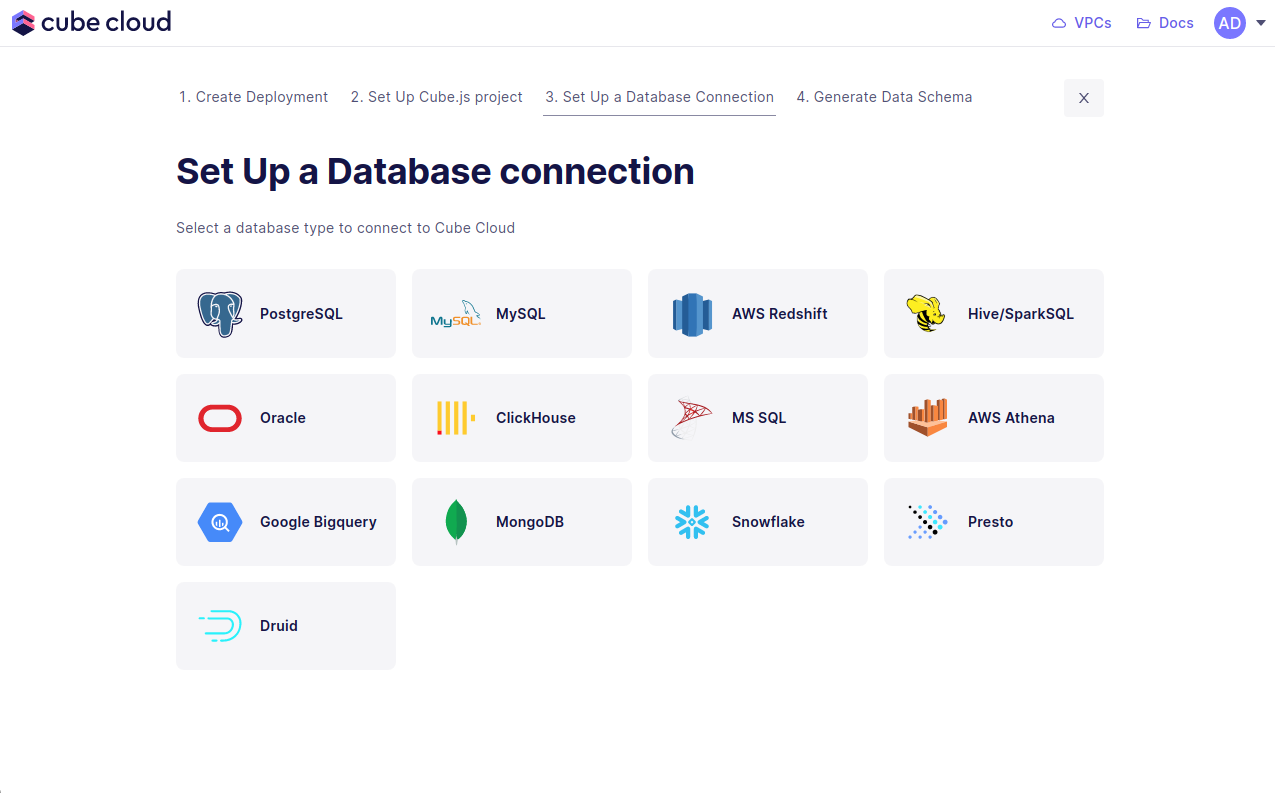
## Step 4: Connect your Database
Enter your credentials to connect to your database. Check the [connecting to
databases][link-connecting-to-databases] guide for more details.
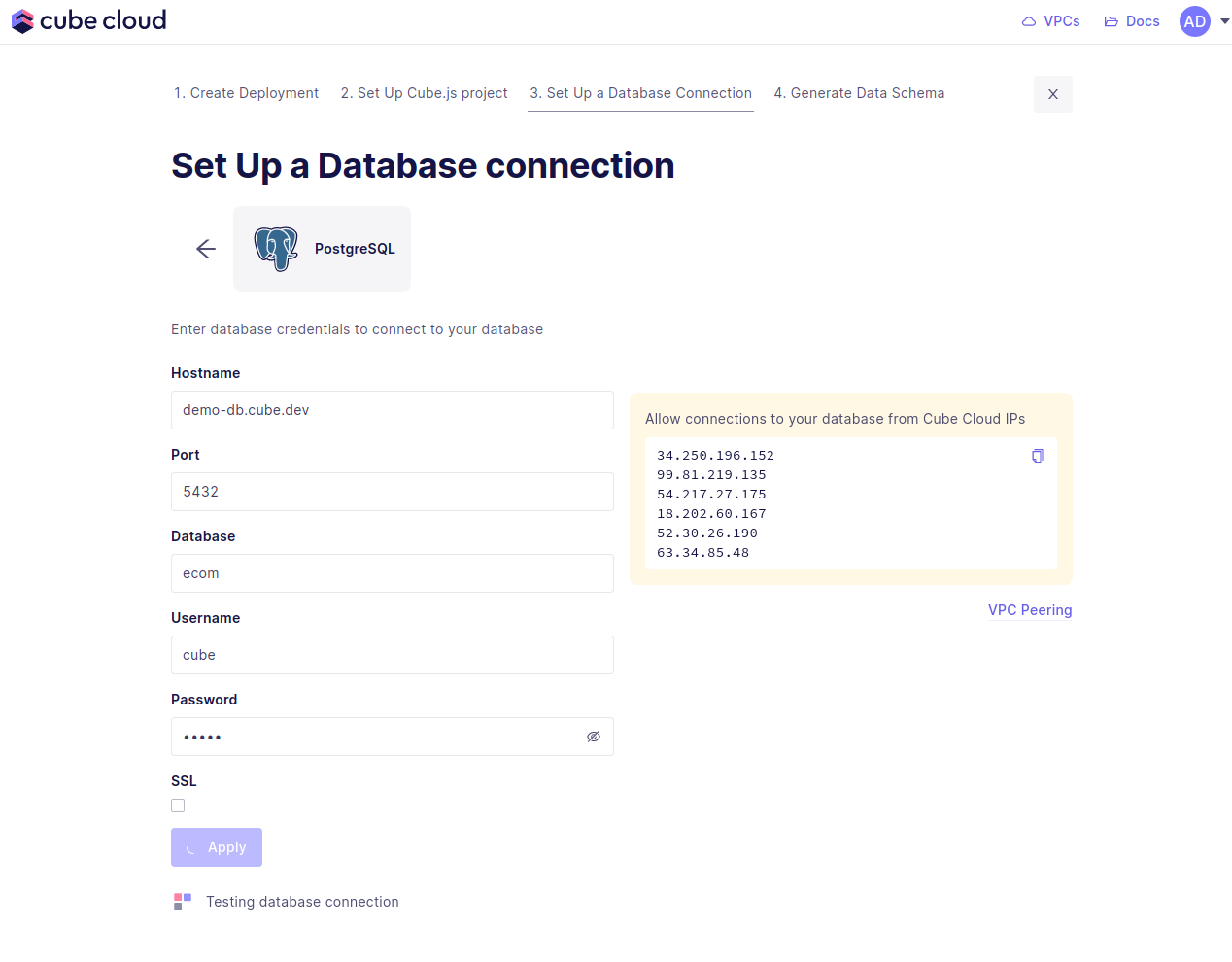
Want to use a sample database instead? We also have a sample database where you
can try out Cube Cloud:
| Field | Value |
| -------- | ------------------ |
| Host | `demo-db.cube.dev` |
| Port | `5432` |
| Database | `ecom` |
| Username | `cube` |
| Password | `12345` |
In the UI it'll look exactly like the image below.
If you run into issues here, make sure to allow the Cube Cloud IPs to access
your database. This means you need to enable these IPs in your firewall. If you
are using AWS, this would mean adding a security group with allowed IPs.
## Step 5: Generate the Data Model
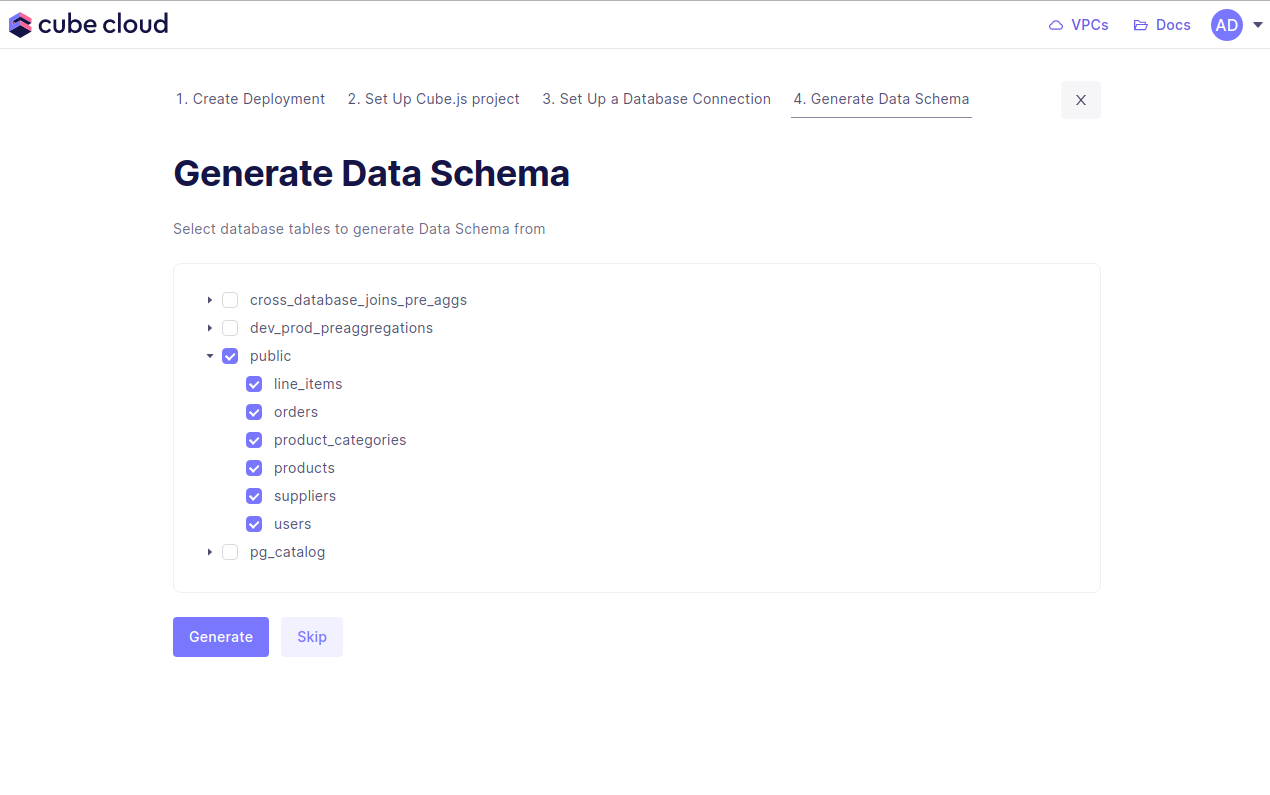
Step four in this case consists of generating data models. Start by selecting
the database tables to generate the data models from, then
hit **Generate**.
Cube Cloud will generate the data models and spin up your Cube deployment. With
this, you're done. You've created a Cube deployment, configured a database
connection, and generated data models!
You're ready for the last step, running queries in the Playground.
## Step 6: Try out Cube Cloud
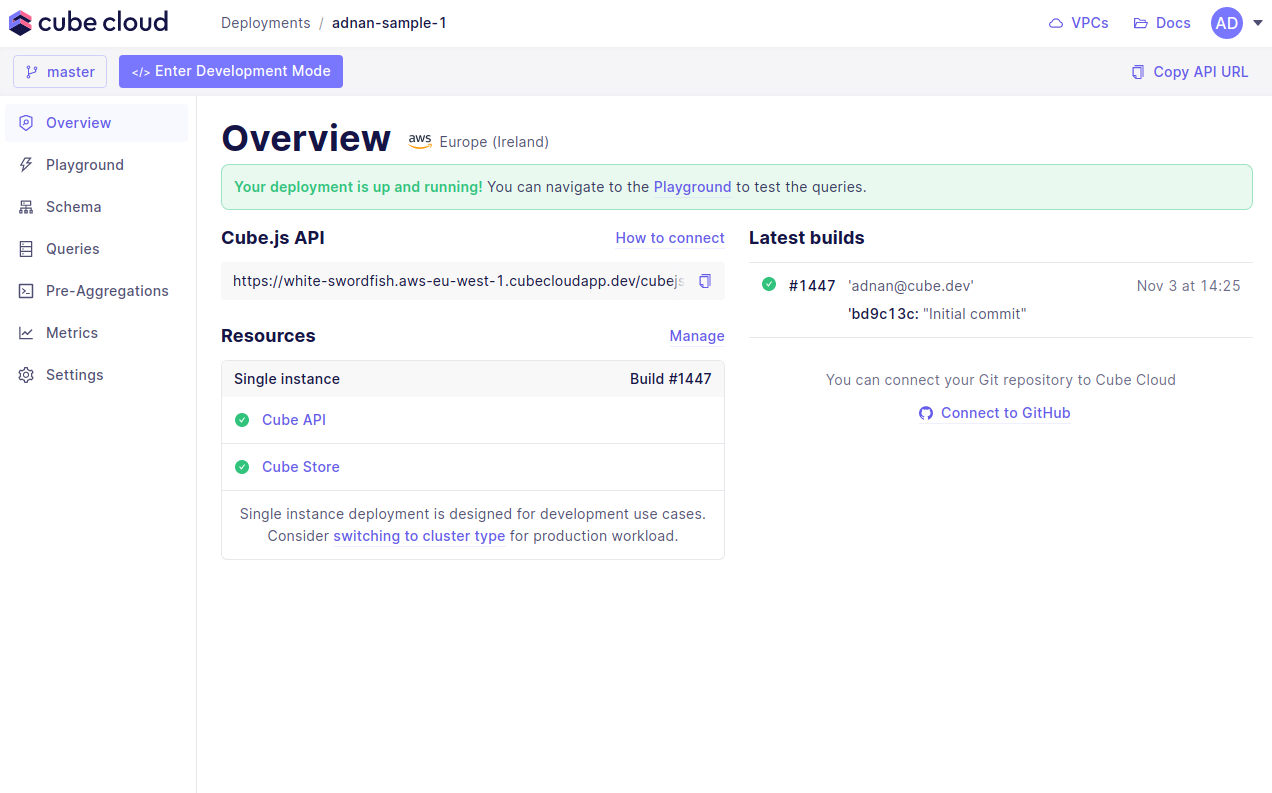
Now you can navigate to Playground to try out your queries or connect your
application to Cube Cloud API.
[github]: https://github.com
[link-connecting-to-databases]: /admin/connect-to-data/data-sources