> ## Documentation Index
> Fetch the complete documentation index at: https://docs.cube.dev/llms.txt
> Use this file to discover all available pages before exploring further.
# Import a local project to Cube Cloud with CLI
> This guide walks you through setting up Cube Cloud, importing an existing Cube project from a local machine via SSH, and connecting to your database.
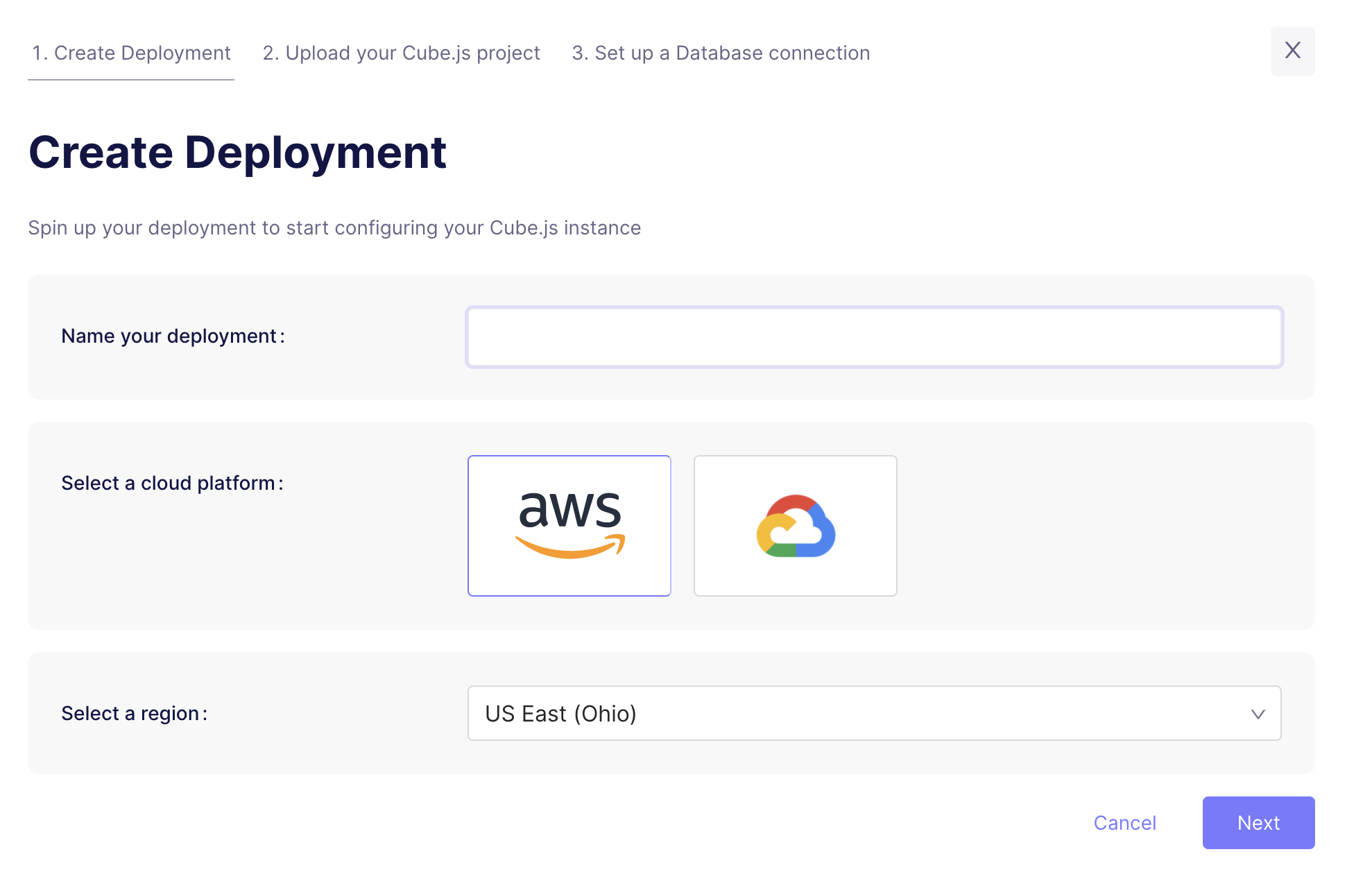
## Step 1: Create Deployment
Click **Create Deployment**. Then give it a name and select the cloud
provider and region of your choice.
Microsoft Azure is available on [Enterprise plan](https://cube.dev/pricing).
[Contact us](https://cube.dev/contact) for details.
## Step 2: Upload your Cube project
The next step is to upload your existing Cube project to the Cube Cloud.
You can do it by running the following command from terminal in your Cube
project directory.
```bash theme={"dark"}
npx cubejs-cli deploy --token
```
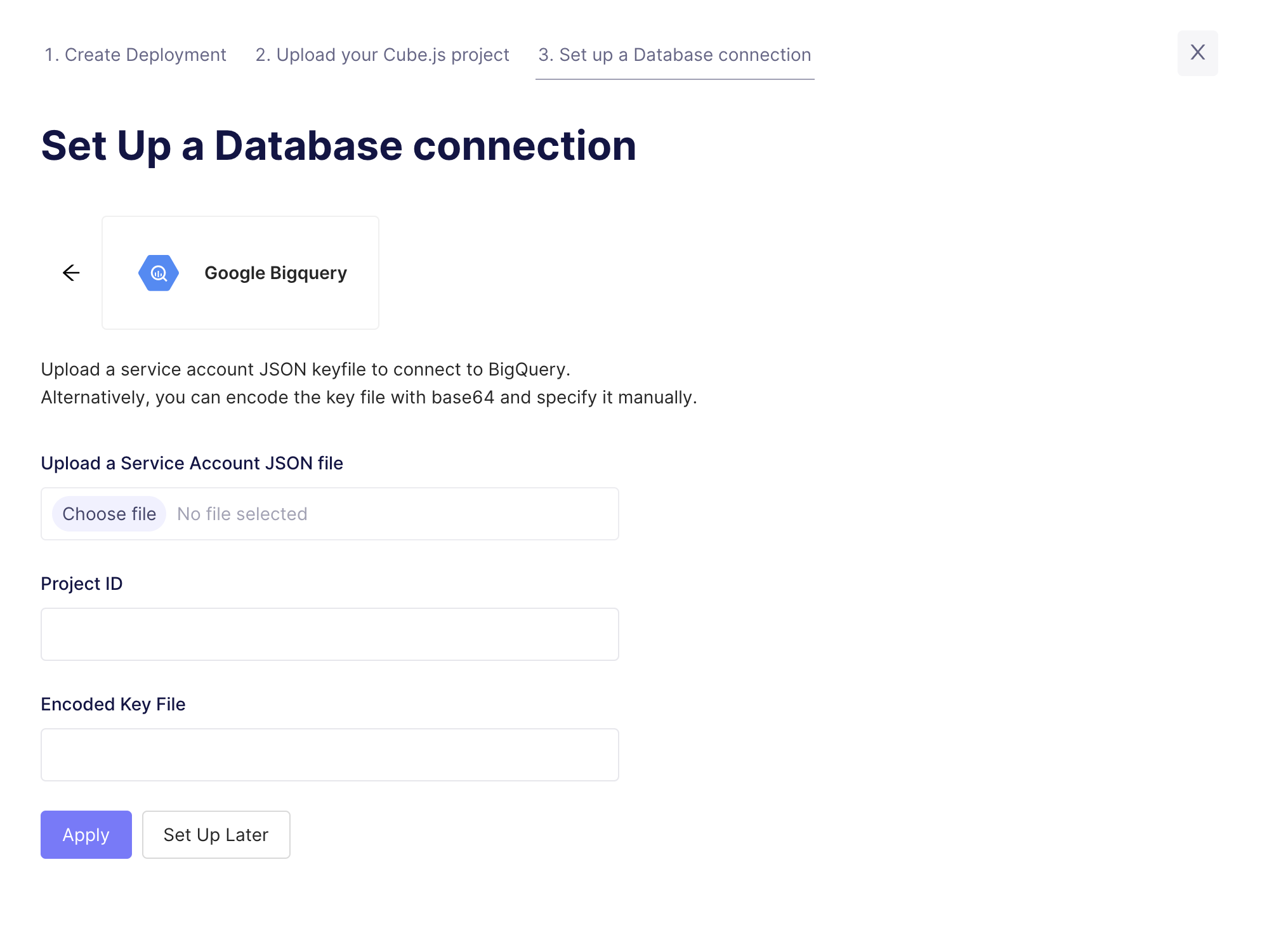
## Step 3: Connect your Database
Enter your credentials to connect to your database. Check the [connecting to
databases][ref-cloud-connecting-to-databases] guide for more details.
Want to use a sample database instead? We also have a sample database where you
can try out Cube Cloud:
| Field | Value |
| -------- | ------------------ |
| Host | `demo-db.cube.dev` |
| Port | `5432` |
| Database | `ecom` |
| Username | `cube` |
| Password | `12345` |
## Step 4: Try out Cube Cloud
Now you can navigate to [the Playground][ref-cloud-playground] to try out your
queries or connect your application to Cube Cloud API.
[ref-cloud-connecting-to-databases]: /admin/connect-to-data/data-sources
[ref-cloud-playground]: /cloud/dev-tools/dev-playground