> ## Documentation Index
> Fetch the complete documentation index at: https://docs.cube.dev/llms.txt
> Use this file to discover all available pages before exploring further.
# MCP server
> Connect MCP-aware assistants to Cube through a hosted HTTPS endpoint with OAuth and admin-managed defaults.
Cube MCP (Model Context Protocol) lets MCP-compatible AI clients connect to Cube over HTTPS using OAuth.
The MCP server is available on [Premium and Enterprise plans](https://cube.dev/pricing).
Users need the [Viewer][ref-roles] role or higher to interact with the MCP server.
## What is MCP?
Model Context Protocol (MCP) is an open standard that enables AI assistants to securely connect to external data sources and tools. The Cube MCP server acts as a bridge between your AI assistant and Cube's analytics platform, allowing you to ask data questions directly from your coding environment.
## Overview
Cube hosts an MCP server endpoint for your tenant. MCP clients connect over HTTPS and authenticate via OAuth.
* **Endpoint:** `https:///api/mcp`
* **OAuth discovery:** `https:///.well-known/oauth`
* **OAuth flow:** Authorization Code + PKCE, `client_id` = `cube-mcp-client`, scope = `mcp-agent-access`
* **Deployment selection:** On connect, the client lands on the tenant **default deployment** set by your admin (or the first deployment you can access). Clients can also target a specific deployment and agent per request — see [Select a deployment and agent](#select-a-deployment-and-agent).
## Admin setup
### Prerequisites
Before enabling MCP, make sure you have:
* **Admin privileges** in your Cube instance
* An active Cube tenant
* MCP server URL configured
### 1) Confirm MCP server URL
MCP uses your Cube MCP server host. If the URL isn’t configured, the MCP page will show “MCP configuration is unavailable.”
### 2) Configure deployment access
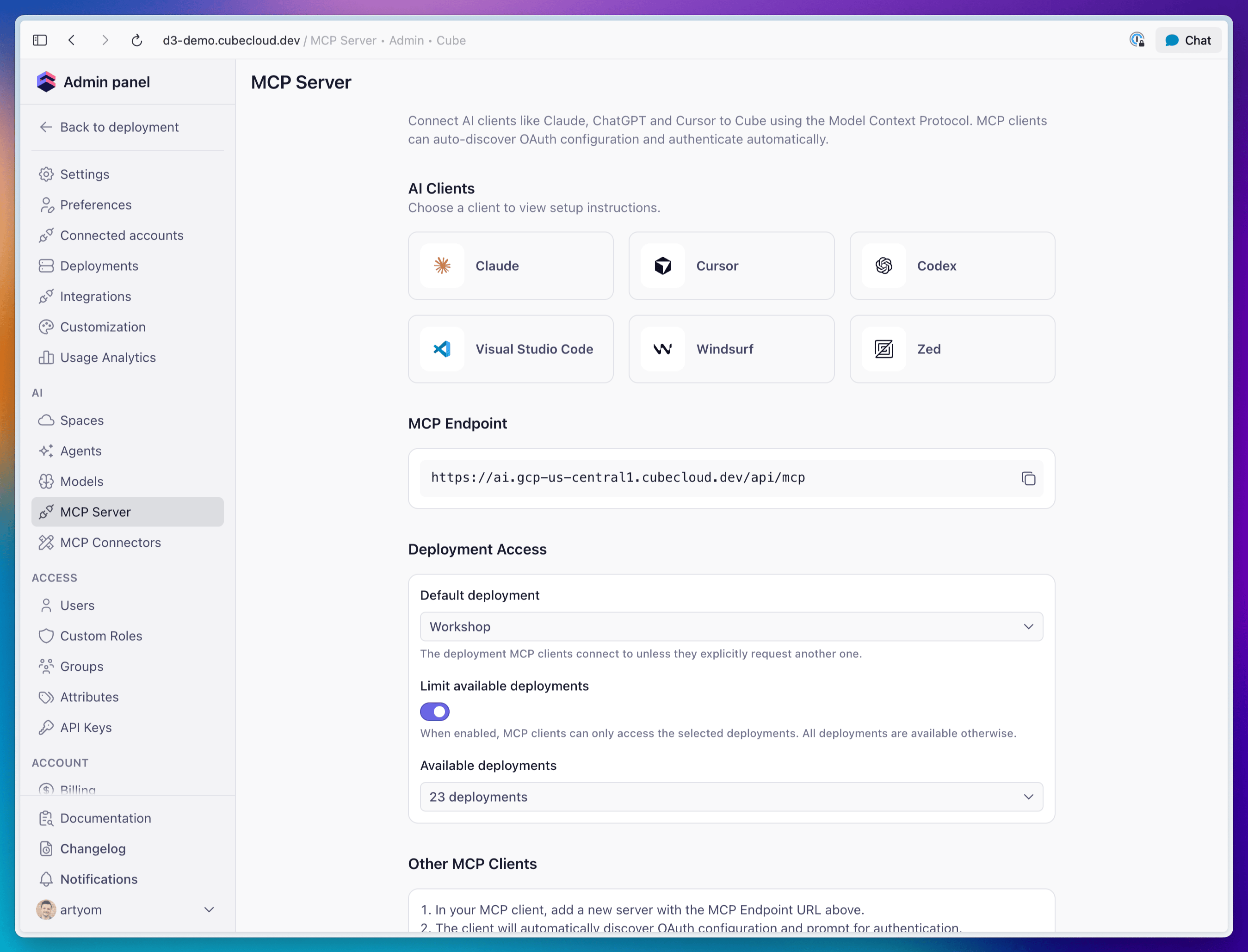
Go to **Admin → MCP Server** and use the **Deployment Access** section to control which
deployments MCP clients can reach and where they connect by default:
* **Default deployment** — the deployment MCP clients connect to unless they explicitly
request another one. Choose **Automatic (first available)** to land each user on the
first deployment they can access.
* **Limit available deployments** — when off (the default), MCP clients can access **all**
deployments the user is permitted to see. Turn it on to restrict MCP to a chosen subset.
* **Available deployments** — when the limit is on, pick the deployments MCP clients may
access. Selecting none disables MCP access for the account.
Deployment access is always intersected with the user's
[role-based permissions][ref-roles] — clients can only reach deployments the
authenticated user is allowed to see.
 ## Connect to Claude
### Claude Code
```bash theme={"dark"}
claude mcp add --transport http cube-mcp-server https:///api/mcp
```
#### Authentication and usage flow:
1. Run the command copied from **Admin → MCP Server → AI Clients → Claude Code**.
2. Then run Claude and use `/mcp` to list available servers.
3. Select `cube-mcp-server` and choose `Authenticate`.
4. A browser window opens for authentication.
5. Log into Cube and choose your tenant.
6. Return to Claude Code and start asking questions.
## Connect to Claude
### Claude Code
```bash theme={"dark"}
claude mcp add --transport http cube-mcp-server https:///api/mcp
```
#### Authentication and usage flow:
1. Run the command copied from **Admin → MCP Server → AI Clients → Claude Code**.
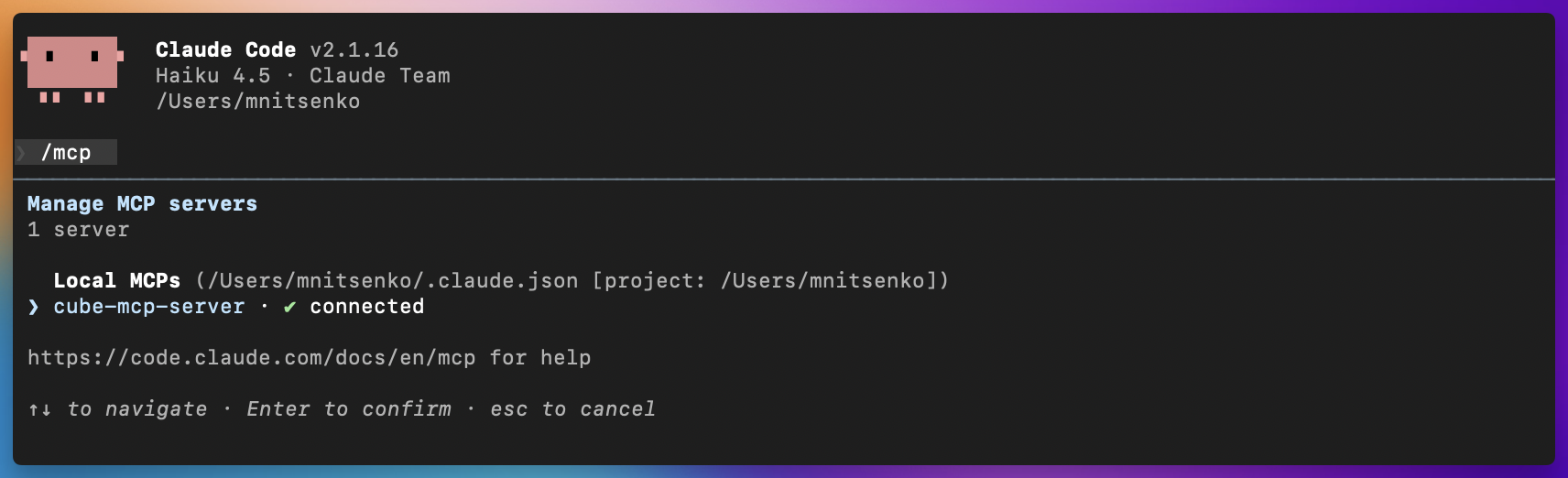
2. Then run Claude and use `/mcp` to list available servers.
3. Select `cube-mcp-server` and choose `Authenticate`.
4. A browser window opens for authentication.
5. Log into Cube and choose your tenant.
6. Return to Claude Code and start asking questions.
 ### Claude (Team/Enterprise)
1. Open Settings in Claude (web or desktop).
2. Scroll to **Integrations** and click **Add more**.
3. Use:
* **Integration name:** Cube MCP
* **Integration URL:** `https:///api/mcp`
4. Complete the OAuth flow to grant access.
5. Enable tools in any new chats.
#### Use Cube in Claude chat
1. Start a new chat in Claude.
2. Open the tools menu and enable **Cube MCP** (use the tools search if you have many tools).
3. Ask a data question. Toggle the tool off to disable it for that chat.
### Claude (Desktop app)
```json theme={"dark"}
{
"mcpServers": {
"cube-mcp-server": {
"command": "npx",
"args": ["-y", "mcp-remote", "--transport", "http", "https:///api/mcp"]
}
}
}
```
## Connect to Cursor
Add the MCP endpoint under Tools & MCP Settings, then complete the OAuth flow.
```json theme={"dark"}
{
"mcpServers": {
"cube-mcp-server": {
"command": "npx",
"args": ["-y", "mcp-remote", "--transport", "http", "https:///api/mcp"]
}
}
}
```
## Connect to Codex
Preferred (CLI):
```bash theme={"dark"}
codex mcp add cube-mcp-server --url https:///api/mcp
```
If this is your first time using MCP in Codex, enable the feature in `~/.codex/config.toml`:
```editorconfig theme={"dark"}
[features]
rmcp_client = true
```
Manual setup:
```editorconfig theme={"dark"}
[features]
rmcp_client = true
[mcp_servers."cube-mcp-server"]
url = "https:///api/mcp"
```
Then run `codex mcp login cube-mcp-server` to authenticate.
## Connect to other MCP clients
For any MCP-compatible client:
1. Add a new server with the **MCP endpoint**.
2. The client will auto-discover OAuth and prompt for authentication.
3. Complete the OAuth flow to grant access to your Cube deployment.
## Select a deployment and agent
An MCP client is not locked to a single deployment for the whole session. After
connecting, it can discover the deployments and agents you can access and target a
specific one on each request.
Three tools work together:
* **`listDeployments`** — discovery. Returns every deployment you can access via MCP
(already filtered by the admin's deployment-access settings and your permissions) and
each deployment's agents. Use it to find valid `deploymentId` and `agentId` values
before calling `chat`. Every deployment offers an **Auto** agent (`agentId: null`) in
addition to any configured agents.
* **`chat`** — accepts two optional selection parameters:
* **`deploymentId`** — the deployment to use for this request. When omitted, the chat
uses the deployment from the current session (the default resolved at connect time).
* **`agentId`** — the agent to use for this request. When omitted or `null`, the
deployment's **Auto** agent is used. Pass a specific `agentId` to route to a
configured agent.
* **`loadQueryResults`** — paginates through the results of a previous query on the same
deployment context.
A typical client workflow:
Complete the OAuth flow. The session is scoped to the tenant default deployment (or
the first one you can access).
Call `listDeployments` to see the available `deploymentId` / `agentId` values.
Call `chat` with your `input`, optionally passing `deploymentId` and/or `agentId` to
target a specific deployment or agent. Omit both to use the session default deployment
with its Auto agent.
Requests are always validated against the admin's deployment-access settings. A deployment
that is outside the allow-list — or that you don't have permission to see — is rejected
with a **403 Forbidden** (`Deployment is not available via MCP for this account`), so
neither `listDeployments` nor the `chat` selection can reach an excluded deployment.
## Available actions
* Discover accessible deployments and agents with `listDeployments`
* Chat with a Cube AI agent over MCP, optionally targeting a specific deployment and agent
* Query data and request analysis
* Receive responses directly in your MCP client
## Example workflows
* Ask a data question in natural language
* Get SQL generated by the agent
* Request summaries, trends, and insights
### Claude (Team/Enterprise)
1. Open Settings in Claude (web or desktop).
2. Scroll to **Integrations** and click **Add more**.
3. Use:
* **Integration name:** Cube MCP
* **Integration URL:** `https:///api/mcp`
4. Complete the OAuth flow to grant access.
5. Enable tools in any new chats.
#### Use Cube in Claude chat
1. Start a new chat in Claude.
2. Open the tools menu and enable **Cube MCP** (use the tools search if you have many tools).
3. Ask a data question. Toggle the tool off to disable it for that chat.
### Claude (Desktop app)
```json theme={"dark"}
{
"mcpServers": {
"cube-mcp-server": {
"command": "npx",
"args": ["-y", "mcp-remote", "--transport", "http", "https:///api/mcp"]
}
}
}
```
## Connect to Cursor
Add the MCP endpoint under Tools & MCP Settings, then complete the OAuth flow.
```json theme={"dark"}
{
"mcpServers": {
"cube-mcp-server": {
"command": "npx",
"args": ["-y", "mcp-remote", "--transport", "http", "https:///api/mcp"]
}
}
}
```
## Connect to Codex
Preferred (CLI):
```bash theme={"dark"}
codex mcp add cube-mcp-server --url https:///api/mcp
```
If this is your first time using MCP in Codex, enable the feature in `~/.codex/config.toml`:
```editorconfig theme={"dark"}
[features]
rmcp_client = true
```
Manual setup:
```editorconfig theme={"dark"}
[features]
rmcp_client = true
[mcp_servers."cube-mcp-server"]
url = "https:///api/mcp"
```
Then run `codex mcp login cube-mcp-server` to authenticate.
## Connect to other MCP clients
For any MCP-compatible client:
1. Add a new server with the **MCP endpoint**.
2. The client will auto-discover OAuth and prompt for authentication.
3. Complete the OAuth flow to grant access to your Cube deployment.
## Select a deployment and agent
An MCP client is not locked to a single deployment for the whole session. After
connecting, it can discover the deployments and agents you can access and target a
specific one on each request.
Three tools work together:
* **`listDeployments`** — discovery. Returns every deployment you can access via MCP
(already filtered by the admin's deployment-access settings and your permissions) and
each deployment's agents. Use it to find valid `deploymentId` and `agentId` values
before calling `chat`. Every deployment offers an **Auto** agent (`agentId: null`) in
addition to any configured agents.
* **`chat`** — accepts two optional selection parameters:
* **`deploymentId`** — the deployment to use for this request. When omitted, the chat
uses the deployment from the current session (the default resolved at connect time).
* **`agentId`** — the agent to use for this request. When omitted or `null`, the
deployment's **Auto** agent is used. Pass a specific `agentId` to route to a
configured agent.
* **`loadQueryResults`** — paginates through the results of a previous query on the same
deployment context.
A typical client workflow:
Complete the OAuth flow. The session is scoped to the tenant default deployment (or
the first one you can access).
Call `listDeployments` to see the available `deploymentId` / `agentId` values.
Call `chat` with your `input`, optionally passing `deploymentId` and/or `agentId` to
target a specific deployment or agent. Omit both to use the session default deployment
with its Auto agent.
Requests are always validated against the admin's deployment-access settings. A deployment
that is outside the allow-list — or that you don't have permission to see — is rejected
with a **403 Forbidden** (`Deployment is not available via MCP for this account`), so
neither `listDeployments` nor the `chat` selection can reach an excluded deployment.
## Available actions
* Discover accessible deployments and agents with `listDeployments`
* Chat with a Cube AI agent over MCP, optionally targeting a specific deployment and agent
* Query data and request analysis
* Receive responses directly in your MCP client
## Example workflows
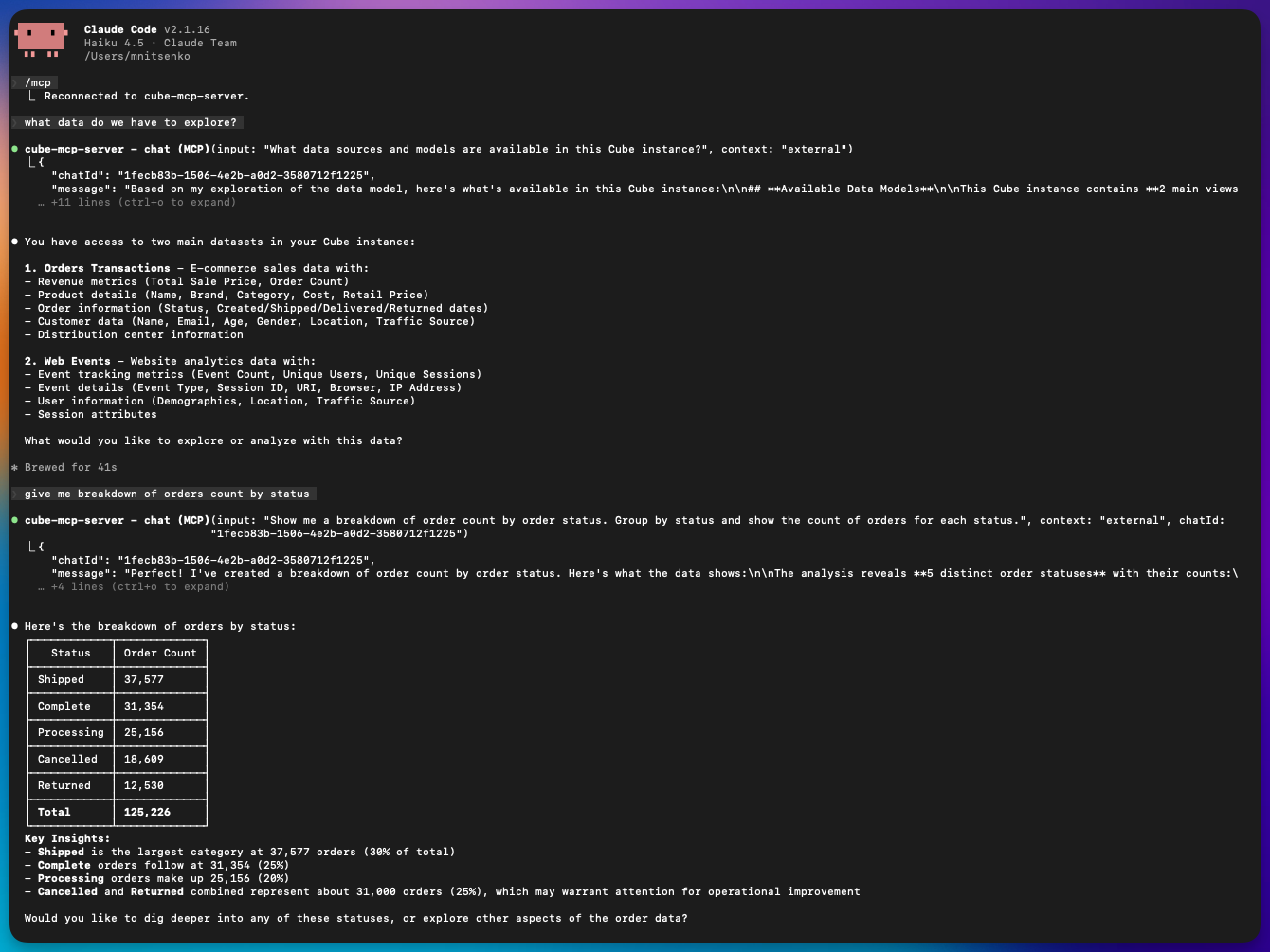
* Ask a data question in natural language
* Get SQL generated by the agent
* Request summaries, trends, and insights
 ## Troubleshooting
* **MCP configuration is unavailable**: Configure the MCP server URL.
* **MCP OAuth integration is not configured**: Enable MCP in **Admin → Team & Security → OAuth Integrations**.
* **No deployments available / MCP access is disabled**: In **Admin → MCP Server → Deployment Access**, make sure **Limit available deployments** is off, or that at least one deployment is selected and the user has permission to access it.
* **`Deployment is not available via MCP for this account` (403)**: The requested deployment is excluded by the deployment-access allow-list or by the user's permissions. Call `listDeployments` to see which deployments are reachable, or adjust the allow-list in **Admin → MCP Server → Deployment Access**.
[ref-roles]: /admin/users-and-permissions/roles-and-permissions
## Troubleshooting
* **MCP configuration is unavailable**: Configure the MCP server URL.
* **MCP OAuth integration is not configured**: Enable MCP in **Admin → Team & Security → OAuth Integrations**.
* **No deployments available / MCP access is disabled**: In **Admin → MCP Server → Deployment Access**, make sure **Limit available deployments** is off, or that at least one deployment is selected and the user has permission to access it.
* **`Deployment is not available via MCP for this account` (403)**: The requested deployment is excluded by the deployment-access allow-list or by the user's permissions. Call `listDeployments` to see which deployments are reachable, or adjust the allow-list in **Admin → MCP Server → Deployment Access**.
[ref-roles]: /admin/users-and-permissions/roles-and-permissions