> ## Documentation Index
> Fetch the complete documentation index at: https://docs.cube.dev/llms.txt
> Use this file to discover all available pages before exploring further.
# Kerberos authentication
> Kerberos is the most common authentication method for Windows environments. It can be used to authenticate requests to DAX API.
[Kerberos][link-kerberos] is the most common authentication method for Windows environments.
It can be used to authenticate requests to [DAX API][ref-dax-api].
Available on [Enterprise plan](https://cube.dev/pricing).
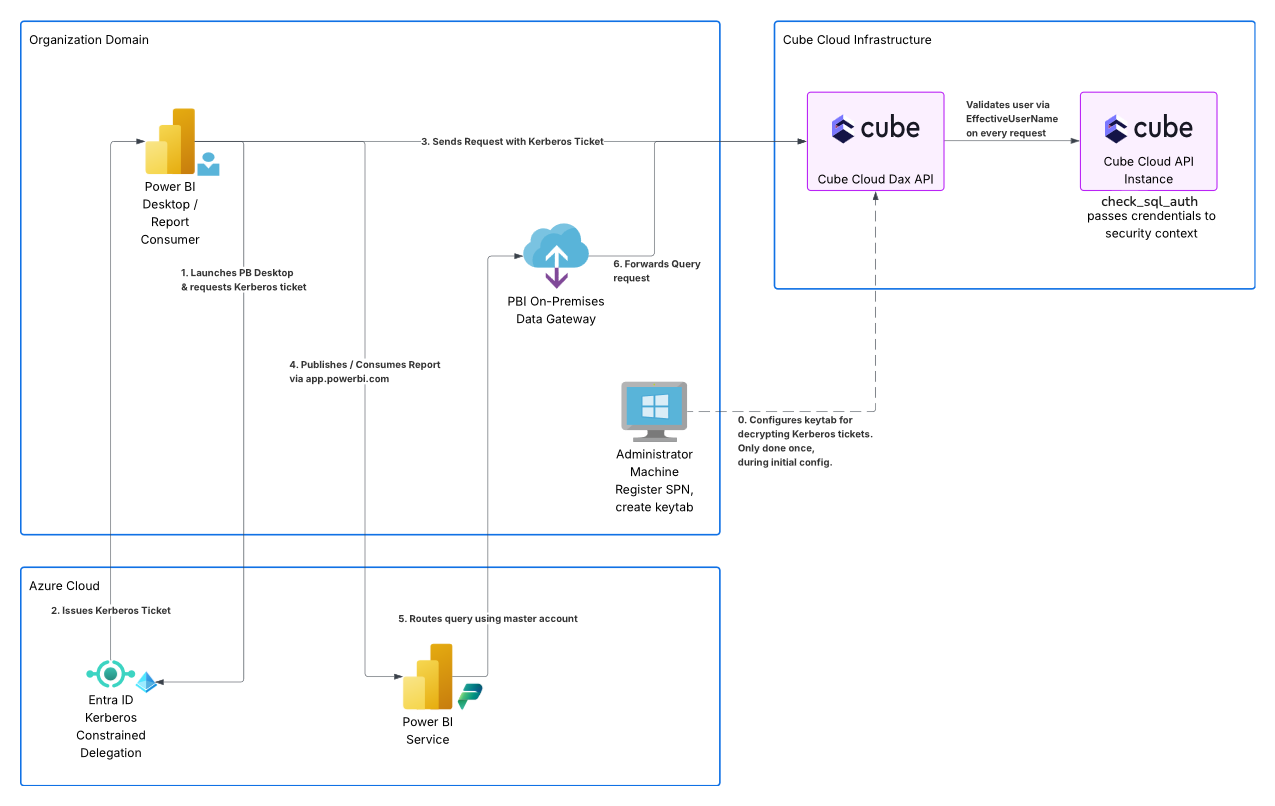
On the diagram below, Kerberos is used to authenticate requests from Power BI Desktop (step 2):
## Authentication flow
**Kerberos is the recommended method to authenticate Power BI Desktop requests.**
It works as follows:
* Power BI Desktop is launched normally, under the Windows domain account of the user.
* When connecting the DAX API, Windows verifies whether its [service principal
name](#registering-the-spn) is registered in the domain.
* Once verified, the Key Distribution Center issues a Kerberos ticket for the user.
* This ticket is transmitted to the DAX API in the request authorization header.
* The DAX API [decrypts and verifies](#configuring-the-deployment) the Kerberos ticket.
* Finally, the user principal name is passed for [further verification](#verifying-the-credentials).
## Configuration
Configuring Kerberos authentication includes the following steps:
* [Obtain a Windows Server machine](#obtaining-a-windows-machine) to use during the next steps.
* [Register the service principal name](#registering-the-spn).
* [Generate a keytab](#generating-the-keytab).
* [Configure the deployment](#configuring-the-deployment) to verify Kerberos tickets.
* Optionally, [customize the authentication](#verifying-the-credentials).
### Obtaining a Windows machine
To perform the next steps, you need a Windows Server virtual machine:
* It should be joined to the same domain as the organization’s users.
* It should have the [RSAT][link-rsat] feature enabled.
* It should be able to reach the [Key Distribution Center][link-kdc] (KDC). For example,
on Azure, this virtual machine can be created in the `aadds-vnet` subnet.
You should log in to this Windows Server machine using the account that has
[AAD DC Administrators][link-aad-dc-admins] group membership.
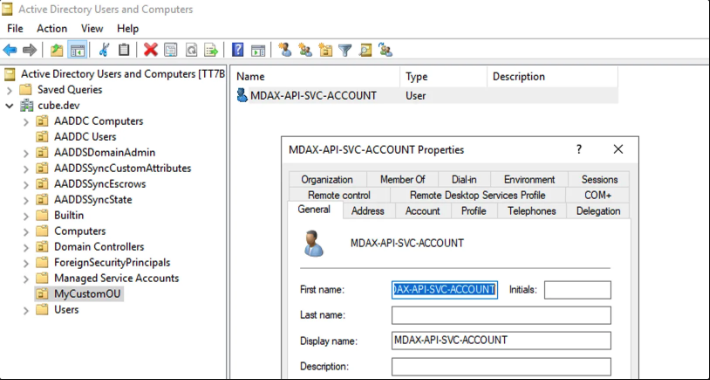
It is also recommended to create a custom organizational unit (OU) and a new user
in this OU that will act as the service account.
On the screenshot below, the `mdax-api-svc-account` user is created in the
`MyCustomOU` OU in the `CUBE` domain:
 ### Registering the SPN
A [service principal name][link-spn] (SPN) is a unique identifier of a service instance.
Kerberos authentication uses SPNs to associate a service instance with a service sign-in account.
First, obtain your Cube Cloud deployment’s domain by going to **Settings → General**
and copying the value in the **Custom domain** section.
Then, use the [`setspn` command][link-setspn] to register the Service Principal Name
for the DAX API.
In the following example, the web service (`HTTP`) SPN on the
`redundant-brohman.gcp-us-central1.cubecloudapp.dev` domain is registered for the
`mdax-api-svc-account` user in the `CUBE` domain:
```bash theme={"dark"}
setspn -S HTTP/redundant-brohman.gcp-us-central1.cubecloudapp.dev CUBE\mdax-api-svc-account
```
### Generating the keytab
The [keytab][link-keytab-file] file contains information needed to decrypt the Kerberos
token.
First, use the [`ktpass` command][link-ktpass] to generate the keytab file. You will be
prompted to enter the password for the specified user:
```bash theme={"dark"}
ktpass /out kerberos.keytab /princ HTTP/redundant-brohman.gcp-us-central1.cubecloudapp.dev@CUBE.DEV /mapuser mdax-api-svc-account /crypto All /ptype KRB5_NT_PRINCIPAL /pass *
```
Then, convert the keytab to a Base64-encoded string. For example, the following PowerShell
script will do the conversion and put the result in the clipboard:
```ps theme={"dark"}
$Path = "C:\kerberos.keytab"
[Convert]::ToBase64String([System.IO.File]::ReadAllBytes($Path)) | Set-Clipboard
```
### Configuring the deployment
Go to **Settings → Environment Variables** of your Cube Cloud deployment and set
the following environment variables to facilitate the verification of Kerberos tickets:
| Environment variable | Value |
| --------------------------- | ---------------------------- |
| `CUBE_XMLA_KRB5_KEYTAB_B64` | Base64-encoded keytab |
| `CUBE_XMLA_SPN` | `HTTP` |
| `KRB5_KTNAME` | `/cube/conf/kerberos.keytab` |
### Verifying the credentials
By default, [`CUBEJS_SQL_USER`](/reference/configuration/environment-variables#cubejs_sql_user) and [`CUBEJS_SQL_PASSWORD`](/reference/configuration/environment-variables#cubejs_sql_password) environment variables are used
to verify the passed credentials. You can also customize the authentication by using the
[`check_sql_auth` configuration option][ref-config-check-sql-auth].
Once the deployment is ready, you can test the Kerberos authentication by [connecting
from Power BI][ref-power-bi] to the DAX API.
## Provisioning users with SCIM
The user principal name passed by Kerberos is often not the email a user is provisioned
into Cube Cloud with. For example, Power BI sends a UPN like `alice@INTERNAL.REALM`, while
the user exists in Cube as `alice@example.com`. For authentication to succeed, the principal
name must resolve to a Cube user.
To bridge this, Cube Cloud's [SCIM API][ref-scim] exposes an extension that lets your identity
provider sync an **alternate username** alongside each user. During username-based
authentication Cube checks the user's email, username, and any aliases — so the Kerberos UPN
resolves to the same user.
### Extension schema
Map an IdP attribute to the following single-valued, string target attribute:
```
urn:cube:params:1.0:UserAliases:alternateUserName
```
The value is lowercased and trimmed on write, and lookups are lowercased too, so matching is
fully case-insensitive — the value just needs to be the same principal string Kerberos sends
(same realm and separator). It must be unique across the tenant: if it collides with another
user's email, username, or an existing alias, the sync is rejected with `409 Conflict`.
### Setting it up in Microsoft Entra
These steps assume you already have a SCIM provisioning app connected to Cube Cloud. If not,
enable SCIM first under **Cube → Settings → Authentication & SSO**.
1. In **Enterprise applications → \[your Cube SCIM app] → Provisioning → Attribute mappings →
Provision Microsoft Entra ID Users**, tick **Show advanced options** and click
**Edit attribute list for customappsso**.
2. Add a row: `urn:cube:params:1.0:UserAliases:alternateUserName`, type `String`, not
multi-valued, not required. Save.
3. Click **Add New Mapping** and configure:
* **Mapping type:** Direct
* **Source attribute:** the attribute holding the alternate identity — for hybrid AD /
Kerberos this is typically `onPremisesUserPrincipalName`. To build the principal from
parts, use an Expression mapping, e.g. `Join("@", [samAccountName], "INTERNAL.REALM")`.
* **Target attribute:** `urn:cube:params:1.0:UserAliases:alternateUserName`
* **Apply this mapping:** Always
4. Save the mapping and the provisioning configuration.
5. Verify with **Provision on demand** on a test user, then fetch them via
`GET /api/scim/v2/Users/:id` to confirm the alias appears under the extension.
Entra only syncs a user when their source data changes, so existing users won't receive the
alias until their next change — use **Restart provisioning** to force a full re-sync.
`onPremisesUserPrincipalName` is only populated for users synced from on-prem AD; cloud-only
users need a different source attribute or an expression with a fallback.
### Other identity providers
The Cube-side target attribute is always `urn:cube:params:1.0:UserAliases:alternateUserName`;
only the IdP-side mapping UI differs. In Okta, add a custom attribute on the SCIM app via the
Profile Editor, then bind your source attribute to it on the Mappings tab. The value Cube
receives is just a string — what you map to it is your decision.
[link-rsat]: https://learn.microsoft.com/en-us/troubleshoot/windows-server/system-management-components/remote-server-administration-tools
[link-kdc]: https://learn.microsoft.com/en-us/windows/win32/secauthn/key-distribution-center
[link-aad-dc-admins]: https://learn.microsoft.com/en-us/entra/identity/domain-services/tutorial-create-instance-advanced#configure-an-administrative-group
[link-spn]: https://learn.microsoft.com/en-us/windows/win32/ad/service-principal-names
[link-setspn]: https://learn.microsoft.com/en-us/previous-versions/windows/it-pro/windows-server-2012-r2-and-2012/cc731241\(v=ws.11\)
[link-keytab-file]: https://web.mit.edu/Kerberos/krb5-1.16/doc/basic/keytab_def.html
[link-ktpass]: https://learn.microsoft.com/en-us/windows-server/administration/windows-commands/ktpass
[ref-power-bi]: /admin/connect-to-data/visualization-tools/powerbi#connecting-from-power-bi
[link-kerberos]: https://en.wikipedia.org/wiki/Kerberos_\(protocol\)#Microsoft_Windows
[ref-dax-api]: /reference/dax-api
[ref-config-check-sql-auth]: /reference/configuration/config#check_sql_auth
[ref-scim]: /admin/sso/microsoft-entra-id/scim
### Registering the SPN
A [service principal name][link-spn] (SPN) is a unique identifier of a service instance.
Kerberos authentication uses SPNs to associate a service instance with a service sign-in account.
First, obtain your Cube Cloud deployment’s domain by going to **Settings → General**
and copying the value in the **Custom domain** section.
Then, use the [`setspn` command][link-setspn] to register the Service Principal Name
for the DAX API.
In the following example, the web service (`HTTP`) SPN on the
`redundant-brohman.gcp-us-central1.cubecloudapp.dev` domain is registered for the
`mdax-api-svc-account` user in the `CUBE` domain:
```bash theme={"dark"}
setspn -S HTTP/redundant-brohman.gcp-us-central1.cubecloudapp.dev CUBE\mdax-api-svc-account
```
### Generating the keytab
The [keytab][link-keytab-file] file contains information needed to decrypt the Kerberos
token.
First, use the [`ktpass` command][link-ktpass] to generate the keytab file. You will be
prompted to enter the password for the specified user:
```bash theme={"dark"}
ktpass /out kerberos.keytab /princ HTTP/redundant-brohman.gcp-us-central1.cubecloudapp.dev@CUBE.DEV /mapuser mdax-api-svc-account /crypto All /ptype KRB5_NT_PRINCIPAL /pass *
```
Then, convert the keytab to a Base64-encoded string. For example, the following PowerShell
script will do the conversion and put the result in the clipboard:
```ps theme={"dark"}
$Path = "C:\kerberos.keytab"
[Convert]::ToBase64String([System.IO.File]::ReadAllBytes($Path)) | Set-Clipboard
```
### Configuring the deployment
Go to **Settings → Environment Variables** of your Cube Cloud deployment and set
the following environment variables to facilitate the verification of Kerberos tickets:
| Environment variable | Value |
| --------------------------- | ---------------------------- |
| `CUBE_XMLA_KRB5_KEYTAB_B64` | Base64-encoded keytab |
| `CUBE_XMLA_SPN` | `HTTP` |
| `KRB5_KTNAME` | `/cube/conf/kerberos.keytab` |
### Verifying the credentials
By default, [`CUBEJS_SQL_USER`](/reference/configuration/environment-variables#cubejs_sql_user) and [`CUBEJS_SQL_PASSWORD`](/reference/configuration/environment-variables#cubejs_sql_password) environment variables are used
to verify the passed credentials. You can also customize the authentication by using the
[`check_sql_auth` configuration option][ref-config-check-sql-auth].
Once the deployment is ready, you can test the Kerberos authentication by [connecting
from Power BI][ref-power-bi] to the DAX API.
## Provisioning users with SCIM
The user principal name passed by Kerberos is often not the email a user is provisioned
into Cube Cloud with. For example, Power BI sends a UPN like `alice@INTERNAL.REALM`, while
the user exists in Cube as `alice@example.com`. For authentication to succeed, the principal
name must resolve to a Cube user.
To bridge this, Cube Cloud's [SCIM API][ref-scim] exposes an extension that lets your identity
provider sync an **alternate username** alongside each user. During username-based
authentication Cube checks the user's email, username, and any aliases — so the Kerberos UPN
resolves to the same user.
### Extension schema
Map an IdP attribute to the following single-valued, string target attribute:
```
urn:cube:params:1.0:UserAliases:alternateUserName
```
The value is lowercased and trimmed on write, and lookups are lowercased too, so matching is
fully case-insensitive — the value just needs to be the same principal string Kerberos sends
(same realm and separator). It must be unique across the tenant: if it collides with another
user's email, username, or an existing alias, the sync is rejected with `409 Conflict`.
### Setting it up in Microsoft Entra
These steps assume you already have a SCIM provisioning app connected to Cube Cloud. If not,
enable SCIM first under **Cube → Settings → Authentication & SSO**.
1. In **Enterprise applications → \[your Cube SCIM app] → Provisioning → Attribute mappings →
Provision Microsoft Entra ID Users**, tick **Show advanced options** and click
**Edit attribute list for customappsso**.
2. Add a row: `urn:cube:params:1.0:UserAliases:alternateUserName`, type `String`, not
multi-valued, not required. Save.
3. Click **Add New Mapping** and configure:
* **Mapping type:** Direct
* **Source attribute:** the attribute holding the alternate identity — for hybrid AD /
Kerberos this is typically `onPremisesUserPrincipalName`. To build the principal from
parts, use an Expression mapping, e.g. `Join("@", [samAccountName], "INTERNAL.REALM")`.
* **Target attribute:** `urn:cube:params:1.0:UserAliases:alternateUserName`
* **Apply this mapping:** Always
4. Save the mapping and the provisioning configuration.
5. Verify with **Provision on demand** on a test user, then fetch them via
`GET /api/scim/v2/Users/:id` to confirm the alias appears under the extension.
Entra only syncs a user when their source data changes, so existing users won't receive the
alias until their next change — use **Restart provisioning** to force a full re-sync.
`onPremisesUserPrincipalName` is only populated for users synced from on-prem AD; cloud-only
users need a different source attribute or an expression with a fallback.
### Other identity providers
The Cube-side target attribute is always `urn:cube:params:1.0:UserAliases:alternateUserName`;
only the IdP-side mapping UI differs. In Okta, add a custom attribute on the SCIM app via the
Profile Editor, then bind your source attribute to it on the Mappings tab. The value Cube
receives is just a string — what you map to it is your decision.
[link-rsat]: https://learn.microsoft.com/en-us/troubleshoot/windows-server/system-management-components/remote-server-administration-tools
[link-kdc]: https://learn.microsoft.com/en-us/windows/win32/secauthn/key-distribution-center
[link-aad-dc-admins]: https://learn.microsoft.com/en-us/entra/identity/domain-services/tutorial-create-instance-advanced#configure-an-administrative-group
[link-spn]: https://learn.microsoft.com/en-us/windows/win32/ad/service-principal-names
[link-setspn]: https://learn.microsoft.com/en-us/previous-versions/windows/it-pro/windows-server-2012-r2-and-2012/cc731241\(v=ws.11\)
[link-keytab-file]: https://web.mit.edu/Kerberos/krb5-1.16/doc/basic/keytab_def.html
[link-ktpass]: https://learn.microsoft.com/en-us/windows-server/administration/windows-commands/ktpass
[ref-power-bi]: /admin/connect-to-data/visualization-tools/powerbi#connecting-from-power-bi
[link-kerberos]: https://en.wikipedia.org/wiki/Kerberos_\(protocol\)#Microsoft_Windows
[ref-dax-api]: /reference/dax-api
[ref-config-check-sql-auth]: /reference/configuration/config#check_sql_auth
[ref-scim]: /admin/sso/microsoft-entra-id/scim