> ## Documentation Index
> Fetch the complete documentation index at: https://docs.cube.dev/llms.txt
> Use this file to discover all available pages before exploring further.
# Semantic Layer Sync with Tableau
> This page details the support for Tableau in Semantic Layer Sync.
This page details the support for [Tableau](https://www.tableau.com)
in [Semantic Layer Sync](/docs/integrations/semantic-layer-sync).
Available on [Enterprise plan](https://cube.dev/pricing).
Semantic Layer Sync works with Tableau Cloud, Tableau Desktop, and Tableau Server.
## Configuration
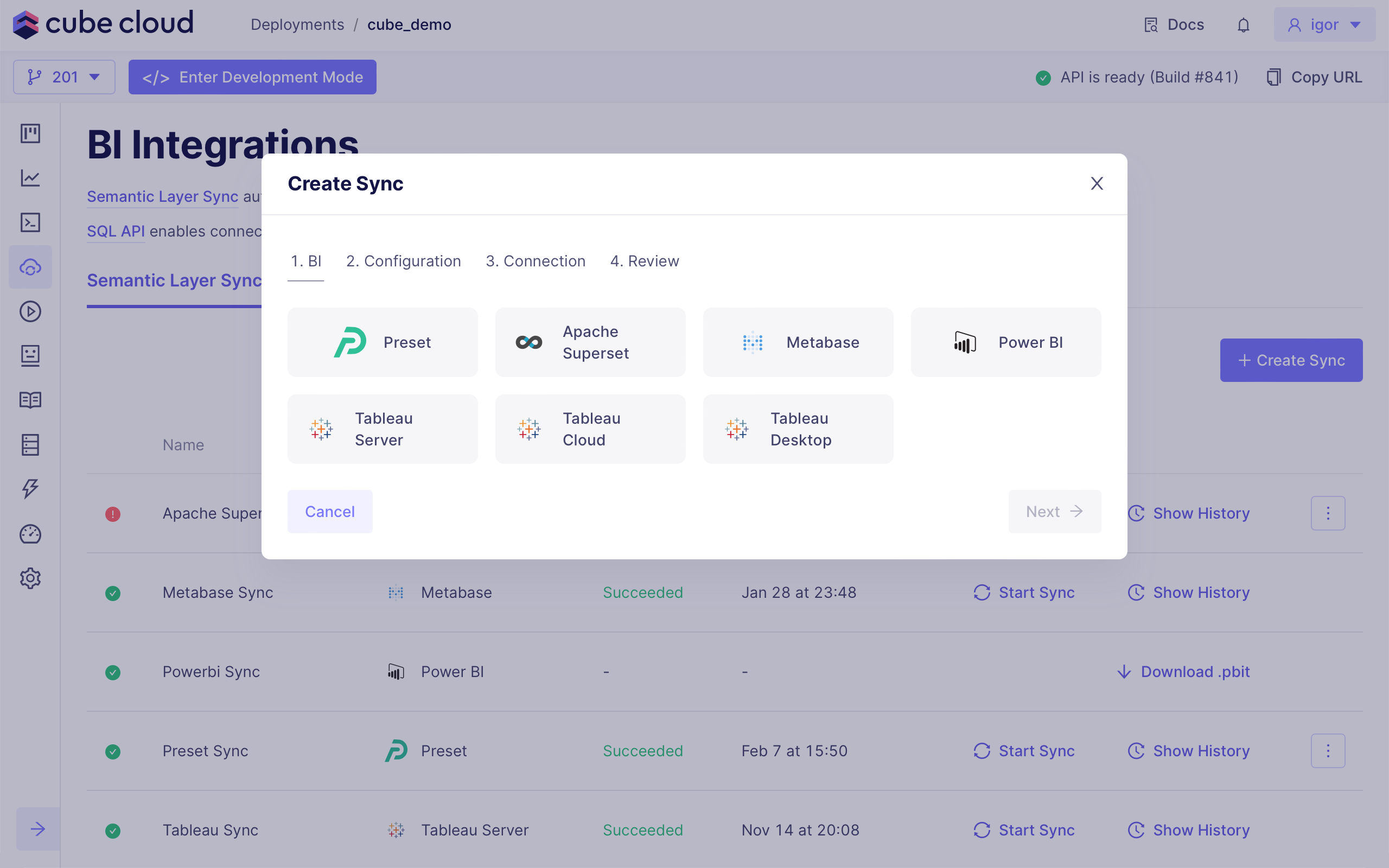
To create a new sync, choose either **Tableau Cloud**, **Tableau Desktop**,
or **Tableau Server**:
 For Tableau Cloud and Tableau Server,
data model is synchronized via the [Tableau API][tableau-api] which uses [personal
access tokens][tableau-pat] for authentication. You can create a new [personal access
token][tableau-api-authentication] on the **My Account Settings** page.
Personal access tokens might be disabled in your Tableau site configuration.
To enable them, navigate to the **Settings** page of your Tableau site
and click **Enable personal access tokens**.
Personal access tokens expire if not used for 15 consecutive days. If used
regularly, they expire after one year. You can customize the default expiration
period in the **Settings** page of your Tableau site. Make sure to renew
your personal access token before it expires.
### Tableau Cloud
For Tableau Cloud, you need to specify a `region` and a `site` name. Consider the
following URL of a Tableau Cloud site: `https://10ax.online.tableau.com/#/site/cubedev/home`.
In this case, the region would be `10ax` and the site name would be `cubedev`.
Example configuration for Tableau Cloud:
```python title="Python" theme={"dark"}
from cube import config
import os
@config('semantic_layer_sync')
def semantic_layer_sync(ctx: dict) -> list[dict]:
return [
{
'type': 'tableau',
'name': 'Tableau Cloud Sync',
'config': {
'region': '10ax',
'site': 'mytableausite',
'personalAccessToken': 'cube-cloud',
'personalAccessTokenSecret': os.environ['CUBEJS_TABLEAU_PAT_SECRET'],
'database': 'Cube Cloud: production-deployment',
},
},
]
```
```javascript title="JavaScript" theme={"dark"}
module.exports = {
semanticLayerSync: ({ securityContext }) => {
return [
{
type: "tableau",
name: "Tableau Cloud Sync",
config: {
region: "10ax",
site: "mytableausite",
personalAccessToken: "cube-cloud",
personalAccessTokenSecret: process.env.CUBEJS_TABLEAU_PAT_SECRET,
database: "Cube Cloud: production-deployment"
}
}
]
}
}
```
### Tableau Server
For Tableau Server, you need to specify a `hostname`, `site`, and `apiVersion`.
To find your site name, look at your Tableau Server URL: the site name is
the value that follows `/site/` in the URL. If there is no `/site/` segment in
the URL, you are using the Default site — leave the `site` field blank
in the Cube Cloud configuration.
Example configuration for Tableau Server:
```python title="Python" theme={"dark"}
from cube import config
import os
@config('semantic_layer_sync')
def semantic_layer_sync(ctx: dict) -> list[dict]:
return [
{
'type': 'tableau',
'name': 'Tableau Server Sync',
'config': {
'hostname': 'tableau.example.com',
'site': '',
'apiVersion': '3.19',
'personalAccessToken': 'cube-cloud',
'personalAccessTokenSecret': os.environ['CUBEJS_TABLEAU_PAT_SECRET'],
'database': 'Cube Cloud: production-deployment',
},
},
]
```
```javascript title="JavaScript" theme={"dark"}
module.exports = {
semanticLayerSync: ({ securityContext }) => {
return [
{
type: "tableau",
name: "Tableau Server Sync",
config: {
hostname: "tableau.example.com",
site: "",
apiVersion: "3.19",
personalAccessToken: "cube-cloud",
personalAccessTokenSecret: process.env.CUBEJS_TABLEAU_PAT_SECRET,
database: "Cube Cloud: production-deployment"
}
}
]
}
}
```
Store your personal access token secret in an environment variable rather
than hardcoding it in your configuration. Create a new environment variable
called `CUBEJS_TABLEAU_PAT_SECRET` with your token secret as the value,
then reference it using `os.environ['CUBEJS_TABLEAU_PAT_SECRET']` in Python
or `process.env.CUBEJS_TABLEAU_PAT_SECRET` in JavaScript.
When connecting a Cube Cloud data source to your Tableau workbook, you will be prompted
to enter the user name and password for Cube Cloud. You can find them at the **SQL
API Connection** tab on the **IDE → Integrations** page in Cube Cloud.
### Least-privilege mode
By default, Semantic Layer Sync manages Tableau project permissions, which
requires the personal access token to belong to a Site Administrator.
Enable **Least-privilege mode** to run the sync without Site Administrator
privileges. When enabled, Cube does not manage Tableau project permissions, so:
* `userNamesWithAccess` and `groupNamesWithAccess` are ignored — manage access
to the synced project in Tableau instead.
* The top-level project must already exist, unless the personal access token
has permission to create it.
You can enable it with the **Least-privilege mode** checkbox in the sync wizard,
or by setting `leastPrivilegeMode` in your configuration:
```python title="Python" theme={"dark"}
'config': {
# ...
'leastPrivilegeMode': True,
},
```
```javascript title="JavaScript" theme={"dark"}
config: {
// ...
leastPrivilegeMode: true
}
```
## Features
Syncs with Tableau Cloud and Tableau Server run automatically via the [Tableau
API][tableau-api].
### Tableau Desktop
The recommended way to use Cube with Tableau Desktop is to connect to your
Tableau Cloud or Tableau Server account from within Desktop and choose the
synced data source from there. This ensures your data source stays up to date
with any changes made through Semantic Layer Sync.
Alternatively, you can download a `.tds` file to get the data model into
Tableau Desktop. Click **Download .tds** to download a Tableau [data source][tds] file:
For Tableau Cloud and Tableau Server,
data model is synchronized via the [Tableau API][tableau-api] which uses [personal
access tokens][tableau-pat] for authentication. You can create a new [personal access
token][tableau-api-authentication] on the **My Account Settings** page.
Personal access tokens might be disabled in your Tableau site configuration.
To enable them, navigate to the **Settings** page of your Tableau site
and click **Enable personal access tokens**.
Personal access tokens expire if not used for 15 consecutive days. If used
regularly, they expire after one year. You can customize the default expiration
period in the **Settings** page of your Tableau site. Make sure to renew
your personal access token before it expires.
### Tableau Cloud
For Tableau Cloud, you need to specify a `region` and a `site` name. Consider the
following URL of a Tableau Cloud site: `https://10ax.online.tableau.com/#/site/cubedev/home`.
In this case, the region would be `10ax` and the site name would be `cubedev`.
Example configuration for Tableau Cloud:
```python title="Python" theme={"dark"}
from cube import config
import os
@config('semantic_layer_sync')
def semantic_layer_sync(ctx: dict) -> list[dict]:
return [
{
'type': 'tableau',
'name': 'Tableau Cloud Sync',
'config': {
'region': '10ax',
'site': 'mytableausite',
'personalAccessToken': 'cube-cloud',
'personalAccessTokenSecret': os.environ['CUBEJS_TABLEAU_PAT_SECRET'],
'database': 'Cube Cloud: production-deployment',
},
},
]
```
```javascript title="JavaScript" theme={"dark"}
module.exports = {
semanticLayerSync: ({ securityContext }) => {
return [
{
type: "tableau",
name: "Tableau Cloud Sync",
config: {
region: "10ax",
site: "mytableausite",
personalAccessToken: "cube-cloud",
personalAccessTokenSecret: process.env.CUBEJS_TABLEAU_PAT_SECRET,
database: "Cube Cloud: production-deployment"
}
}
]
}
}
```
### Tableau Server
For Tableau Server, you need to specify a `hostname`, `site`, and `apiVersion`.
To find your site name, look at your Tableau Server URL: the site name is
the value that follows `/site/` in the URL. If there is no `/site/` segment in
the URL, you are using the Default site — leave the `site` field blank
in the Cube Cloud configuration.
Example configuration for Tableau Server:
```python title="Python" theme={"dark"}
from cube import config
import os
@config('semantic_layer_sync')
def semantic_layer_sync(ctx: dict) -> list[dict]:
return [
{
'type': 'tableau',
'name': 'Tableau Server Sync',
'config': {
'hostname': 'tableau.example.com',
'site': '',
'apiVersion': '3.19',
'personalAccessToken': 'cube-cloud',
'personalAccessTokenSecret': os.environ['CUBEJS_TABLEAU_PAT_SECRET'],
'database': 'Cube Cloud: production-deployment',
},
},
]
```
```javascript title="JavaScript" theme={"dark"}
module.exports = {
semanticLayerSync: ({ securityContext }) => {
return [
{
type: "tableau",
name: "Tableau Server Sync",
config: {
hostname: "tableau.example.com",
site: "",
apiVersion: "3.19",
personalAccessToken: "cube-cloud",
personalAccessTokenSecret: process.env.CUBEJS_TABLEAU_PAT_SECRET,
database: "Cube Cloud: production-deployment"
}
}
]
}
}
```
Store your personal access token secret in an environment variable rather
than hardcoding it in your configuration. Create a new environment variable
called `CUBEJS_TABLEAU_PAT_SECRET` with your token secret as the value,
then reference it using `os.environ['CUBEJS_TABLEAU_PAT_SECRET']` in Python
or `process.env.CUBEJS_TABLEAU_PAT_SECRET` in JavaScript.
When connecting a Cube Cloud data source to your Tableau workbook, you will be prompted
to enter the user name and password for Cube Cloud. You can find them at the **SQL
API Connection** tab on the **IDE → Integrations** page in Cube Cloud.
### Least-privilege mode
By default, Semantic Layer Sync manages Tableau project permissions, which
requires the personal access token to belong to a Site Administrator.
Enable **Least-privilege mode** to run the sync without Site Administrator
privileges. When enabled, Cube does not manage Tableau project permissions, so:
* `userNamesWithAccess` and `groupNamesWithAccess` are ignored — manage access
to the synced project in Tableau instead.
* The top-level project must already exist, unless the personal access token
has permission to create it.
You can enable it with the **Least-privilege mode** checkbox in the sync wizard,
or by setting `leastPrivilegeMode` in your configuration:
```python title="Python" theme={"dark"}
'config': {
# ...
'leastPrivilegeMode': True,
},
```
```javascript title="JavaScript" theme={"dark"}
config: {
// ...
leastPrivilegeMode: true
}
```
## Features
Syncs with Tableau Cloud and Tableau Server run automatically via the [Tableau
API][tableau-api].
### Tableau Desktop
The recommended way to use Cube with Tableau Desktop is to connect to your
Tableau Cloud or Tableau Server account from within Desktop and choose the
synced data source from there. This ensures your data source stays up to date
with any changes made through Semantic Layer Sync.
Alternatively, you can download a `.tds` file to get the data model into
Tableau Desktop. Click **Download .tds** to download a Tableau [data source][tds] file:
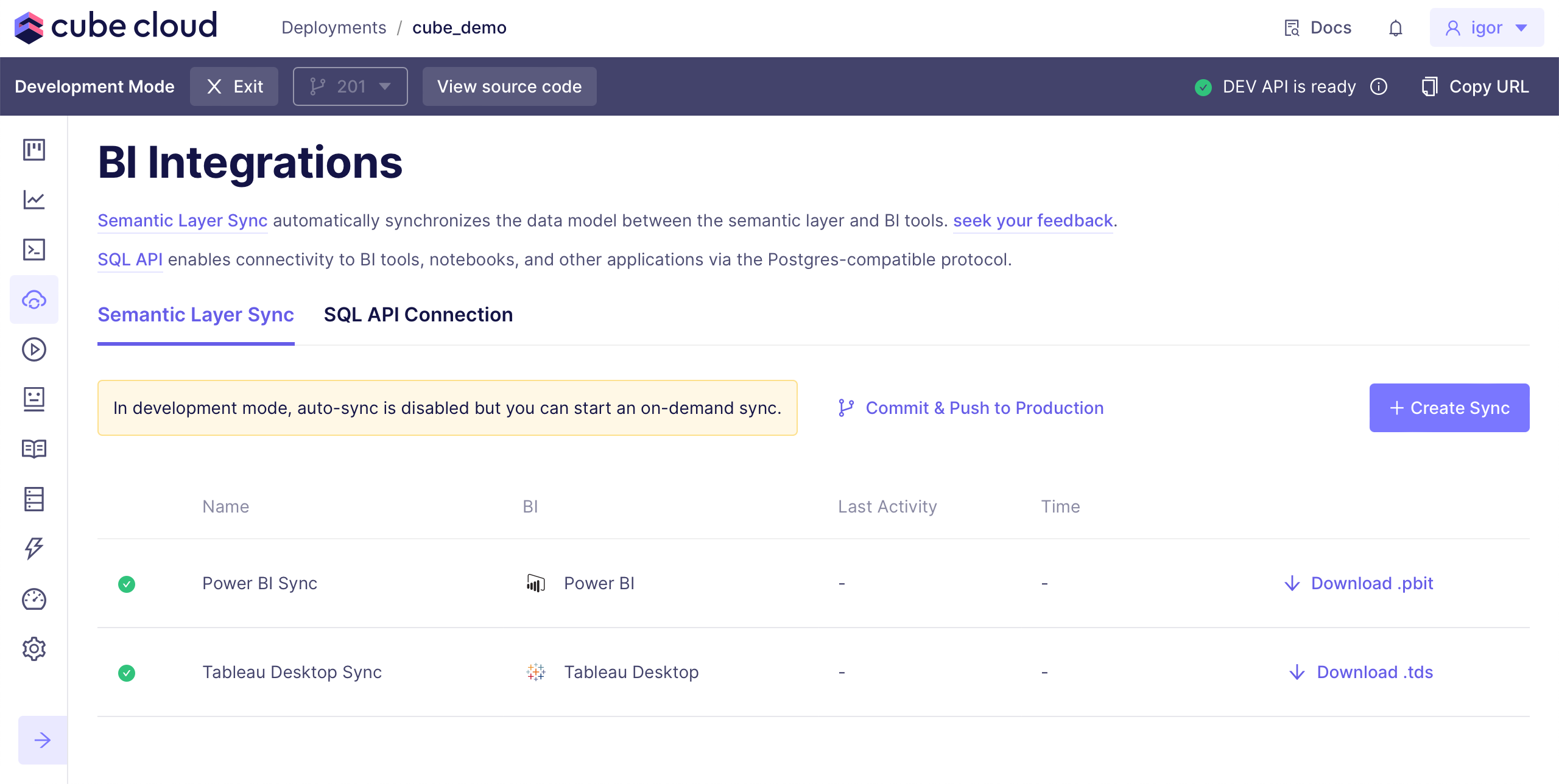 In the modal window, select one or more cubes or views and click **Download
all selected** to download a ZIP archive with Tableau data source files, one
per cube or view. You can open these files in Tableau to create data sources.
You must be logged in to Tableau Server or Tableau Cloud in your desktop
environment when you open the `.tds` file.
[tds]: https://help.tableau.com/current/pro/desktop/en-us/export_connection.htm
[tableau-api]: https://help.tableau.com/current/api/rest_api/en-us/REST/rest_api.htm
[tableau-api-authentication]: https://help.tableau.com/current/server/en-us/security_personal_access_tokens.htm#create-personal-access-tokens
[tableau-pat]: https://help.tableau.com/current/server/en-us/security_personal_access_tokens.htm
In the modal window, select one or more cubes or views and click **Download
all selected** to download a ZIP archive with Tableau data source files, one
per cube or view. You can open these files in Tableau to create data sources.
You must be logged in to Tableau Server or Tableau Cloud in your desktop
environment when you open the `.tds` file.
[tds]: https://help.tableau.com/current/pro/desktop/en-us/export_connection.htm
[tableau-api]: https://help.tableau.com/current/api/rest_api/en-us/REST/rest_api.htm
[tableau-api-authentication]: https://help.tableau.com/current/server/en-us/security_personal_access_tokens.htm#create-personal-access-tokens
[tableau-pat]: https://help.tableau.com/current/server/en-us/security_personal_access_tokens.htm