

The MCP server is available on all plans.
Users need the Viewer role or higher to interact with the MCP server. Which tools a user sees depends on their role — see Available actions.
Users need the Viewer role or higher to interact with the MCP server. Which tools a user sees depends on their role — see Available actions.
What is MCP?
Model Context Protocol (MCP) is an open standard that enables AI assistants to securely connect to external data sources and tools. The Cube MCP server acts as a bridge between your AI assistant and Cube’s analytics platform, allowing you to ask data questions directly from your coding environment.Overview
Cube hosts an MCP server endpoint. MCP clients connect over HTTPS and authenticate via OAuth.- Endpoint:
https://cubecloud.dev/mcp - OAuth flow: Authorization Code + PKCE,
client_id=cube-mcp-client, scope =mcp-agent-access. Clients discover it automatically from the endpoint — there is nothing to configure by hand. - Account selection: You sign in to Cube as part of the OAuth flow and, if you belong to more than one account, choose which one to connect.
- Deployment selection: On connect, the client lands on the tenant default deployment set by your admin (or the first deployment you can access). Clients can also target a specific deployment and agent per request — see Select a deployment and agent.
One endpoint for everyone
https://cubecloud.dev/mcp is the same URL for every account, deployment and region. Cube
identifies your account from the OAuth token and routes each request to whichever
deployment serves it, so there is no per-tenant host to look up before you can connect.
If Cube runs in your own cloud account or on your own domain, use that console domain
instead —
https://<your-console-domain>/mcp.Admin setup
Prerequisites
Before enabling MCP, make sure you have:- Admin privileges in your Cube instance
- An active Cube tenant
1) Check the MCP page
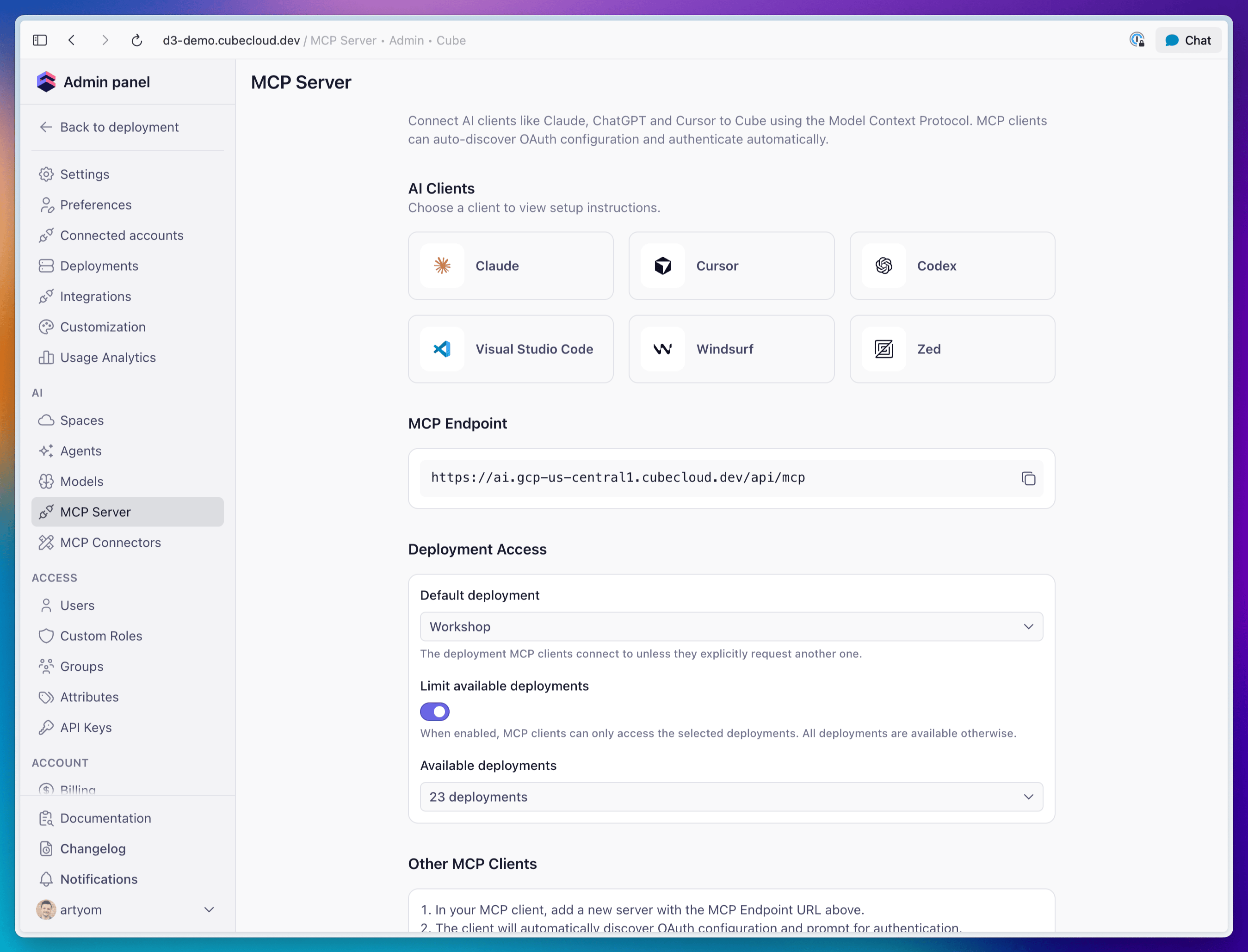
Go to Admin → MCP Server. The page shows the endpoint to hand to clients along with ready-made setup snippets for each supported client. If it reads “MCP configuration is unavailable,” the MCP server host isn’t configured for the account yet.2) Configure deployment access
Go to Admin → MCP Server and use the Deployment Access section to control which deployments MCP clients can reach and where they connect by default:- Default deployment — the deployment MCP clients connect to unless they explicitly request another one. Choose Automatic (first available) to land each user on the first deployment they can access.
- Limit available deployments — when off (the default), MCP clients can access all deployments the user is permitted to see. Turn it on to restrict MCP to a chosen subset.
- Available deployments — when the limit is on, pick the deployments MCP clients may access. Selecting none disables MCP access for the account.
Deployment access is always intersected with the user’s
role-based permissions — clients can only reach deployments the
authenticated user is allowed to see.
Connect to Claude
Cube is available in the Claude Connectors Directory. Connect it once and use it in Claude on the web, desktop, or Claude Code—there is no endpoint to paste or local server to configure.- In Claude on the web or desktop, open Customize → Connectors.
- Click +, choose Browse connectors, and search for Cube.
- Select Cube and click Connect.
- Complete the Cube OAuth flow and choose your tenant.
/mcp to confirm the connector is available and authenticate
if prompted. Alternatively, install the Cube plugin,
which bundles this server with Cube agent skills.
Connect to Cursor
Add the MCP endpoint under Tools & MCP Settings, then complete the OAuth flow.Connect to Codex
Preferred (CLI):~/.codex/config.toml:
codex mcp login cube-mcp-server to authenticate.
Connect to other MCP clients
For any MCP-compatible client:- Add a new server with the MCP endpoint.
- The client will auto-discover OAuth and prompt for authentication.
- Complete the OAuth flow to grant access to your Cube deployment.
Select a deployment and agent
An MCP client is not locked to a single deployment for the whole session. After connecting, it can discover the deployments and agents you can access and target a specific one on each request. Three tools work together:listDeployments— discovery. Returns every deployment you can access via MCP (already filtered by the admin’s deployment-access settings and your permissions) and each deployment’s agents. Use it to find validdeploymentIdandagentIdvalues before callingchat. Every deployment offers an Auto agent (agentId: null) in addition to any configured agents.chat— accepts two optional selection parameters:deploymentId— the deployment to use for this request. When omitted, the chat uses the deployment from the current session (the default resolved at connect time).agentId— the agent to use for this request. When omitted ornull, the deployment’s Auto agent is used. Pass a specificagentIdto route to a configured agent.
loadQueryResults— paginates through the results of a previous query on the same deployment context.
1
Connect
Complete the OAuth flow. The session is scoped to the tenant default deployment (or
the first one you can access).
2
Discover
Call
listDeployments to see the available deploymentId / agentId values.3
Chat
Call
chat with your input, optionally passing deploymentId and/or agentId to
target a specific deployment or agent. Omit both to use the session default deployment
with its Auto agent.Deployment <id> is not available via MCP for this account), so
neither listDeployments nor the chat selection can reach an excluded deployment.
Target a dev-mode branch
By default, an MCP session reads and queries the deployed data model. To exercise a development mode branch — a data-model change plus its agent configuration (skills, rules, spaces) — before it’s committed, connect with the devbranchName returned by startDataModelEdit:
x-mcp-branch-name header instead (checked first; mcp-branch-name is a second, lower-priority
alias). Only an active dev branch is accepted — main, the deploy branch, or a branch
with no dev worker running is rejected at connect time with a 400 error, never a silent
fallback to the deployed model.
Once connected this way, every branch-aware tool below defaults to that branch instead of
the deployed model — you don’t need to keep passing branchName on each call. Any tool
can still override it per call: pass a different branchName to target another branch for
just that one request, or pass null to force the deployed model for one call on an
otherwise branch-scoped session. Every response echoes back the branch it actually ran on
as branchName (null means the deployed model), so a client can always confirm what it
queried.
Available actions
The MCP server exposes 30 tools, grouped below. Every tool runs as the authenticated user. Queries respect the same permissions as the rest of Cube, including row-level security — MCP is a new way to reach your data, not a new access surface — with one exception, reachable two ways: deleting a workspace folder skips the content-permission check the Workspace page applies, whether it’smanageFolders or the
agent behind chat doing the deleting.
Read and write tools
Each tool is annotated as read-only, write, or destructive. MCP clients that honor these annotations — including Claude — run read-only tools automatically and always ask for confirmation before any of the nine destructive ones:updateReport, deleteReport,
manageFolders, updateDashboard, publishDashboard, writeDataModelFile,
deleteDataModelFile, mergeToDefaultBranch, and discardDataModelChanges. A tool
annotated write, not destructive, may run without a prompt — including
commitDataModelChanges, which can publish straight to production in one case; see How
model edits stay safe. A tool annotated read-only can still
cause a write once it runs — chat is that case; see Deployments and
chat.
Deployments and chat
See Select a deployment and agent for how these three
work together.
A chat conversation is pinned to whichever branch answered its first message — later
messages in the same conversation stay on that branch, and
loadQueryResults pages using
it. Passing a different branchName while resuming an existing chatId fails rather than
silently switching branches mid-conversation: omit branchName to keep talking on the
conversation’s branch, or omit chatId to start a new conversation on the one you want.
Query and discovery
Call
searchDataModel before runQuery to find exact view and member names rather than
guessing them — pass the same branchName to both so the members you find are the ones the
query will see.
Omitting branchName on a call uses the session’s branch if you connected with
one, or the deployed model otherwise; passing null forces the
deployed model for that one call regardless of the session. Passing a branchName that
isn’t an active dev branch — for example the deploy branch’s own name, or a feature branch
with no dev worker running — fails with an error rather than silently answering from the
deployed model, so a query aimed at the wrong branch never looks like a query that just
returned no rows.
Dashboard authoring
These tools build workbooks and dashboards programmatically. Creating and editing workbooks requires the Explorer role or higher.
Drafts are the safety net here:
updateDashboard only ever writes to the draft, so a
published dashboard keeps serving its previous version until you approve
publishDashboard. See Build a dashboard for the full sequence.
Call manageFolders with action: "list" first to get a folder’s numeric id — that id,
not its name, is what folderId takes on createReport and updateReport to place a
standalone exploration inside it. The annotation covers the whole tool, so a client
prompts for list as it would for delete. Its delete destroys less than the
Workspace page but checks less too.
To change an existing report, use updateReport — never recreate it. A dashboard’s
chart widget points at a specific reportId, so replacing a report with a new one orphans
every widget referencing it. The same caution applies to moving a report between workbooks:
a widget resolves its report from its own workbook’s report list, so changing a report’s
workbookId empties the tiles on the old workbook’s dashboard. Call readWorkbook and
re-point those widgets with updateDashboard first.
Data model editing
These tools read and edit the semantic model source files. They are registered only for users whose role grants permission to edit the semantic model — Admin and Developer by default. Users without it never see them.getDataModelChanges answers “what have I changed?” for your own dev branch against its
immediate parent. getBranchDiff answers “what did this branch change?” for any branch,
including feature branches — reach for it when a change edits existing cubes, where the
file list looks identical on both branches and listDataModelFiles reveals nothing.
getDeploymentEnv never returns secret values. Anything that looks like a credential is
replaced with [ENCRYPTED] before it leaves Cube, so an AI client can verify that a
variable is set without ever seeing what it is set to.How model edits stay safe
Model editing over MCP is constrained by several mechanisms — most enforced by the MCP server, one by clients that honor tool annotations, and one that is yours to apply — with one gap noted below:- File writes never touch production. Every write goes to a personal dev branch named
dev-<user>-<hash>.writeDataModelFileanddeleteDataModelFilereject any branch that isn’t a dev branch, so no file edit can land on the deploy branch directly. startDataModelEditis the only entry point. It returns the devbranchName, andwriteDataModelFileanddeleteDataModelFilerequire it. There is no way to write without going through it first.- Merging a branch to production prompts for confirmation.
mergeToDefaultBranch— the tool that publishes an already-committed branch — is marked destructive, so a client always prompts for confirmation. See Committing and publishing changes. - Registration is permission-gated. Every tool in Data model editing, Committing and
publishing changes, and Pre-aggregations — the six model-editing tools,
getBranchDiff,getDeploymentEnv, the six commit and branch tools, and both pre-aggregation tools — is offered only to users whose role allows editing the semantic model. A Viewer never sees any of them. - Deploy-branch writes are permission-checked at call time. A role scoped to Edit data
model on dev branches still sees every tool listed above registered, but
mergeToDefaultBranchandcommitDataModelChangeswithconfirmPublishToDefaultBranchfail for that role, the same as any other write targeting the deploy branch. - Verify on the branch, before a merge, not after. Pass the dev
branchNametorunQueryto check that an edit returns the right data —valid: truefromwriteDataModelFileonly means the model compiles, not that it’s correct.
Committing and publishing changes
Editing the model with the tools above only ever writes to a personal dev branch’s working copy — reachable on that branch’s endpoints, and in the Cube UI once you’ve switched to it, but invisible to everyone else until it’s committed. These tools commit that work, publish it, or throw it away. They’re registered under the same semantic-model permission as the data model tools above, and a client can call them without ever using the Cube UI.
These mirror the “Commit & Sync”, “Merge” / “Create a Pull Request”, and branch-switching
actions described in Development mode — a client can now drive that same
flow instead of asking you to click through it. One difference: the UI’s Merge button
targets the branch’s parent, whichever branch that is, while
mergeToDefaultBranch
always targets the deploy branch.
Call getBranchState before editing, to see whether the MCP session’s branch and the
branch your Cube UI shows are the same, and again after committing, to see whether you
still need switchUserBranch to see the result.
Pre-aggregations
These tools inspect and trigger pre-aggregation builds. They are registered under the same semantic-model permission as the data model tools above.
Together these close the loop on pre-aggregation work: a query alone cannot prove a rollup
was used, and external pre-aggregations fail in configuration-specific ways — a missing
export bucket, denied bucket permissions — that only an actual build surfaces. Call
buildPreAggregation, then poll getPreAggregationStatus to see whether the partitions
built or to read the failure.
buildPreAggregation runs real queries against your data warehouse and, for external
pre-aggregations, writes through the export bucket. It consumes warehouse resources, so
expect a cost per build.Example workflows
Ask a data question
Ask a question in natural language and let the agent do the planning:chat returns the
answer along with the SQL it generated, and loadQueryResults pages through large result
sets. Use this for summaries, trends, and ad-hoc analysis.
To drive the query yourself instead, call searchDataModel to find the right view and
members, then run your own SQL with runQuery.
Build a dashboard
Four of the dashboard tools build a new dashboard, and they are designed to be used in order.readWorkbook, readReport, updateReport, and deleteReport inspect and
change one that already exists, and manageFolders organizes the workspace folders
those workbooks and dashboards live in.
1
Create the workbook
Call
createWorkbook with a name. It returns the workbookId every later step needs.
If you were given an existing workbook to build into, call readWorkbook instead and
skip to the next step.2
Create a report per chart
Call
createReport once per chart, KPI tile, or table, passing the workbookId and
the SQL query that powers it. Each call returns a reportId.3
Lay out the dashboard
Call
updateDashboard with the complete widget set, referencing each reportId from
the previous step. This replaces the draft layout and saves to the workbook draft —
the live dashboard is unchanged. Your client will ask you to confirm.4
Publish
Review the draft, then call
publishDashboard to make it live. This also prompts for
confirmation. It returns the dashboard URL.readWorkbook first and edit on top of the current
draft rather than overwriting it. To change one chart rather than the layout, call
readReport on the widget’s reportId and edit it with updateReport — that keeps the
id, so every widget pointing at it keeps rendering.
Edit the data model
CallstartDataModelEdit to enter development mode and get a dev branchName. Explore
the current source with listDataModelFiles and readDataModelFile, then apply changes
with writeDataModelFile or deleteDataModelFile, passing that branchName. Each write
recompiles the model and reports validation errors, so you can iterate until it compiles.
Before committing, verify the change returns the right data: call runQuery with the same
branchName and check the numbers, since a compiling model can still return wrong results.
Review the result with getDataModelChanges, then see Ship a model
edit to land the change and make it live.
To review a branch you didn’t author — a colleague’s feature branch, say — call
getBranchDiff with its name instead. It compares against the deploy branch and returns
the full changed-file list even when the patch itself is trimmed.
Ship a model edit
OncewriteDataModelFile edits compile and runQuery confirms they return the right
data, call commitDataModelChanges to land them on the branch the dev branch forked
from — read How model edits stay safe first if that
branch is the deploy branch. Use commitToNewBranch instead to put them on a new
branch, optionally with a pull request.
Either way, use switchUserBranch to point your own Cube UI at the result so you can
see it. mergeToDefaultBranch is the publish step: it makes the branch live for
everyone, so call it only when you want the change in production — no tool reverts it
afterwards. If an edit isn’t working out, discardDataModelChanges throws it away
instead of committing it; it resets the dev branch only, so it is not an undo for a merge.
Verify a pre-aggregation
After adding or changing a pre-aggregation, callgetPreAggregationStatus to see whether
its partitions exist and when they were last built. If nothing has been built yet — or you
want to confirm an external pre-aggregation’s export bucket actually works — call
buildPreAggregation, then poll getPreAggregationStatus again. A failed build reports
the exact error, which is usually a configuration problem rather than a modeling one;
getDeploymentEnv will tell you whether the expected variables (CUBEJS_DB_EXPORT_BUCKET
and friends) are set.
Troubleshooting
- MCP configuration is unavailable: Configure the MCP server URL.
- MCP OAuth integration is not configured: Enable MCP in Admin → Team & Security → OAuth Integrations.
- No deployments available / MCP access is disabled: In Admin → MCP Server → Deployment Access, make sure Limit available deployments is off, or that at least one deployment is selected and the user has permission to access it.
Deployment <id> is not available via MCP for this account(403): The requested deployment is excluded by the deployment-access allow-list or by the user’s permissions. CalllistDeploymentsto see which deployments are reachable, or adjust the allow-list in Admin → MCP Server → Deployment Access.