

:name placeholder. Each parameter has a type
and a default. A report can set its own value, and a dashboard
filter can fill the parameter for every
chart that uses it.
Use a parameter for a value that the semantic view’s members can’t express as
a filter, or that several reports should share: a threshold in a HAVING
clause, a row limit, a date inside a CTE, or a value
that one dashboard filter sets across charts built on different semantic views.
Creating a parameter
Parameters belong to the workbook, so every report in it can use them. To create one in a workbook report:- Open the ”…” menu in the semantic view’s header in the left pane and choose Create parameter.
- Or, once the workbook has a parameter or the report’s SQL uses a
:name, click + in the Parameters section of the left pane.
Click Create to save it. Create stays disabled while the default isn’t
a valid value for the type.
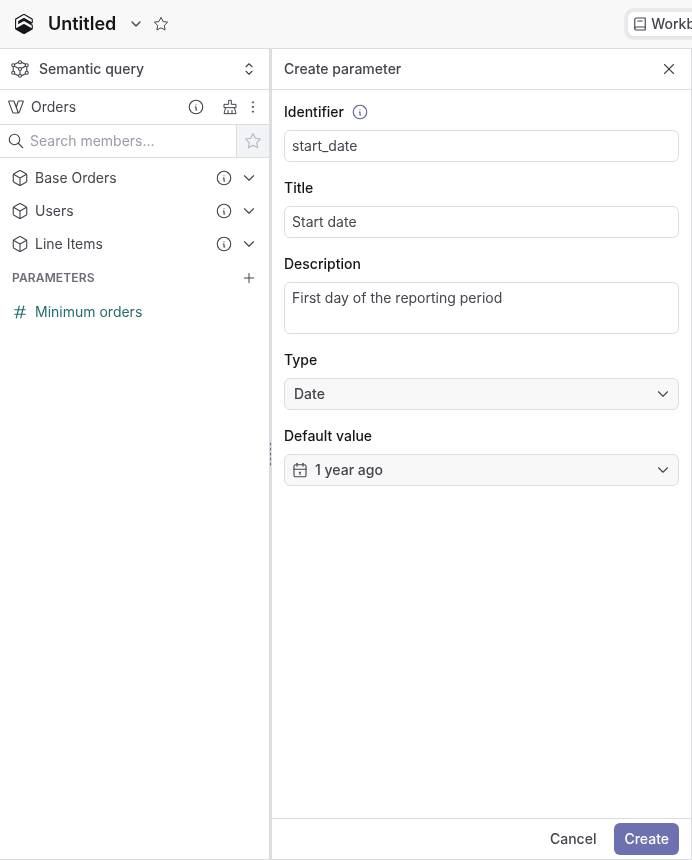
:name that the workbook doesn’t have, the
Parameters section lists it as a muted :name row. Click the row to open
Create parameter with that identifier filled in. The report doesn’t run
until the parameter exists: instead of an error, it shows Create a parameter
to run this query (or Create parameters to run this query when several are
missing) with a Create :name button for the first one. With
auto-run on, the report runs as soon as you create the last
missing parameter.
Types
The type decides what the default and every value must be, and how Cube writes the value into the SQL:
A parameter holds a single value. There is no list type, so a parameter can’t
stand for the values of an
IN (…) list.
Type lists Date and time only when you edit a parameter that already
has that type. A new parameter can’t take it. A bare date, such as
2026-01-31, is that day’s midnight.
Changing the type resets the default.
Relative date defaults
The Default value of a Date parameter opens the same popover as a date filter, with the Presets, Relative and Fixed tabs. Pick a fixed date, or a relative one such as Today, 7 days ago or Start of last month. A relative default is resolved again on every run, so a report that opens on “7 days ago” always shows the last week without editing.Editing and deleting a parameter
Open a parameter’s ”…” menu in the Parameters section and choose Edit parameter or Delete parameter. Users who can’t edit the workbook see its parameters but can’t create, change or delete them. Changing the Identifier doesn’t change the SQL that uses it. Reports that still use the old name stop running until you update their SQL or create a parameter with that name again. The same happens to reports that use a deleted parameter.Using a parameter in SQL
Write:name anywhere the SQL takes a value: in a WHERE or HAVING
condition, in LIMIT, in a select expression, or inside a CTE. Parameters work
in reports built on a semantic view and in advanced semantic
queries. Edit the Semantic SQL to add
one. The editor highlights each placeholder.
- The name is case-sensitive:
:Startdoesn’t match a parameter namedstart. - A
:nameinside a string literal, a quoted identifier or a comment is left as it is. So is the second colon of a::typecast. - Before the query runs, Cube replaces each placeholder with its value, as
Types describes. The Generated SQL tab shows the database SQL
that Cube generates from the filled query. There, a value can appear as a
literal or as a
?placeholder that the database fills.
Errors
Using a parameter in a filter
A filter on a member can take a parameter instead of a fixed value. In the filter’s value popover, switch from Value to Parameter and pick the parameter. On a time member, open the Parameter tab next to Presets, Relative and Fixed. Abetween filter takes a Start
and an End parameter.
The list offers only the parameters whose type fits the member and the
operator. The contains, starts with and ends with family takes
String parameters only. Filters on calculated fields and buckets can’t take
a parameter. If the chosen parameter is deleted or no longer fits, the filter
shows The :name parameter can’t be used for this filter.
The filter writes :name into the Semantic SQL where its value would go, so
the parameter behaves as if you had typed it.
Setting a report’s value
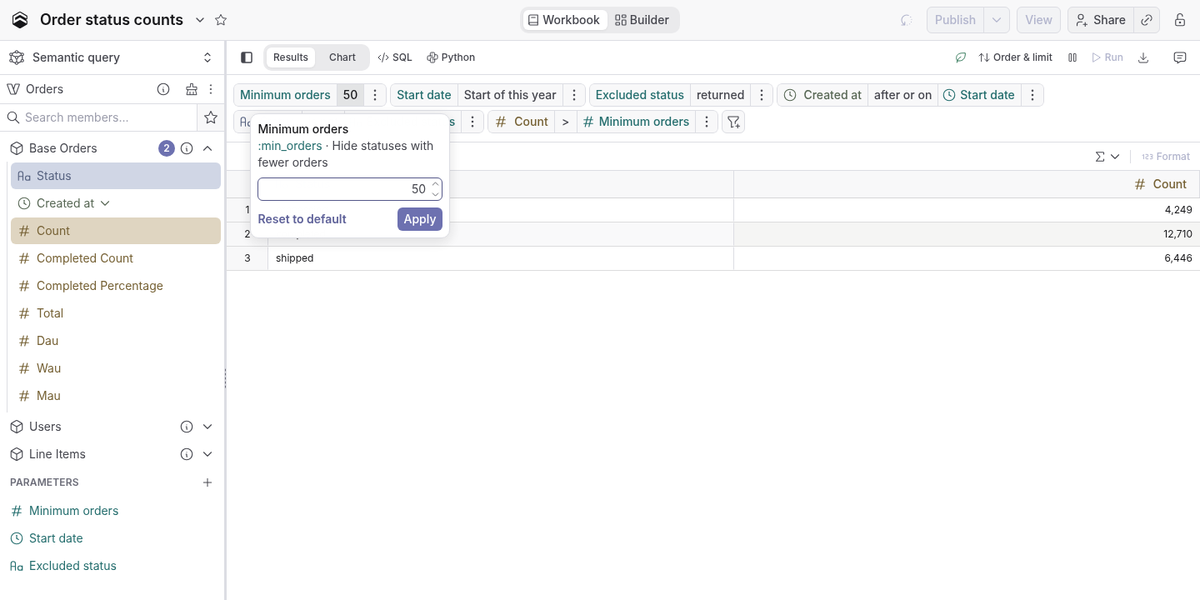
Each parameter that the report’s SQL uses has a chip in the filter row, ahead of the filter chips. The chip shows the parameter’s title, or:name, and its
current value. In an advanced semantic query, the parameter chips are the only
chips in the row.
Click the chip to set the report’s own value:
- For a String, Number or Boolean parameter, enter the value and click Apply, or press Enter.
- For a Date parameter, the chip opens the date popover with the Presets, Relative and Fixed tabs. Its footer shows Default: ….
Filling parameters from a dashboard
A dashboard filter can fill a parameter instead of filtering a member. In Configure filter, switch from Member to Parameter and pick the parameter. A filter on a Date parameter can also fill an End of range parameter, so one date range control sets both:start_date and :end_date.
The filter fills every chart whose SQL uses the parameter, whatever semantic
view the chart is built on, and its value wins over the report’s own value. A
chart can opt out in Controls mapping.