Step 1: Create an account
Navigate to cubecloud.dev, and create a new Cube Cloud account.Step 2: Create a new Deployment
Click Create Deployment. This is the first step in the deployment creation. Give it a name and select the cloud provider and region of your choice.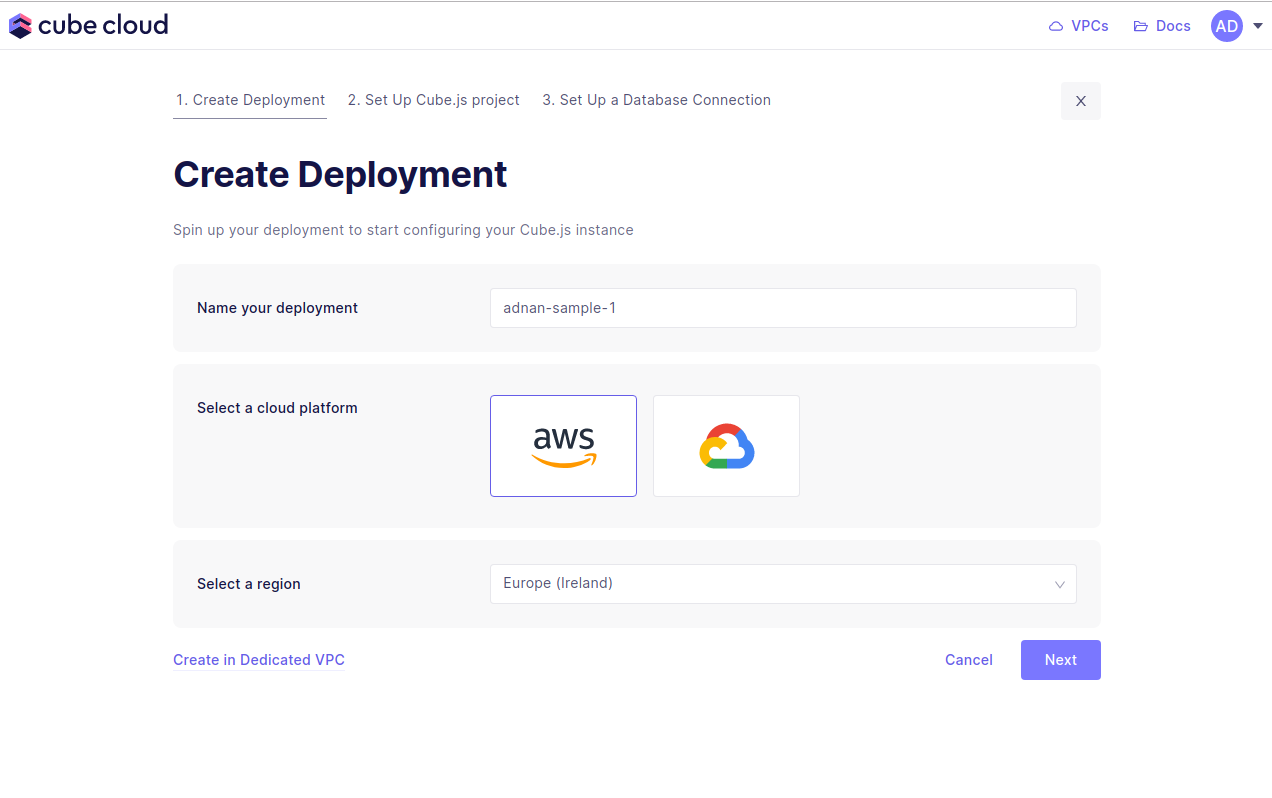
Microsoft Azure is available on Enterprise plan.
Contact us for details.
Step 3: Import repository from GitHub
Next up, click Import from a GitHub repository. This will pop open a GitHub app authorization dialog where you must first install the Cube Cloud GitHub app to the desired organization. After authorizing Cube Cloud to access your GitHub repository, you should see the following screen in Cube Cloud:Step 4: Connect your Database
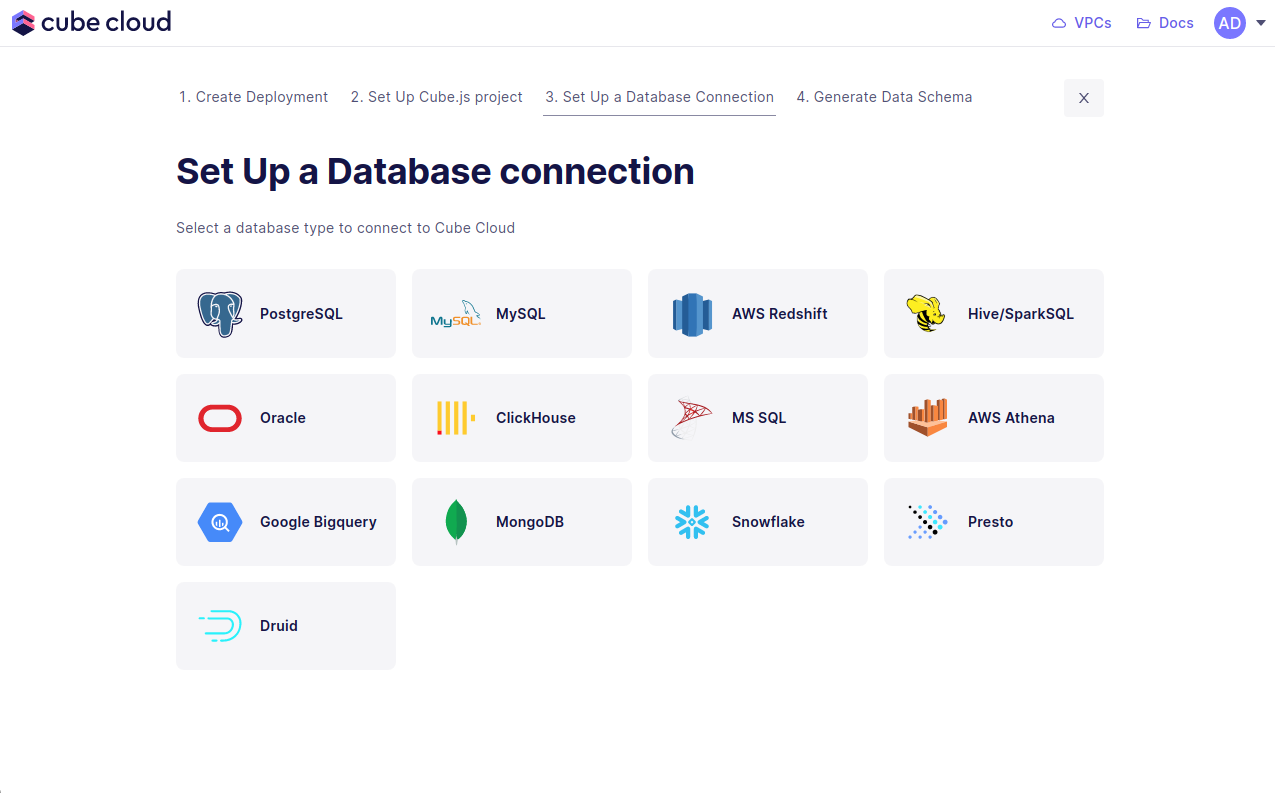
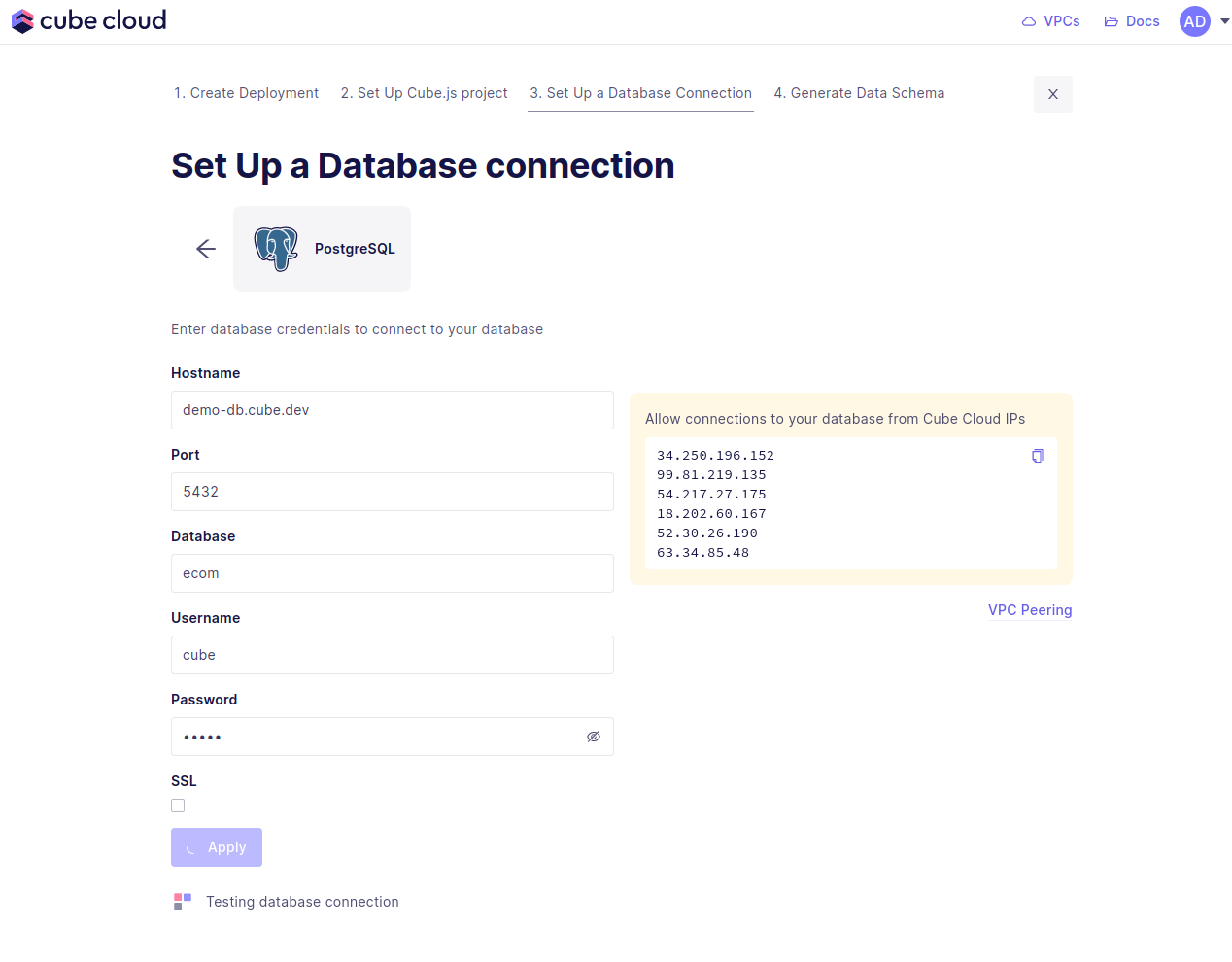
Enter your credentials to connect to your database. Check the connecting to databases guide for more details.Want to use a sample database instead? We also have a sample database where you
can try out Cube Cloud:
Step 5: Generate the Data Model
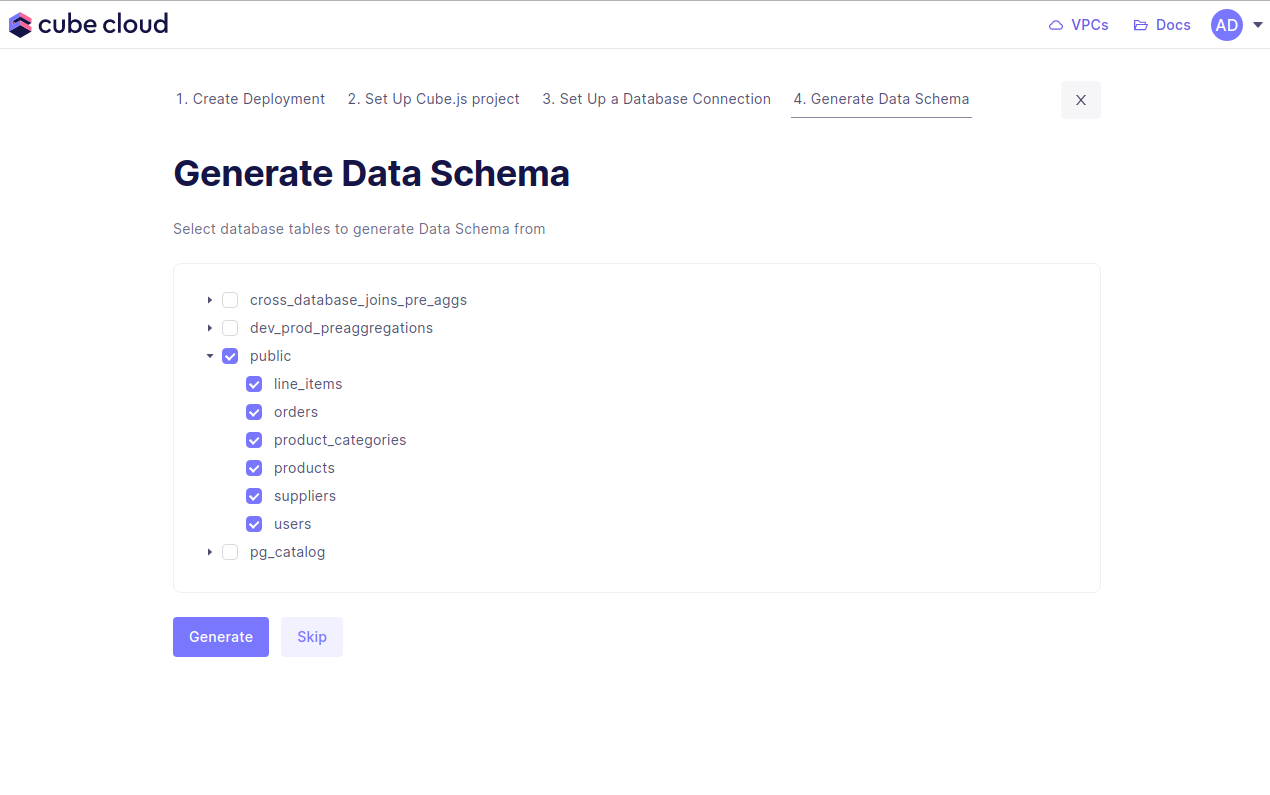
Step four in this case consists of generating data models. Start by selecting the database tables to generate the data models from, then hit Generate.